

Conditional Formatting (CF) helps visually highlight important trends and patterns in charts and tables using rule-based color formatting. You can apply thresholds, ranges, and color scales to emphasize performance changes, outliers, and key metrics across supported visualization types. When a Report widget is added to a Dashboard, its Conditional Formatting rules are copied automatically. Changes made in the Dashboard remain local and do not affect the original Report. Conditional Formatting is supported for Line, Area, Column, Horizontal Bar, Multiseries, Table, and Map Charts.
Enabling Conditional Formatting
To add Conditional Formatting:
1. Open the chart or table editor.
-20260513-044835.gif?cb=33bbf67c824e52e1afb6d838bee398d2)
2. In the Widget tab, locate the Conditional Formatting section.
-20260513-050412.gif?cb=5a5cb7ad57421b08d988945813f0710d)
3. Expand the section and turn the toggle ON.
5. Save the rule. Existing rules become active immediately when Conditional Formatting is enabled.
Configuring Rules
Each rule applies formatting to a selected metric based on defined conditions.
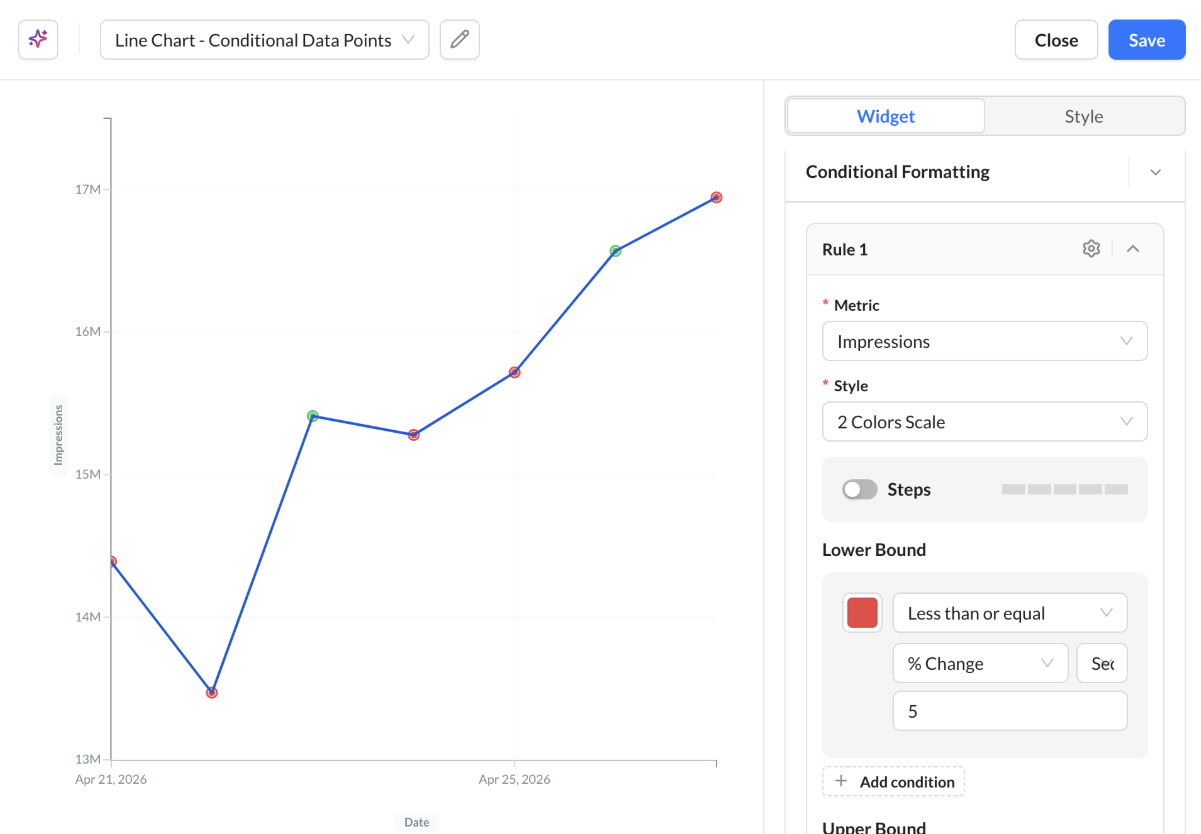
To create a rule:
1. Click Add Rule.
2. Select the metric to evaluate.
3. Choose a color scale style.
Use Steps
Enable Steps when you want distinct color bands instead of a smooth gradient. This option is useful for categories such as Low, Medium, and High, or for clearly separated performance ranges.
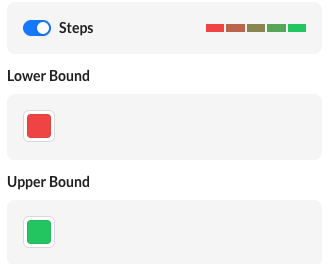
Example: Use a three-color scale with Steps enabled to show conversion rates below 2% as Low, 2%–5% as Medium, and above 5% as High.
For tables, cell background and text formatting can each have an independent Steps toggle. Changing the color scale style resets the existing threshold values.
Use Threshold Conditions
Use threshold conditions when formatting depends on specific values, statistical comparisons, percentage changes, percentiles, or another metric. After selecting a color scale, define the lower bound, midpoint, or upper bound as needed.
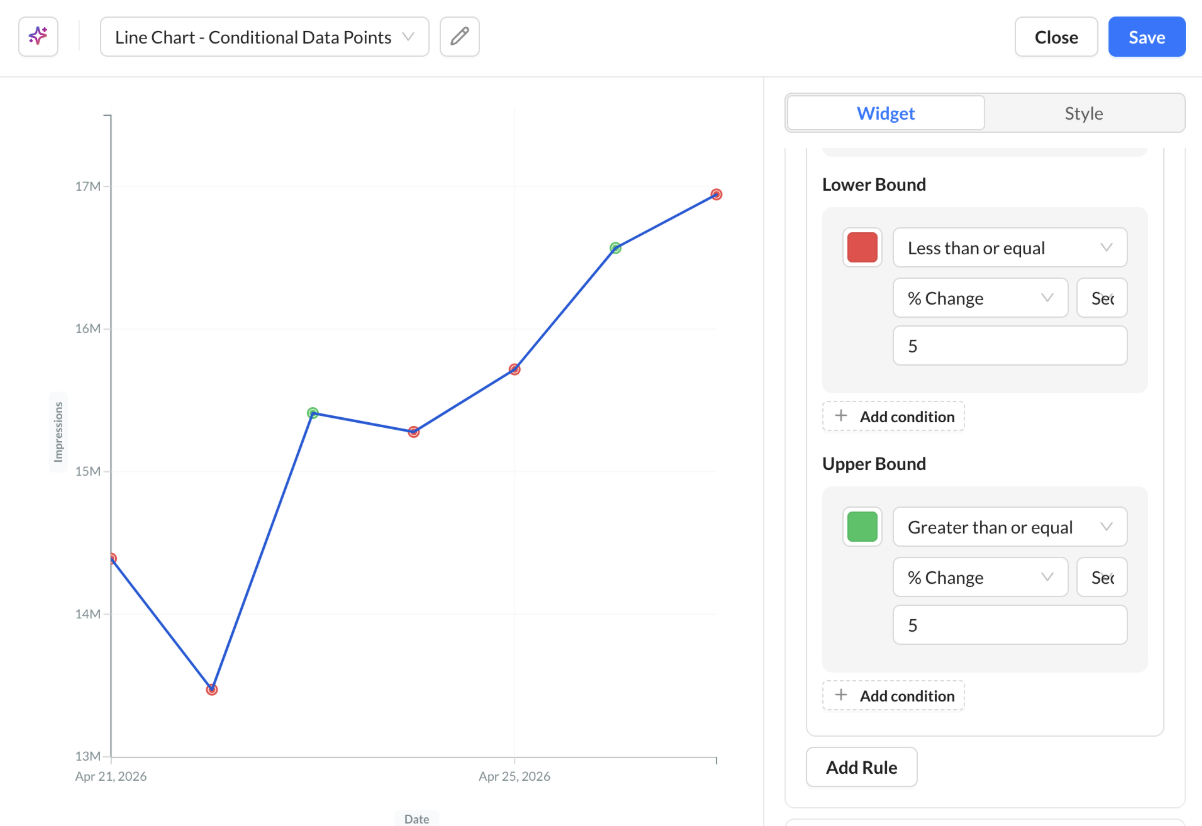
Each endpoint can contain multiple conditions joined with AND or OR. Supported comparisons include manually entered values, statistical aggregates, percentage change, percentiles, and comparisons between metrics.
Example: Apply a green format when Conversion Rate is greater than or equal to 5%, and a red format when it is less than 2%.
Choose Use Steps for discrete bands, or Use Threshold Conditions for rules driven by precise comparisons. You can combine these approaches across different rules in the same widget.
1. Click Add Rule.
2. Select the metric to evaluate.
3. Choose a color scale style.
Use Steps: Select this option for distinct color bands and discrete ranges.
Use Threshold Conditions: Select this option to define precise comparisons using values, aggregates, percentage changes, percentiles, or other metrics.
4. Choose one of the following paths:
5. Save the rule.
You can create multiple rules for the same widget and reorder them to control rule priority.
If multiple rules overlap, the highest-priority rule is applied first.
Reorder rules (priority)
-
In the Conditional Formatting rule list, locate the rule you want to move.
-
Drag the rule using the handle or drag icon next to its row, and drop it in the desired position. If up/down arrows are available, use them to move the rule instead.
-
Save the widget to apply the new order.
Tip: Rules higher in the list have higher priority. If you do not see a drag handle, look for an arrow or drag control on the rule row.
Metric Selection
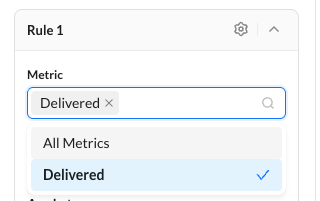
Charts and Maps
-
Rules apply to one metric at a time.
Tables
-
Rules can apply to:
-
Individual metrics
-
Multiple selected metrics
-
All Metrics
-
Rules created for a specific metric override an existing All Metrics rule for that metric.
Color Scale Styles
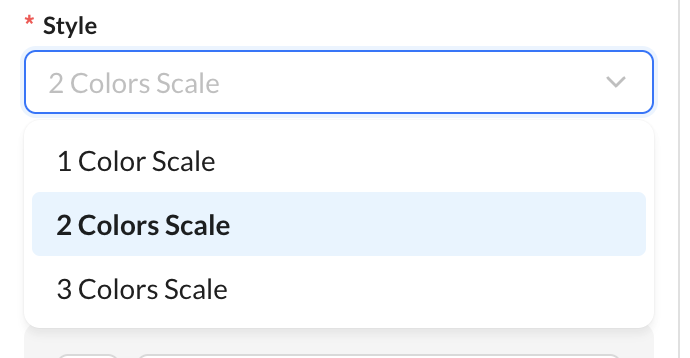
|
1 Color Scale |
|
|---|---|
|
2 Color Scale |
|
|
3 Color Scale |
|
Changing the style resets previous threshold values for that rule.
Steps (banded colors)
As noted in the Configuring Rules flow above, when Steps is enabled, gradients are displayed as distinct color bands instead of smooth transitions.
This is useful for clearly separated categories such as Low, Medium, and High, or for discrete threshold ranges where each band should have a clear meaning.
Threshold Conditions
Each rule can contain one or more threshold endpoints:
-
Lower Bound
-
Midpoint
-
Upper Bound
Each endpoint may contain multiple conditions joined with AND, OR
Supported comparison types include:
|
Type |
Description |
|---|---|
|
Input Value |
Compare against a manually entered value |
|
Average / Median / Min / Max |
Compare against a statistical aggregate |
|
% Change |
Compare against sequential or average percentage change |
|
Percentile |
Compare values using percentile ranking |
|
Metric Comparison |
Compare one metric against another |
Supported operators:
-
Less than
-
Less than or equal
-
Greater than
-
Greater than or equal
Table-Specific Formatting
Tables support additional formatting controls. You can apply formatting to table cells or text values using metric-based rules.
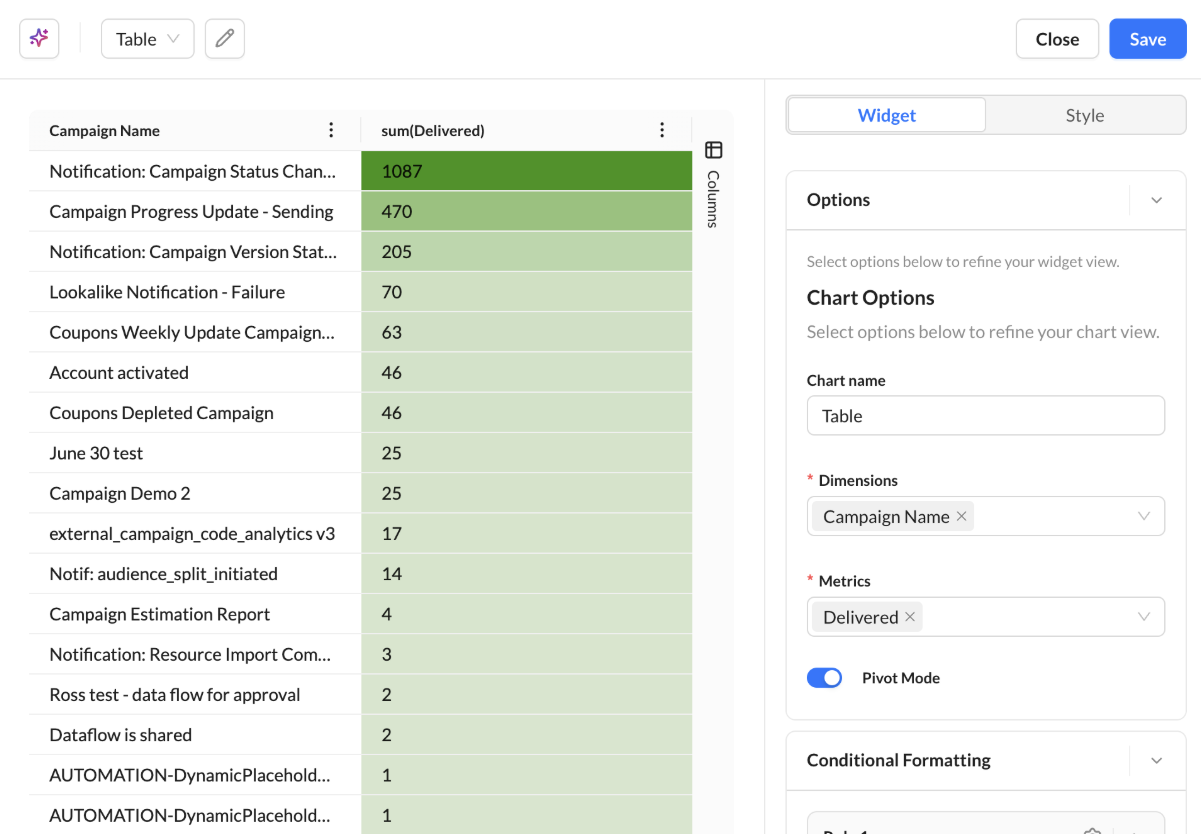
-
You can apply color to the table cell background.
-
You can apply color to the metric value text.
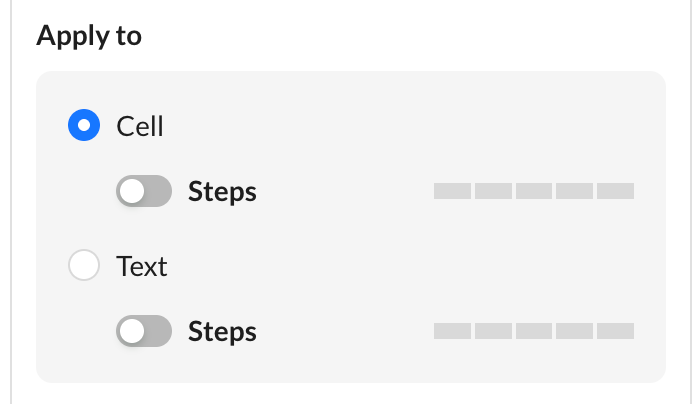
Both modes support independent Steps toggles.
Trend Lines
Available for chart visualizations only.
Trend line options allow you to:
-
Show or hide a trend line
-
Show or hide trend line labels
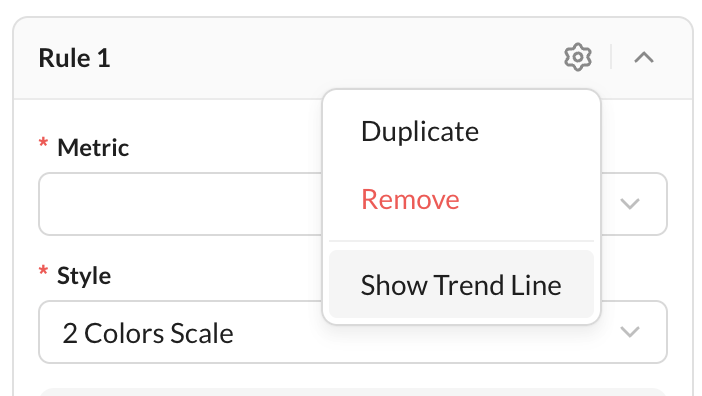
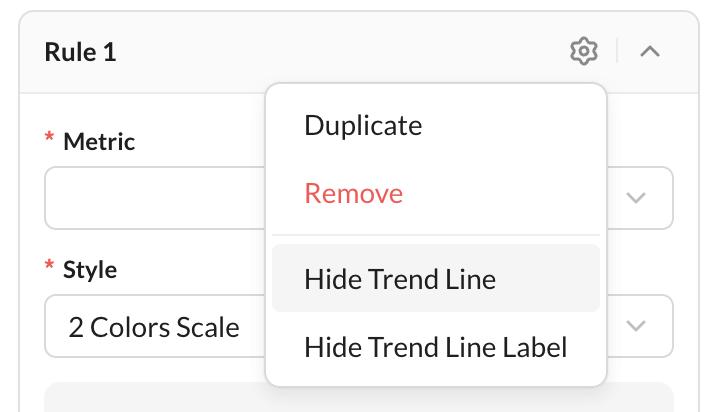
Trend lines are supported only for compatible threshold types, such as Average, Median, and Input values.