
Creating Dashboards
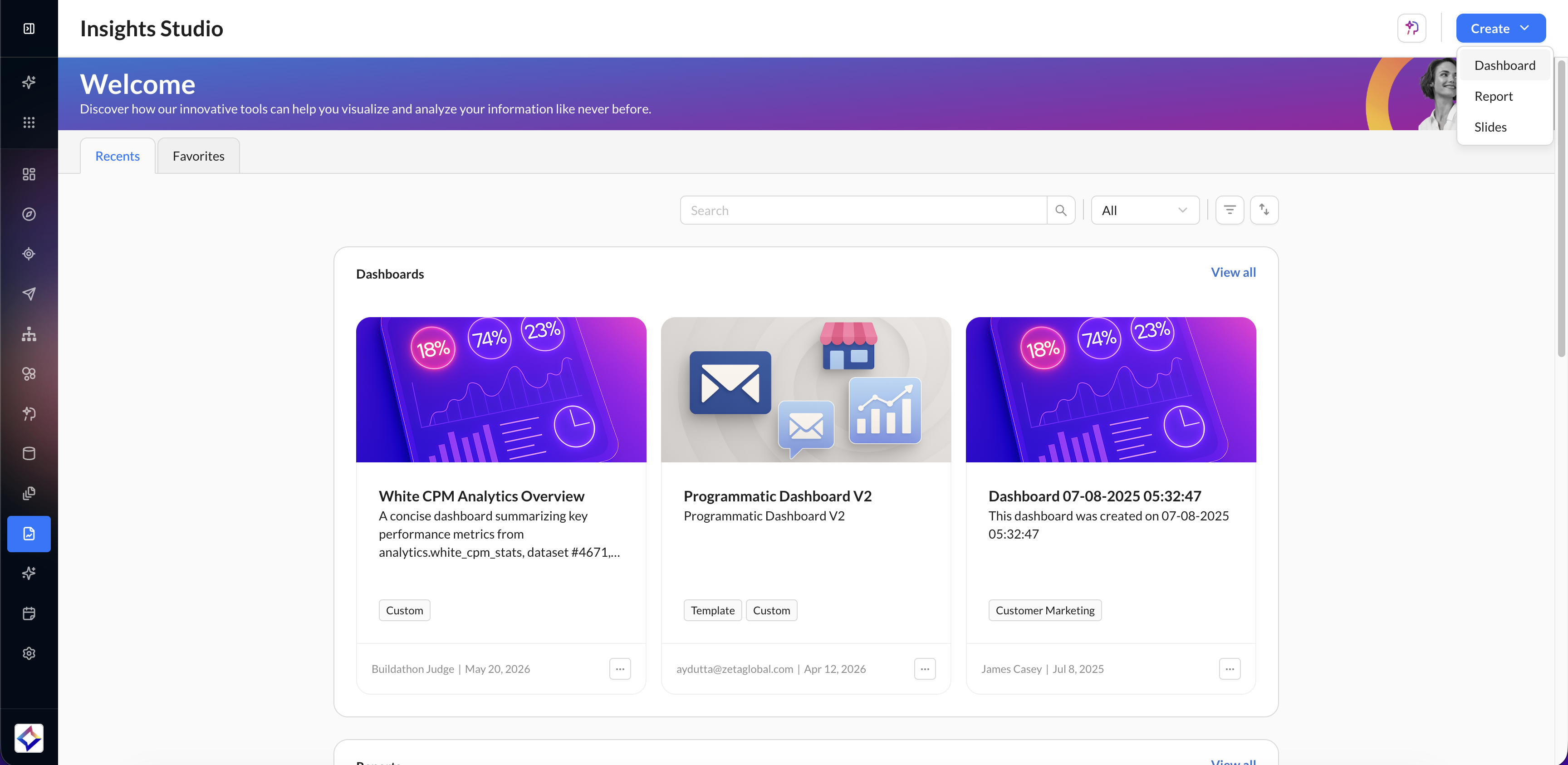
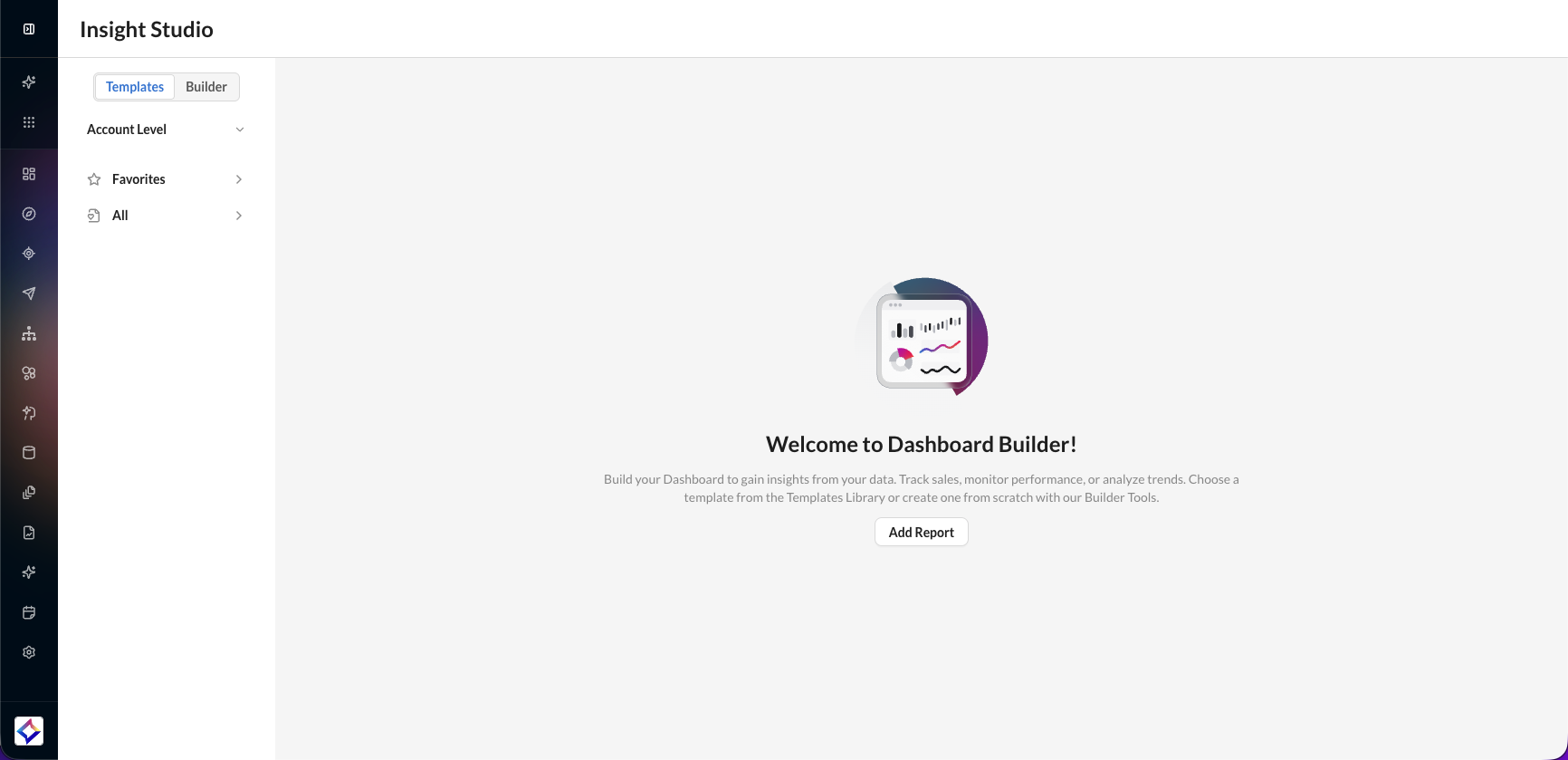
To build a multi-widget, visual overview of your data, click on the blue Create button in the top right corner and choose Dashboard from the dropdown.
You can also turn a saved report into a dashboard in one click. See Create a dashboard from a report.
-20250722-130550.gif?cb=6279383d6af5d612ec5477e15282ee5a)
Step 2: Select Fields
Define the fields that will serve as dashboard-level filters, enabling consistent filtering across all included reports.
-20250722-133237.gif)
-
Select a Primary Report that will serve as the source for global filters.
-
Under Dimensions or Metrics, choose the fields that will be used as dashboard filters.
-
Select the corresponding Secondary Reports to prepare for filter mapping in the next step.
These selections lay the foundation for linking filters across datasets with different schemas.
Step 3: Configure Filters
Establish mappings between the dashboard filters (from the Primary Report) and the corresponding fields in each Secondary Report.
-20250722-133301.gif?cb=4aaec4cffaf4f05216f3c0544a2898df)
-
In the Secondary Reports section, select fields that match or align with the Primary Report filters.
-
This mapping ensures that filters applied at the dashboard level are propagated uniformly across all selected reports.
By aligning filter fields, you maintain data consistency and accuracy across your entire dashboard view.
Step 4: Review Summary
In the final step, review your dashboard configuration before saving.
-20250722-134251.gif?cb=faf294b9d89040c4ed7dee140be6564e)
-
Click Save to finalize and create your dashboard.
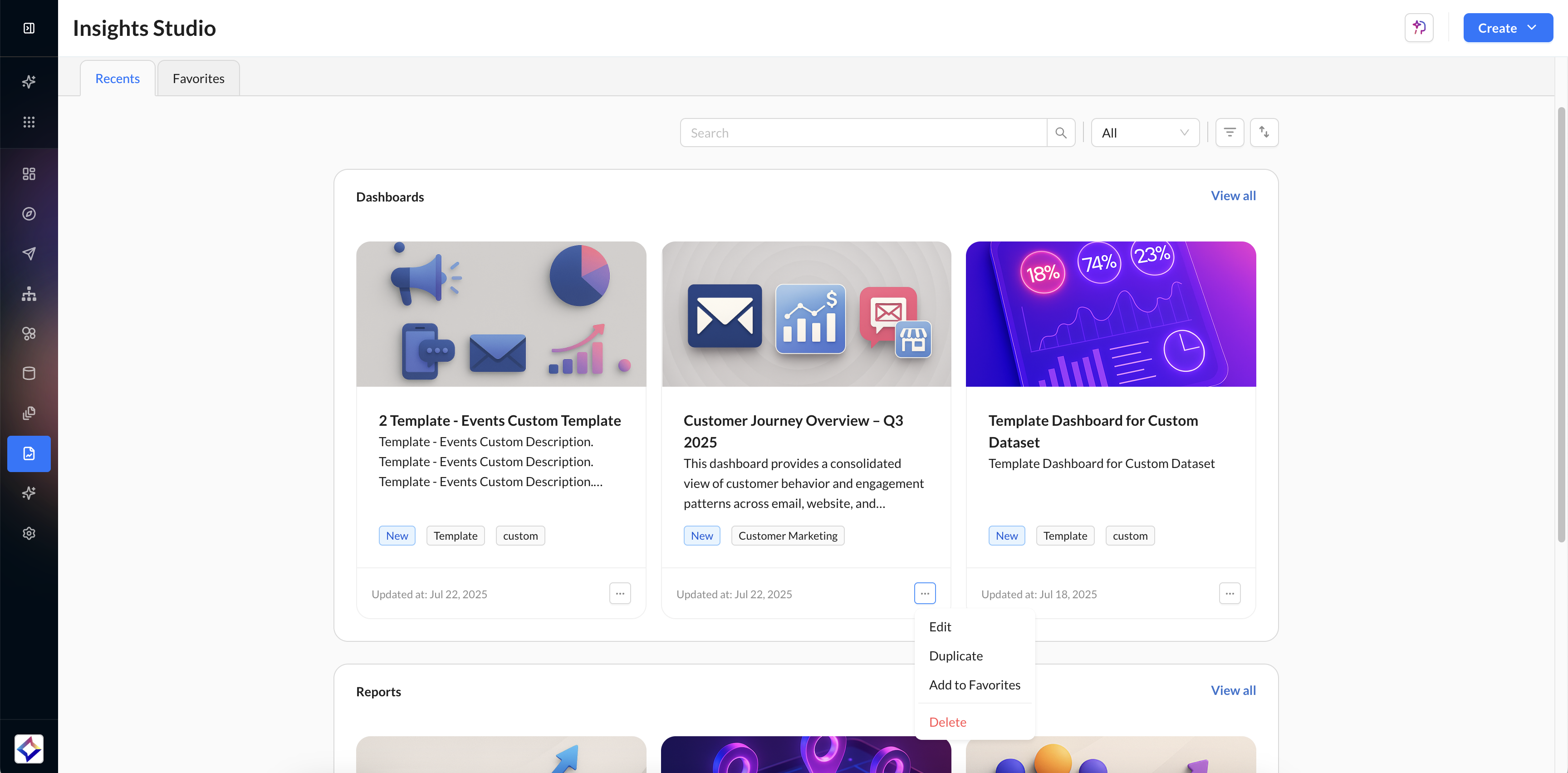
After saving your dashboard, you’re redirected to the Insights Studio home screen, where your newly created dashboard appears under Dashboards > Recents.
-
From here, you can:
-
Open the dashboard to view and interact with live data
-
Edit dashboard configurations and filters
-
Favorite, share, or duplicate the dashboard
-
Apply global filters and visualize metrics using pre-configured widgets
-
Create a Dashboard from a Report
You can also turn a saved report into a dashboard in one click, then use dashboard-only capabilities such as Athena Brief and PowerPoint export. The Save as Dashboard action appears on an existing (saved) report, to the right of Create new Chart.
1. Open a saved report in Insights Studio.
2. Click Save as Dashboard.
3. Insights Studio creates a new dashboard from the current report, adds all report widgets as a single section, and opens the dashboard.
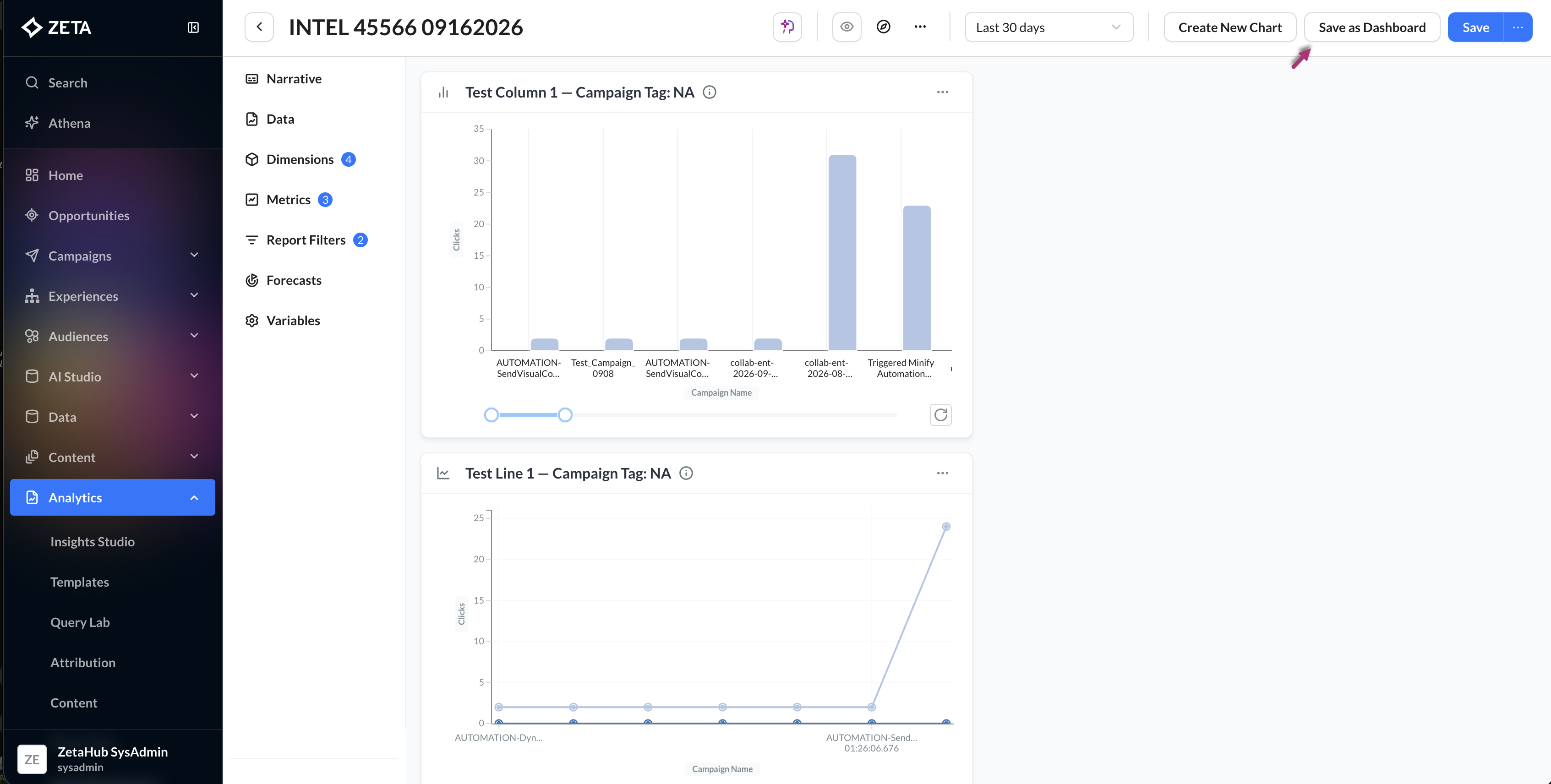
When a report becomes a dashboard:
-
Report-level filters become dashboard In-View filters.
-
Widget-level filters stay as local filters on those widgets.
-
You can then use Athena Brief, export to PPTX, and use the rest of the dashboard workspace.
Save as Dashboard is available only on reports that have already been saved. Unsaved new reports do not show the action. See Report Building.
Dashboard Workspace & Navigation
The Insights Studio dashboard experience provides a streamlined workspace for creating, managing, and interacting with dashboards.
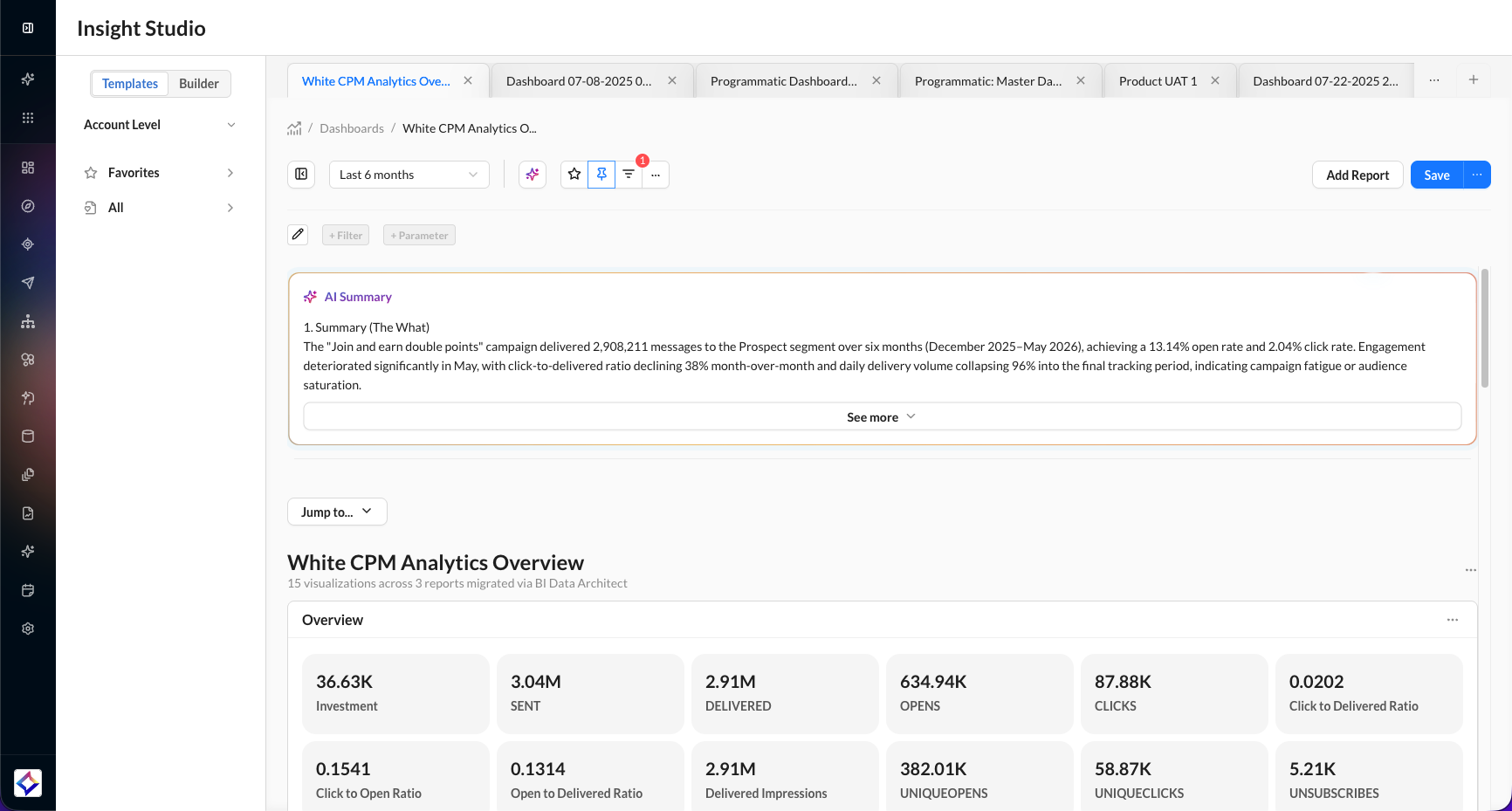
Key interface areas include:
-
Insights Studio Top Bar for navigation and workspace context
-
Dashboard Tabs for switching between multiple open dashboards
-
Action Bar for filters, date ranges, saving, and dashboard actions
-
Widget Canvas displaying dashboard visualizations and reports
-
Overview Panel for AI-generated dashboard summaries and key insights
The unified workspace allows users to manage dashboard interactions without leaving the current view.
Reports, dashboards, and widgets share more consistent layouts, actions, and visual patterns, so moving between analytics views takes less relearning.
Using the Action Bar
-20260520-090635.gif?cb=0d1d99f955af0ca334400776a551c650)
Available controls include:
-
Date Range Picker for applying a global dashboard time range
-
Filter Controls for adding and managing dashboard filters
-
Favorite to bookmark dashboards for quick access
-
More Actions (⋯) for additional dashboard settings, export options, and dashboard controls
-
Add Report to add new widgets to the dashboard
-
Save to persist dashboard layout and configuration changes
Exporting a Dashboard
Insights Studio dashboards can be exported directly into presentation-ready files for sharing with internal and external stakeholders.
Export to PPTX
To generate an executive-ready PowerPoint deck from a dashboard:
1. Open the dashboard you want to share.
2. Click ⋯ (More Actions).
3. Select Export → PPTX.
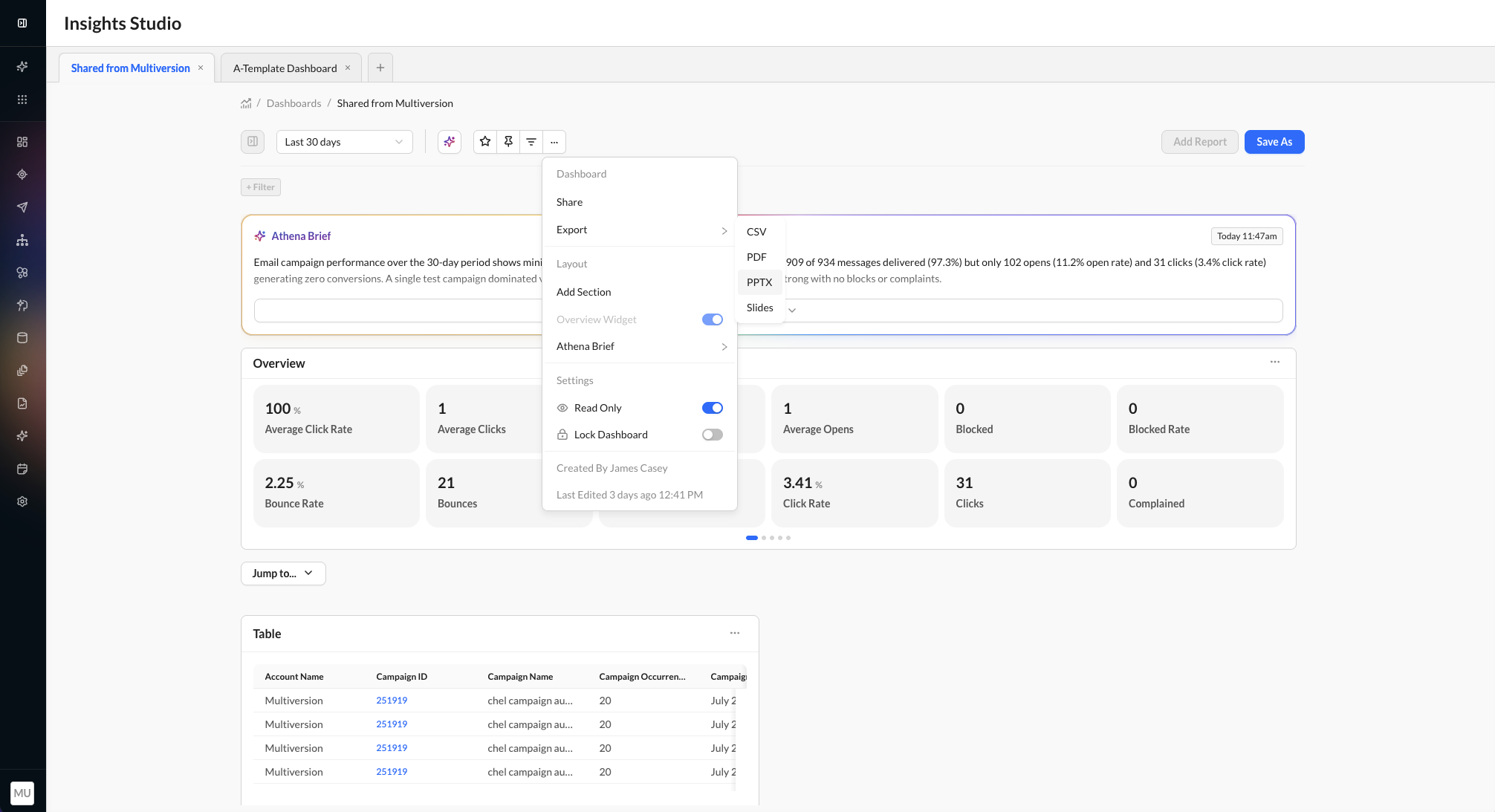
4. Wait while the deck is generated. During processing, the action area shows Generating pptx.
5. When the deck is ready, click Download pptx.
The downloaded deck reflects the dashboard's current filters and date range and is designed for presentation use. Depending on the dashboard, the export can include:
-
AI-generated summary content
-
Key takeaways
-
KPI overview slides
-
Presentation-ready chart visuals and tables
Export behavior
-
PPTX export works on existing dashboards. No migration or rebuild is required.
-
The deck is generated from the live dashboard context, including the data currently visible in the dashboard.
-
Existing export options such as CSV, PDF, and Slides continue to work as before.
-
If generation fails, an error notification appears so you can retry the export.
Widget tooltips
Hover a chart widget to inspect values without changing the query. Tooltips are designed for faster reading:
-
Easier targeting: On bar and column charts, hover anywhere in the column. On line charts, the tooltip snaps to the nearest x-axis value.
-
Clearer comparison: Multi-series charts show values for the series at the selected point (up to 10 metrics). The hovered series stays emphasized; other series dim.
-
Consistent numbers: Tooltip values use the same formatting as the chart, including currency, percentages, and thousands separators. Missing values display as No data.
Widget Layout & Resizing
-20260520-090924.gif?cb=1b35349b3bc311d67520f6752bc9f194)
-20260520-093500.gif?cb=c5b17a5b383ac513ae23d0b110bee469)
Resize widgets horizontally and vertically so the canvas matches how much data you need to show.
-
Width: Compact through full width. Use compact sizes for KPI tiles and simple visuals; use wider widgets for many categories, dual axes, or side-by-side series.
-
Height: Compact through about 2× height. Use taller widgets to show more table rows or denser charts, such as a Top 20 list instead of a Top 5.
Simple visuals do not need a large fixed height. Size is saved with the dashboard.
For when to pick Small, Medium, Large, or Full on a chart, see Chart Styling.
Using the Filter Tray
The Filter Tray is a persistent dashboard-level filter bar shown above the dashboard canvas.
In-View Filters
Before a filter can appear in the Filter Tray, it must be configured in the Filter Controls panel. Open it by clicking the pencil icon to the left of the + Filter button in the Filter Tray.
-20260520-091519.gif)
In-View Filters let dashboard owners and editors expose selected filters directly in the dashboard Filter Tray for viewers to use interactively.
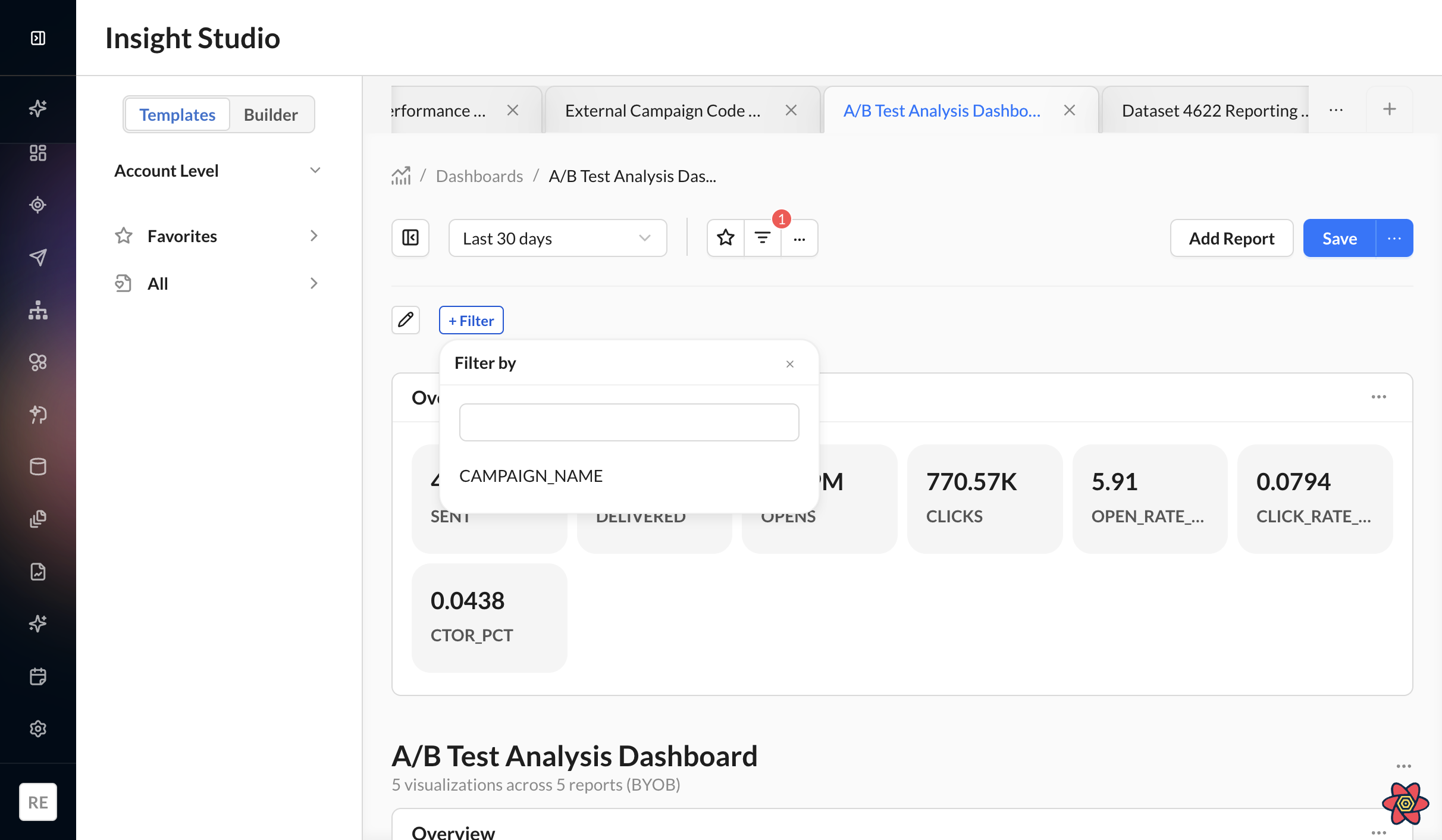
These filters appear as clickable filter chips at the top of the dashboard and allow users to filter across all widgets simultaneously, apply temporary Includes/Excludes or range-based filtering, and explore dashboard data without modifying the saved dashboard configuration
Dashboard owners can configure which filters are available through the Filter Controls panel.
Clicking a dimension filter tag opens a filter popover where you can:
-
Switch between Includes (show selected values) and Excludes (hide selected values)
-
Search and select specific dimension values
-
Apply filters across all widgets on the dashboard
-
Cancel changes without updating the dashboard view
.png?cb=84caa9a5573dc425bda81919c9e9e1de)
Available filter values are automatically scoped based on the filter logic configured by the dashboard owner. For example, if the owner configured a filter using “contains email", users only see values matching that criterion within the filter selection list.
Metric filters open a Range Filter popover instead, showing a numeric slider with min/max inputs. The slider bounds are derived from the operator values configured by the owner (e.g. 'in range 100–5000' becomes the slider's hard min and max).
Read-Only Mode
Dashboard owners and authorized Admin Users can place dashboards into Read-Only Mode to prevent structural edits while still allowing interactive filtering.
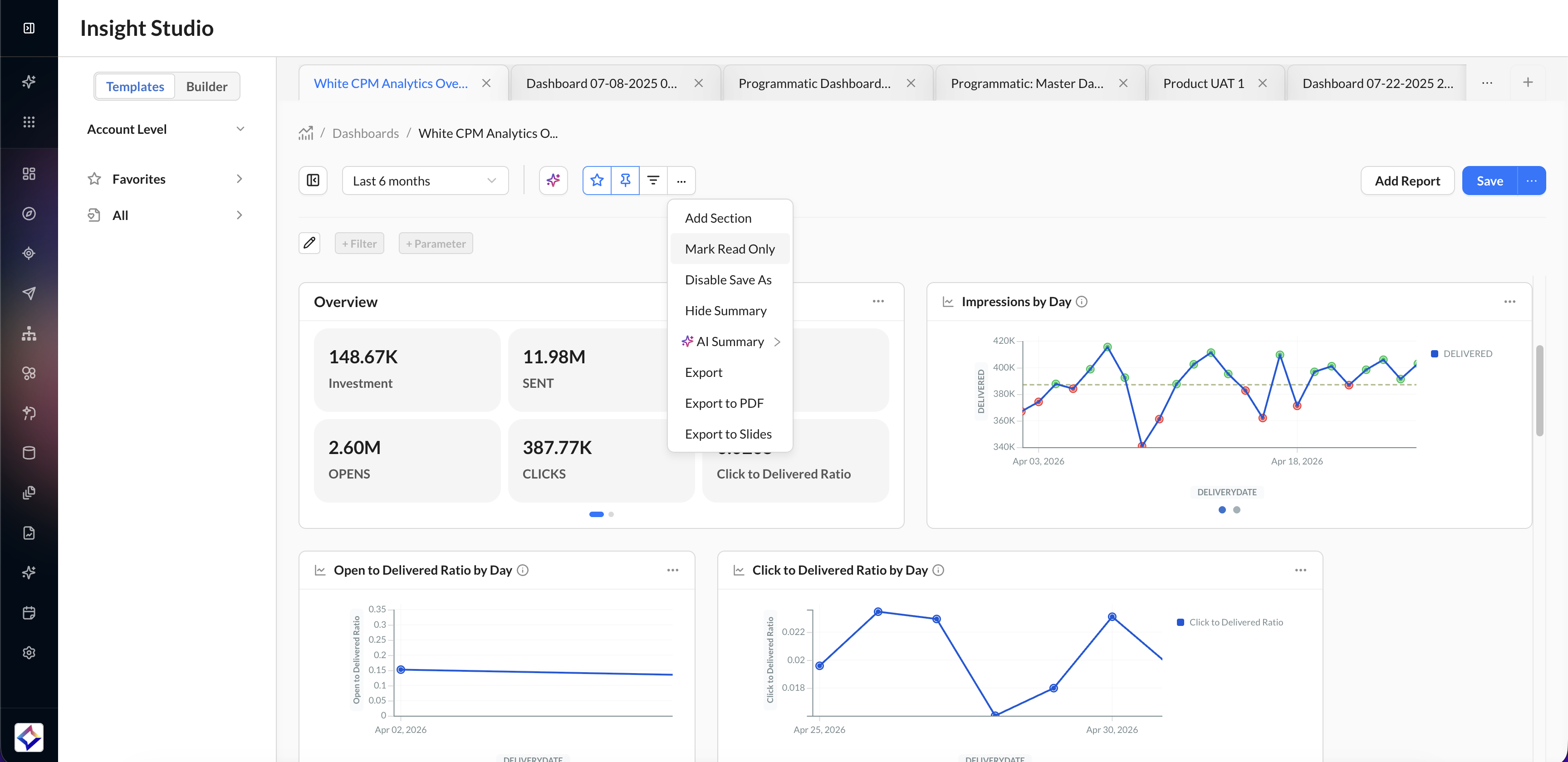
In Read-Only Mode:
-
Dashboard layouts cannot be modified
-
Widgets cannot be rearranged or removed
-
Filter configuration panels are hidden
-
Users can still apply In-View Filters through the Filter Tray
-
Dashboard interactions remain fully functional for exploration and analysis
This mode provides a safe, shareable dashboard experience for non-editor users.
Even when a dashboard is locked:
-
You can apply temporary filters
-
Filter changes remain session-based unless saved by an owner
-
Dashboard defaults remain unchanged
-
Viewers can reset filters at any time
Disable Save As
Dashboard owners and Admin Users can disable dashboard duplication using the Disable Save As option in the dashboard overflow menu.
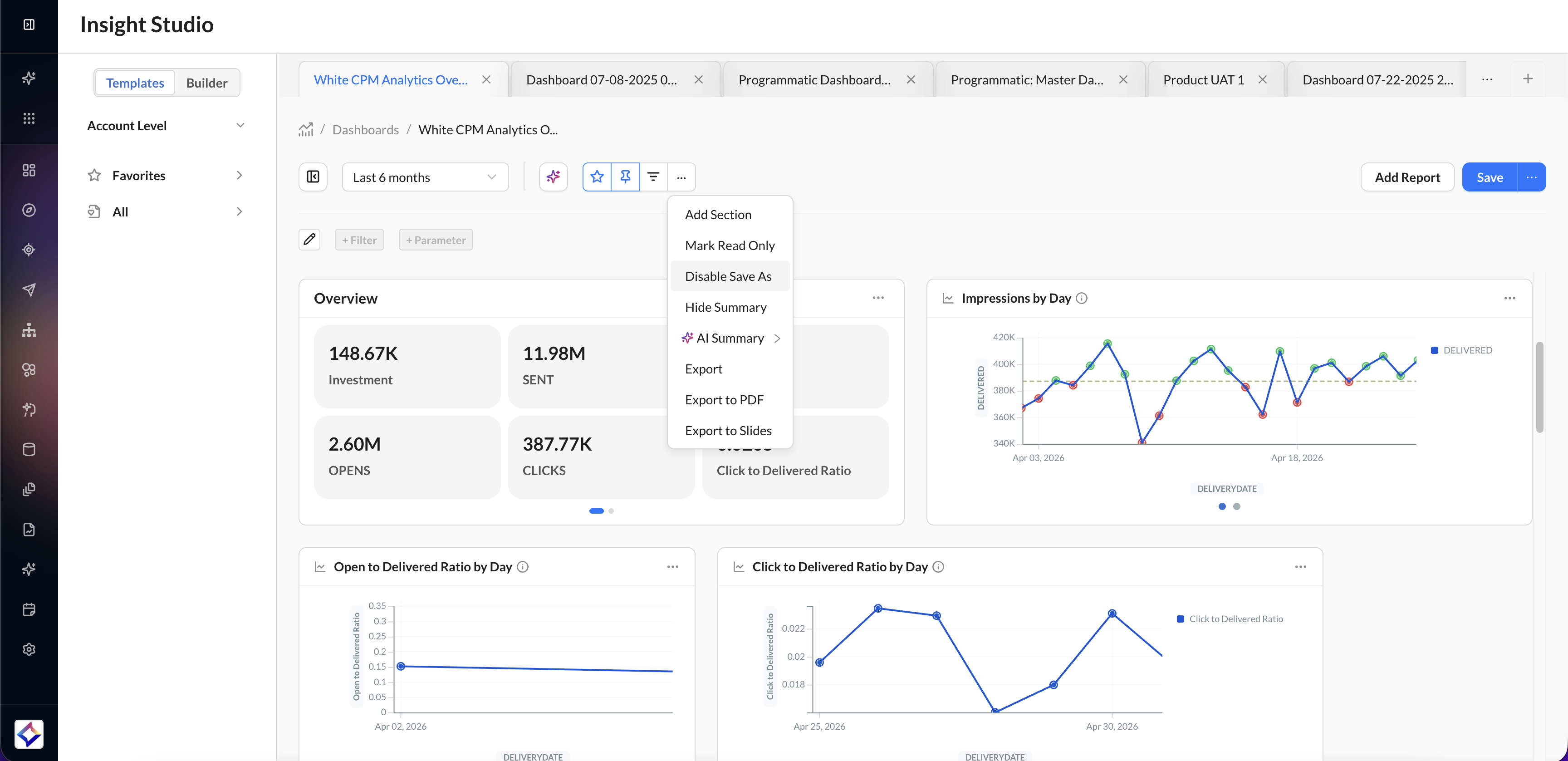
When enabled:
-
Non-owners cannot duplicate the dashboard
-
The dashboard automatically becomes read-only
-
The Save As action is disabled for viewers
-
Owners and Admin Users retain full editing access
This feature helps preserve governed dashboard experiences and prevents unauthorized copies.
Athena Briefs
Insight Studio dashboards support Athena briefs, which are AI-generated summaries, at both the dashboard and widget levels.
-
Athena briefs can be configured to display the insights and trends most relevant to your dashboard and visualization needs.
Athena Briefs are not available for dashboards in Read-Only mode.
Linked Summary Insights
Key insights in the Top Dashboard Summary can include hyperlinks to the widget that supports each finding. When a key-driver bullet references a chart, the widget title appears as a link. Click it to jump to that widget on the dashboard and inspect the underlying data.
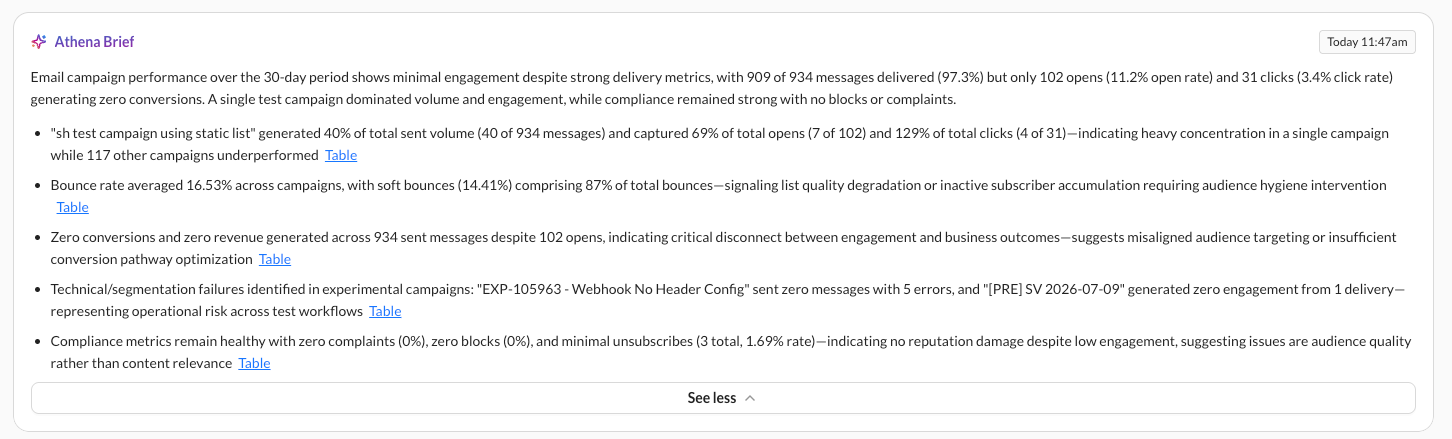
Links remain available after you change filters or the date range and the summary refreshes.