

Query Lab provides a dedicated SQL workspace for exploring and analyzing connected data sources. Users can write SQL directly, review query results in real time, inspect available data structures, and leverage Athena to assist with query creation and refinement. Query Lab supports both manual SQL authoring and natural language-driven query generation, enabling users with varying levels of SQL expertise to work efficiently with connected datasets.
|
SQL-Based Query Interface |
|
|
Supported Data Sources |
|
|
Result Management |
|
|
Seamless Integration with Dashboards and Reports |
|
Getting Started with Query Lab
1. Navigate to the Query Lab under Analytics within the ZMP left-hand Nav bar.
.png?cb=7436399f409c3ad9937a63ca7125963f)
Ensure that you have the necessary permissions to access the module and the connected data sources.
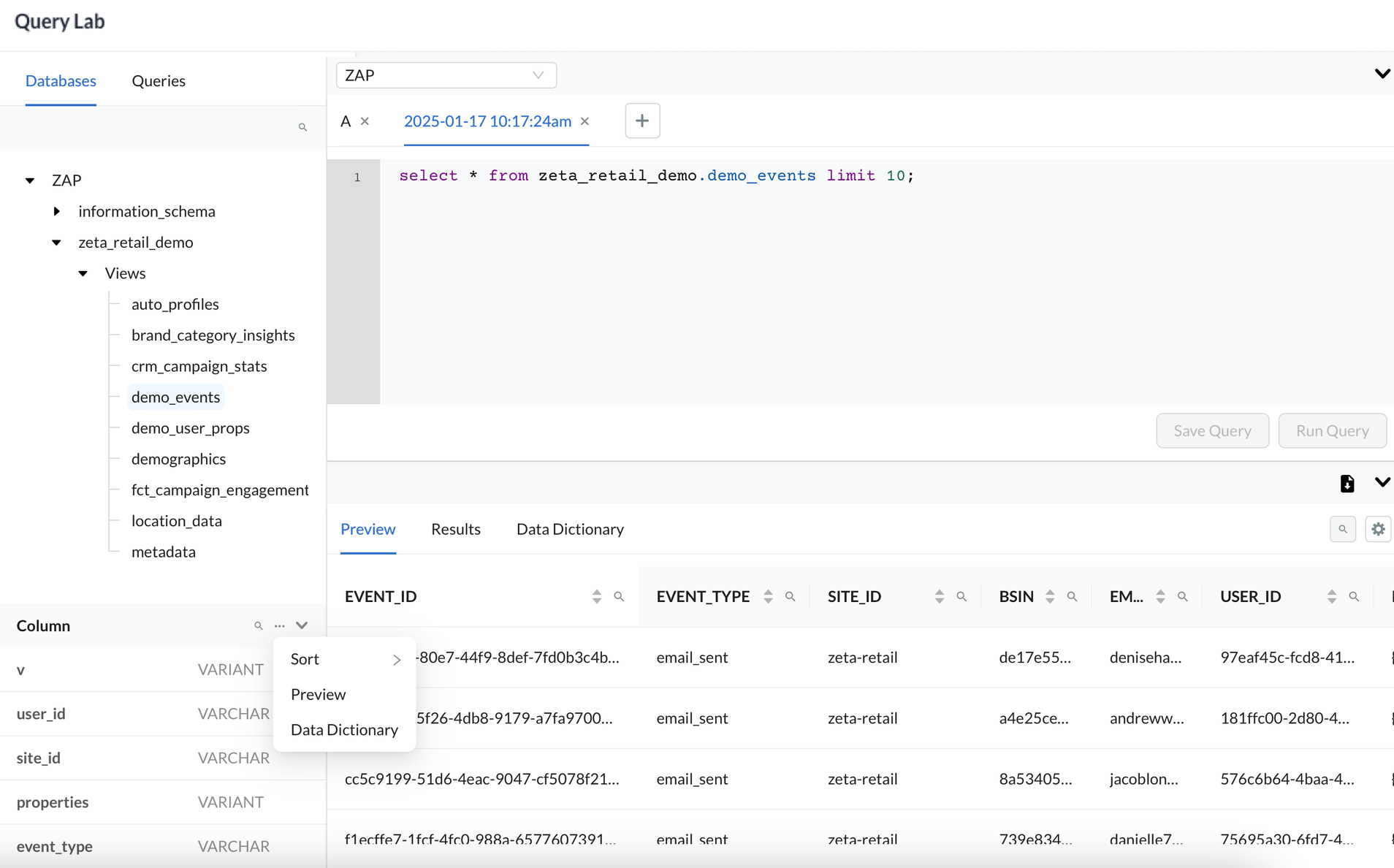
2. All permitted data tables will be listed under the Databases Tab.
-
The Column section displays Column metadata with options to:
-
Preview the table
-
View Data Dictionary
-
3. Use the SQL editor to write SQL manually or review and edit SQL generated by Athena.
-
The editor provides SQL keyword highlighting and type assist to help with query formation.
-
Queries are auto-saved, and an option exists to save your work.
-
Click the Run Query button to execute your query.
4. You can create SQL queries using Athena directly within Query Lab. Open the Athena assistant panel and describe the audience, data set, or business criteria you want to analyze using natural language.
-
Athena generates the corresponding SQL query based on the connected data source and available schema.
-
Review the generated SQL and make edits as needed.
-
Run the query to validate the results.
-
You can further continue the conversation with Athena to:
-
Refine filters
-
Add or remove conditions
-
Modify joins
-
Adjust date ranges
-
Expand or narrow the returned audience
-
5. Query results are displayed in a tabular format under the Results tab for easy review.
-
Use Search to look up a specific value in Results.
-
Select specific columns within Results to quickly analyze selected columns without rerunning queries with fewer columns.
-
Query results can be reviewed immediately after execution to validate that the generated or authored SQL returns the expected records before saving or reusing the query.
6. To download results, click the Download CSV button.
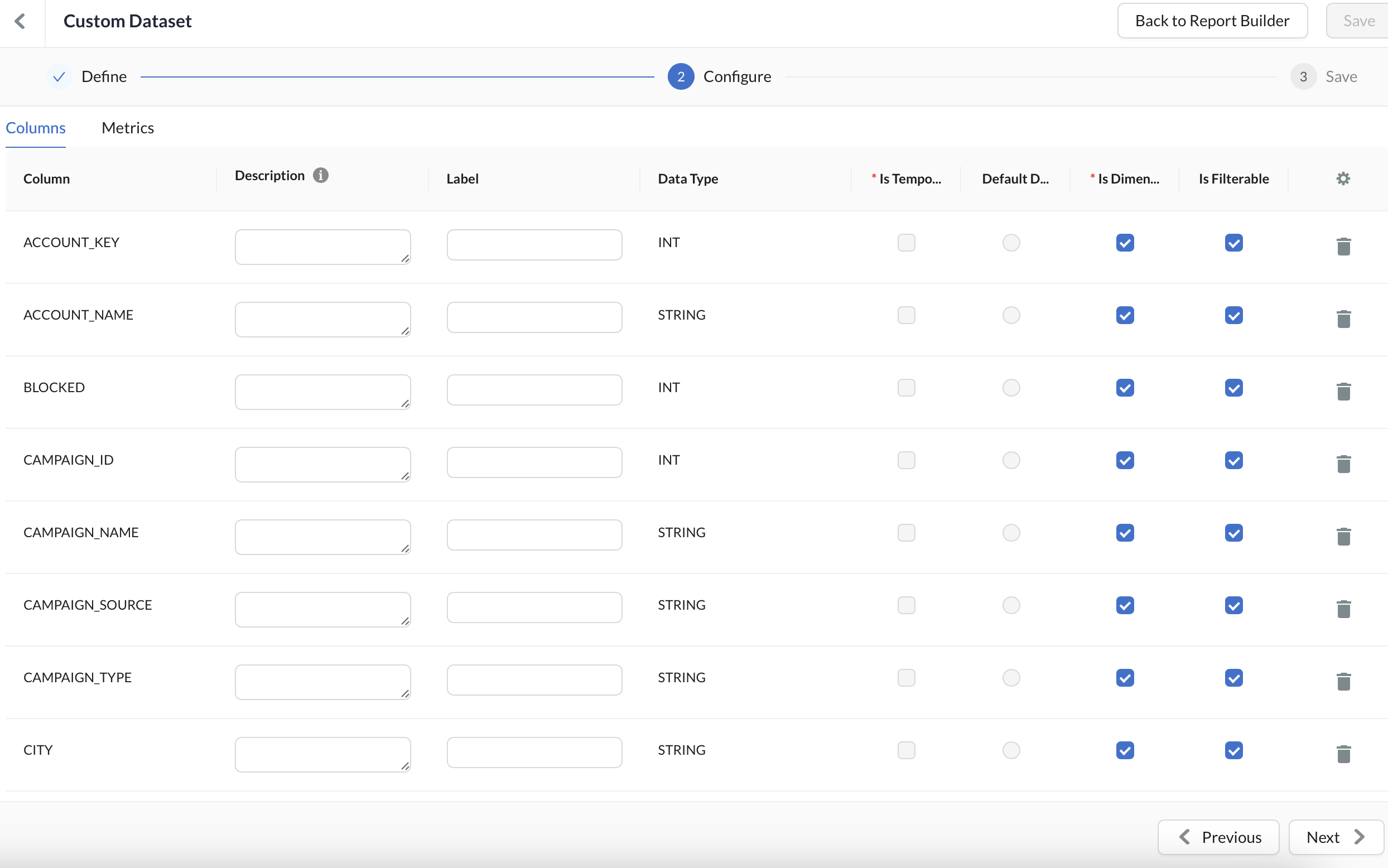
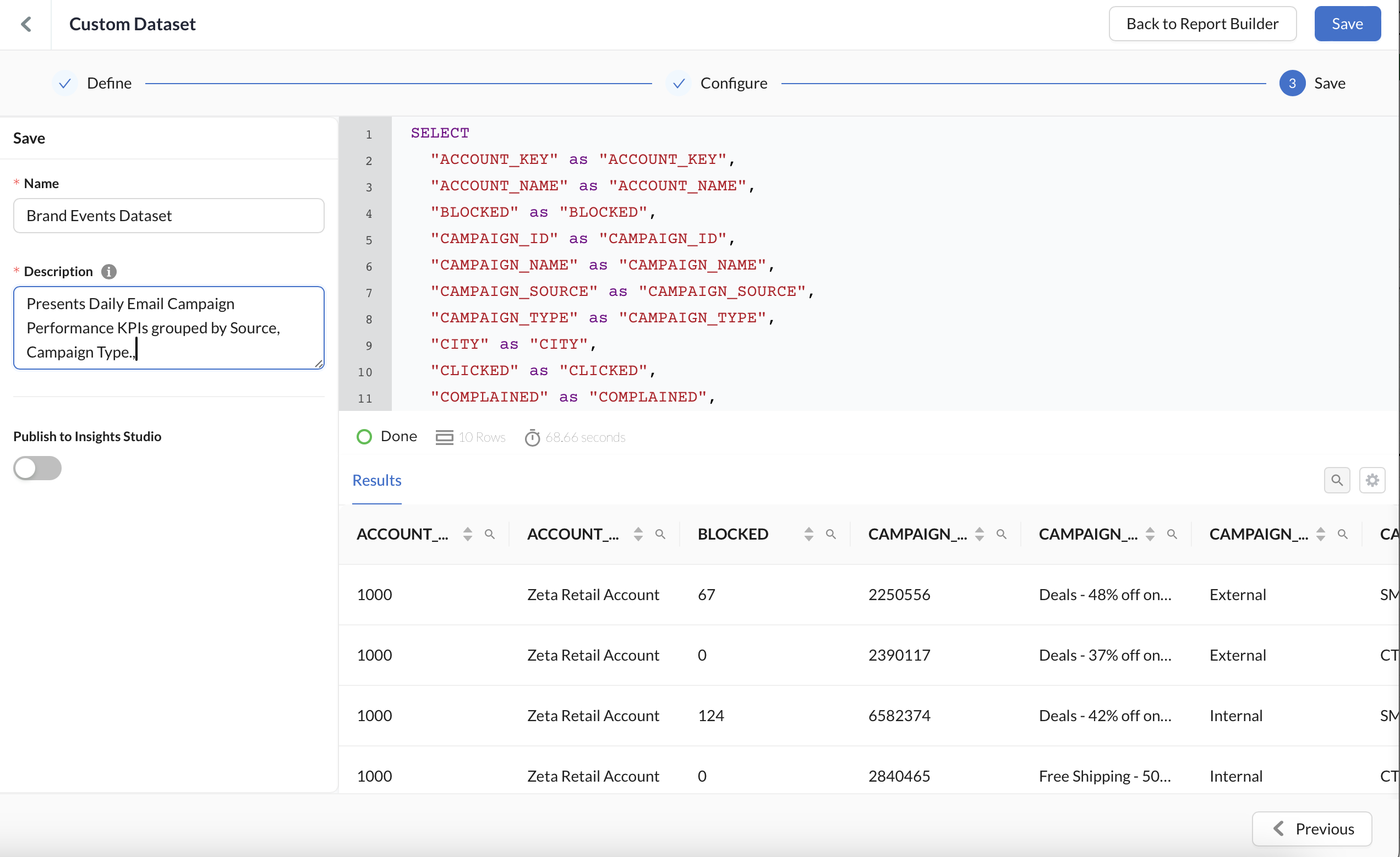
7. To save results for Visualization and ongoing Reporting in ZMP, use the Create New Dataset under the Save option and provide a meaningful name and description for Visualization in Report Builder.
Use Cases
-
Ad Hoc Analysis: Effortlessly analyze data trends, apply aggregations, and detect anomalies using flexible, custom SQL queries.
-
Self-Serve Analytics: Empower your team to independently explore and manipulate data without relying on pre-built datasets or dashboards.
-
Seamless Reporting: Generate and save datasets from your final query results, enabling ongoing reporting and visualization.
-
Scheduled Reports: Configure automated report delivery using query outputs generated through the Report Builder.
-
Natural Language Audience Discovery: Describe a target audience using plain language and allow Athena to generate the SQL required to identify matching records.
SQL Acceleration: Quickly generate baseline queries and then refine them manually within the SQL editor.
Best Practices
-
Optimize Queries: Use filters, indexed columns, and efficient joins to improve query performance.
-
Save Frequently Used Queries: Reuse saved queries for consistency and efficiency.
-
Validate Results: Cross-check query outputs with expected results to ensure data accuracy.
-
Appropriate Permissions: Restrict Query Lab access to users proficient in SQL to prevent accidental query or dataset deletions or costly long-running queries.
-
Leverage Aggregation Policy: Control access to granular data by managing aggregation policy and permissions.
Troubleshooting
|
Query Execution Errors |
|
|
Aggregation Policy |
|
|
Slow Query Performance |
|
|
Issues with Export or Save |
|