

Pivot Tables help transform flat report data into an interactive cross-tabulated view, making it easier to compare metrics across dimensions such as Campaign, Channel, Audience Segment, or Date.
Pivot mode enables fast comparative analysis directly within Report Builder without exporting data externally.
Pivot Tables are available for Table widgets in both:
-
Report Builder
-
Dashboard views
Standard Table vs Pivot Table
Standard Table
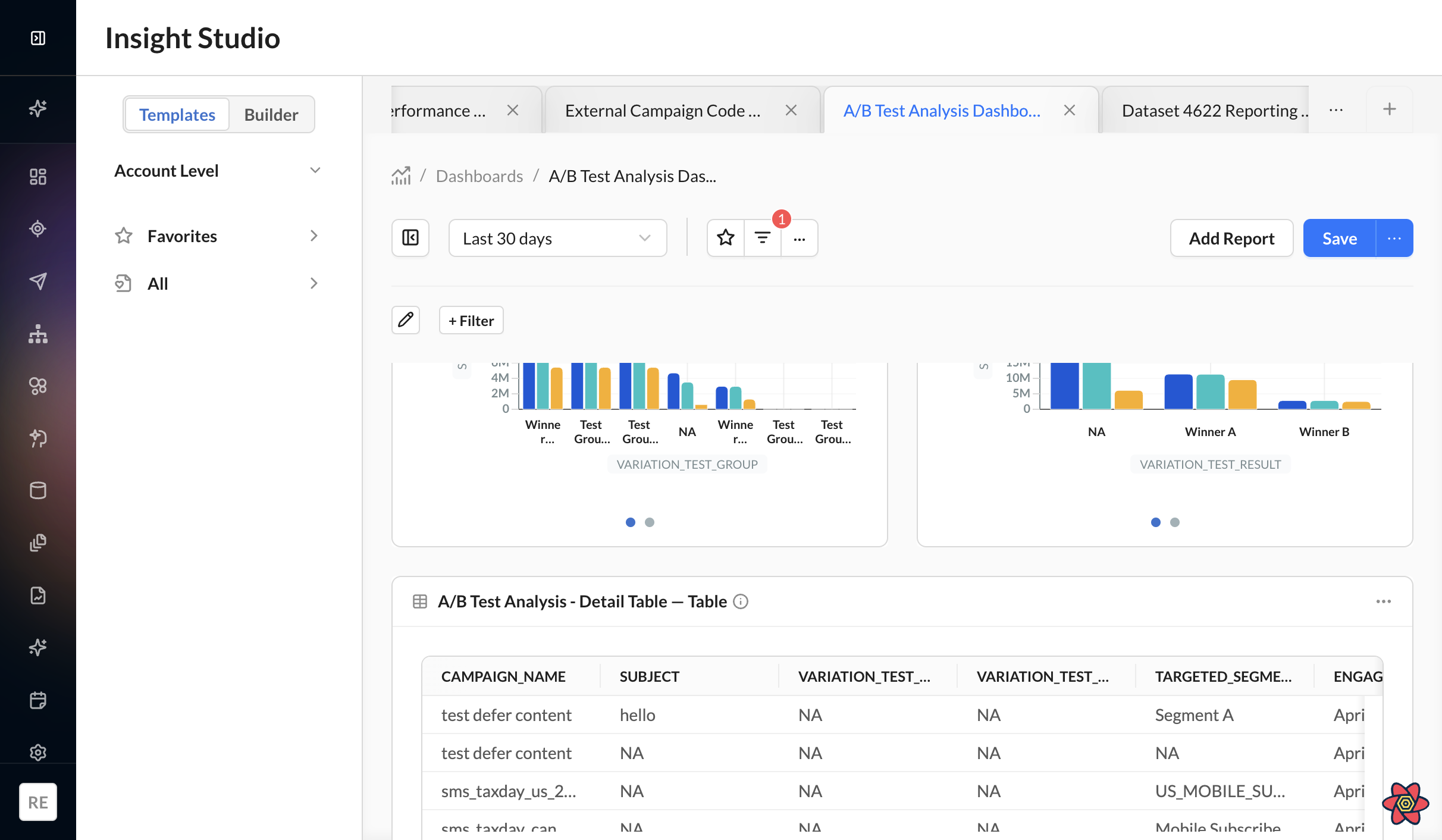
Displays data in a traditional tabular layout where:
-
Each row represents a record
-
Each column represents a metric or dimension
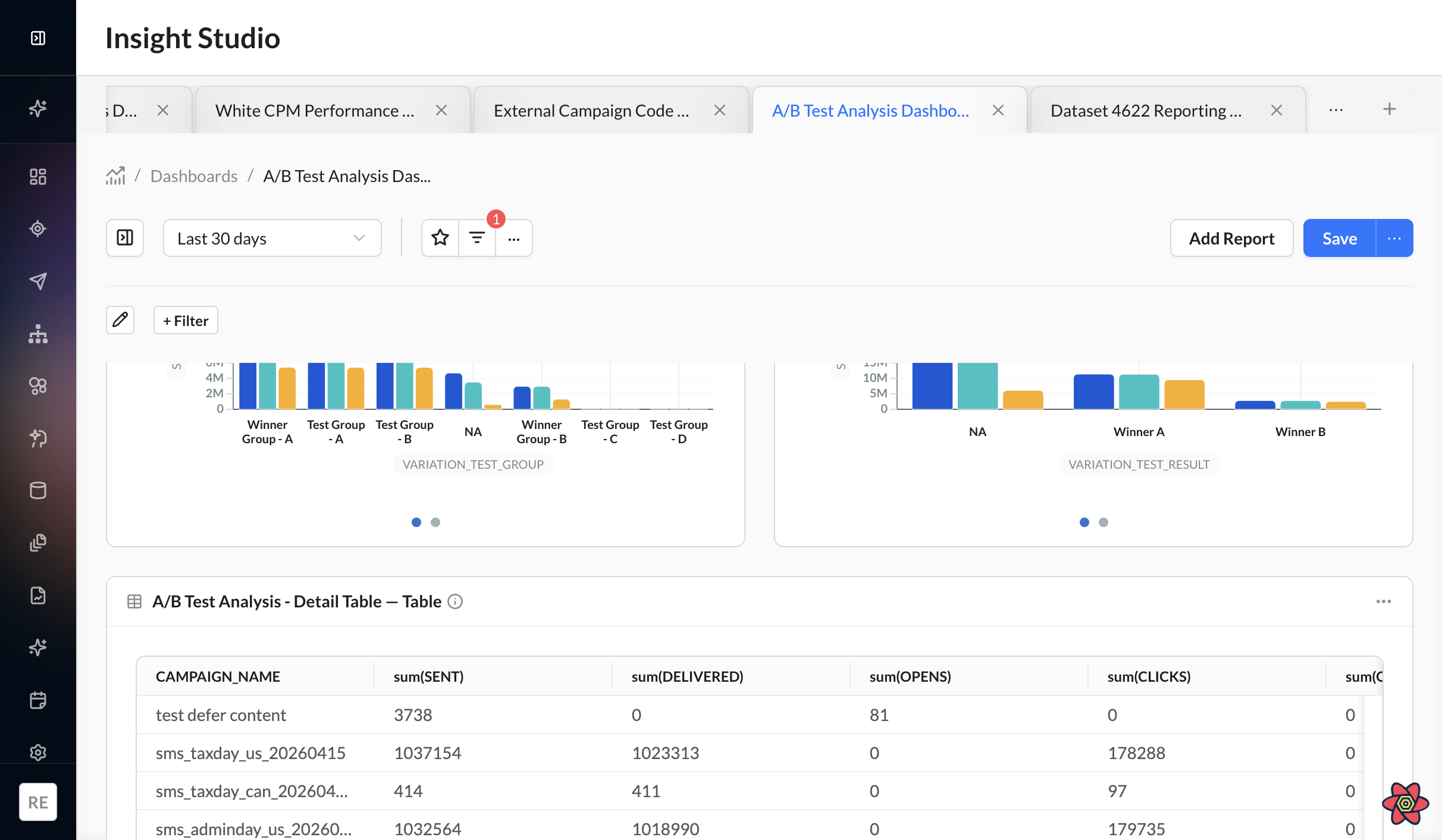
Pivot Table
Displays aggregated data across row and column groupings, helping identify trends and comparisons more easily.
Pivot Tables dynamically update based on:
-
Row Groups
-
Pivot Columns
-
Aggregated Metrics
Enabling Pivot Mode
To switch a table widget from Standard Table to Pivot Table,
1. Hover over the widget tile to reveal the action bar.
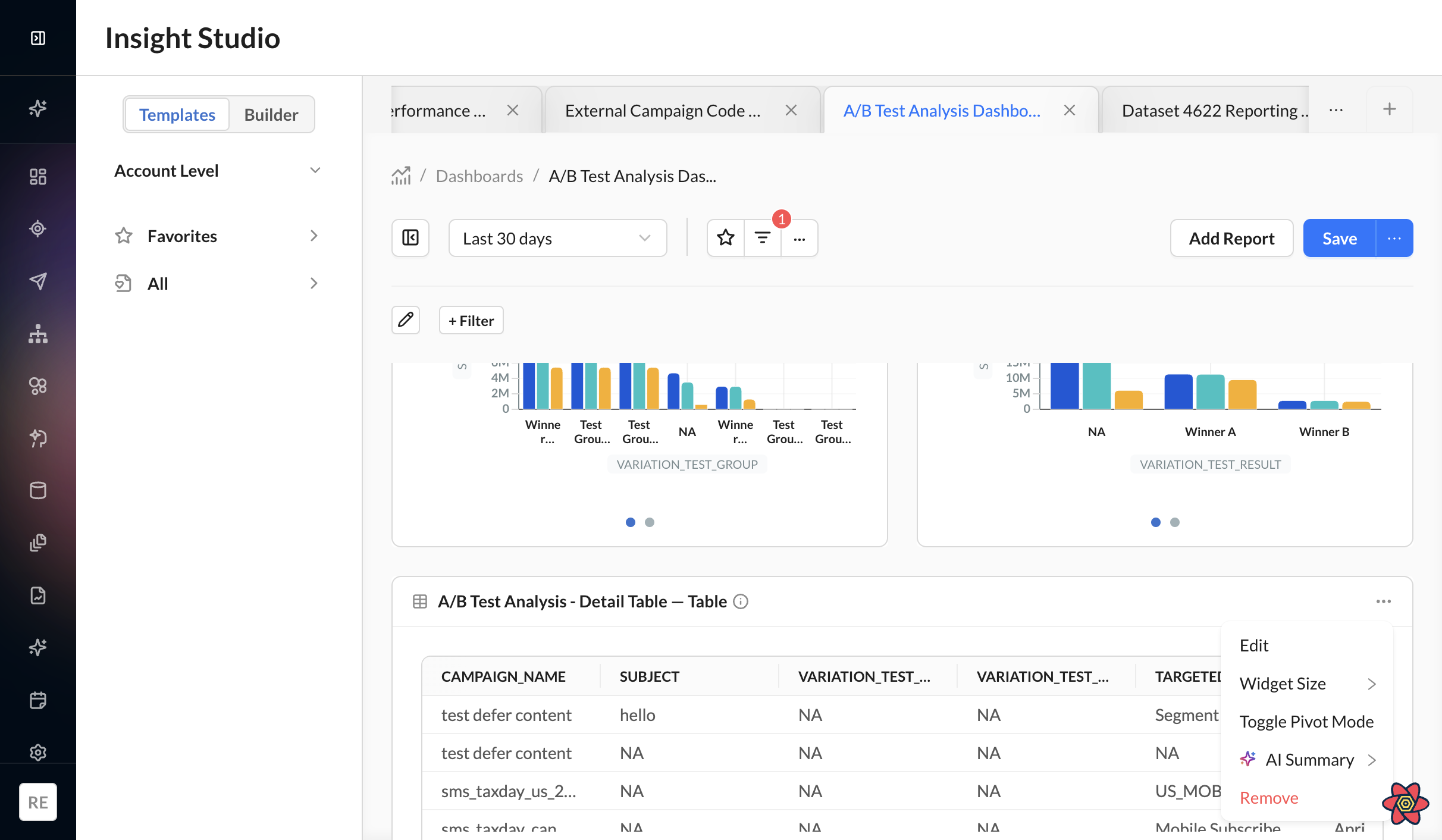
2. Click the ⋯ (three-dot) overflow menu icon in the top-right of the tile.
3. Select Toggle Pivot Mode from the dropdown.
-20260518-101127.gif?cb=11fcee8600e03b907017f3fb8aa9d1aa)
-
The widget will reload in Pivot Table mode.
-
To return to Standard Table mode, open the same menu and select Toggle Standard Mode
Pivot functionality is supported only for Table Widgets in Report Builder and Dashboard views.
Pivot Table Layout
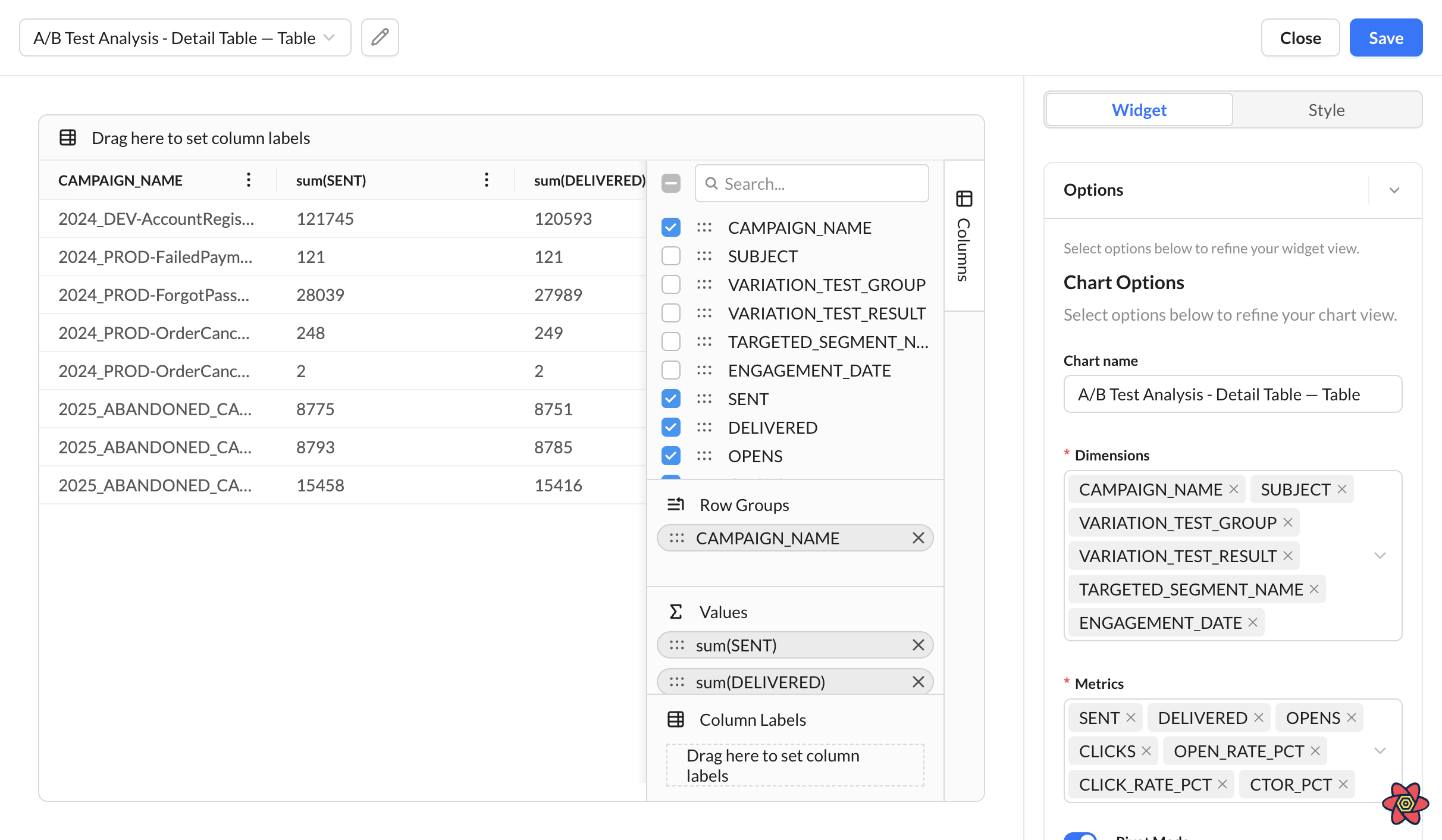
Pivot Tables are built using three core areas:
|
Area |
Purpose |
|---|---|
|
Row Groups |
Organizes rows using dimensions |
|
Pivot Columns |
Creates dynamic column headers |
|
Values |
Displays aggregated metrics |
Configuring a Pivot Table
The most advanced editing experience is available in the full-screen table editor.
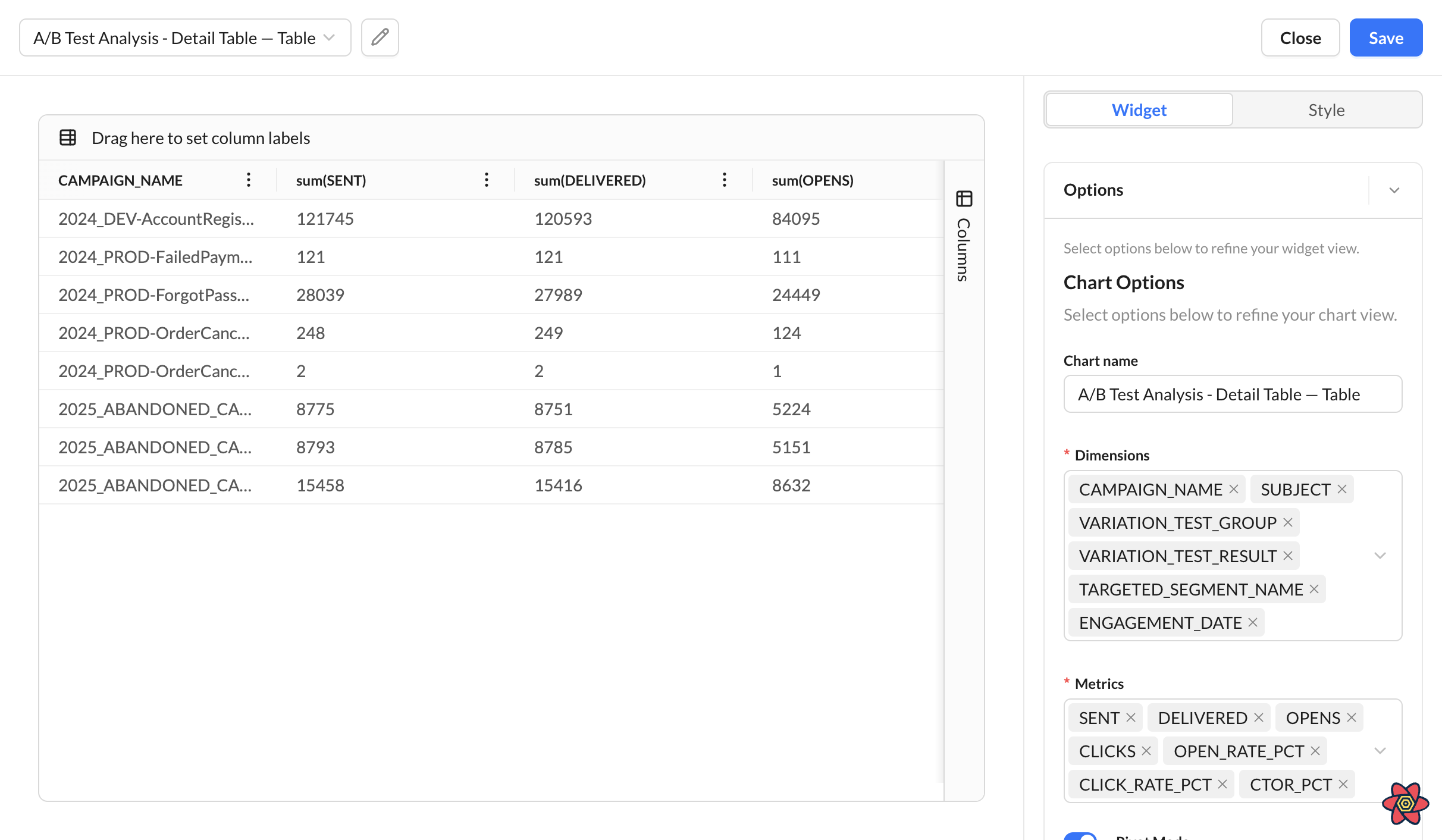
To configure a Pivot Table:
1. Open the widget in full-screen mode.
2. Use the Columns Panel to drag and organize fields.
3. Add:
-
Dimensions into Row Groups or Pivot Columns
-
Metrics into Values
Changes are reflected immediately in the table preview.
Row Groups
Row Groups define how records are organized vertically.
Examples:
-
Campaign
-
Audience Segment
-
Region
Multiple Row Groups can create hierarchical views for deeper analysis.
Pivot Columns
Pivot Columns define the horizontal grouping structure.
Examples:
-
Date
-
Channel
-
Device Type
Distinct values automatically become column headers.
Metric Aggregations
Values in Pivot Tables are aggregated automatically using supported functions.
|
Function |
Description |
|---|---|
|
Sum |
Adds all values |
|
Count |
Counts records |
|
Average |
Calculates the mean value |
|
Min |
Displays the smallest value |
|
Max |
Displays the largest value |
Configuration Limits
To maintain readability and performance, Pivot Tables support:
|
Configuration |
Maximum |
|---|---|
|
Row Groups |
3 |
|
Pivot Columns |
2 |
|
Metric Values |
10 |
Saving Pivot Configurations
Pivot settings are saved with the widget, including:
-
Pivot mode
-
Row groups
-
Pivot columns
-
Aggregated metrics
Saved configurations automatically reload when reopening the report or dashboard.
Exporting Pivot Tables
Pivot Tables support exporting the current view to:
-
CSV
-
Excel
Exports preserve the pivoted structure and layout visible in the table.
Sorting
Table widgets support single- and multi-column sorting in both Standard Table and Pivot Table modes.
Single-column sort
1. Click a column header to sort ascending.
2. Click the same header again to sort descending.
3. Click a third time to clear that column's sort.
-20260825-072030.gif?cb=57b67bbe4d6efc6d19522ff47cd5f1a2)
An arrow on the header shows the current sort direction.
Multi-column (multi-field) sort
1. Sort the primary column by clicking its header.
2. Hold Shift and click additional column headers to add secondary sorts.
3. A number appears next to each sorted column header to show sort priority (1 = primary, 2 = secondary, and so on), along with an arrow for direction.
4. For any sorted column, continue clicking (or Shift+clicking for secondary columns) to cycle: ascending → descending → clear.
-20260825-072348.gif?cb=013ac775a8826119f8d43fd6dcd72964)
Sort priority follows the order columns were sorted. For example, sorting by Click Date, then by Delivered, keeps Click Date as the primary sort and Delivered as the secondary sort.
Pin and freeze columns
In standard and pivot tables, pin (freeze) a column on the left or right so it stays visible while you scroll horizontally.
-
Pinned columns are saved with the widget.
-
Pins still apply when you open the table as a dashboard card.
-
Tables with no pinned columns stay unpinned after refresh.
Dynamic Calculations
On standard and pivot tables, Chart Options → Dynamic Calculations can add % of Total and % Change columns. See Chart Types.
-
Derived columns use percentage formatting and are saved with the widget.
-
In pivot mode, derived columns aggregate as average and are not sortable.
-
If Display Totals is on, the totals row stays blank for derived columns; base metric totals are unchanged.
Best Practices
-
Use Row Groups for hierarchical organization.
-
Use Pivot Columns for side-by-side comparisons.
-
Keep the number of metrics focused for easier readability.
-
Use full-screen editing for more advanced configurations.
-
Export Pivot Tables when sharing summarized insights externally.