
Version History shows who changed a broadcast campaign and when. You can compare those saved checkpoints or restore a draft to an earlier one. Campaigns save automatically, so Version History is the record of those saved changes rather than a separate Save action.
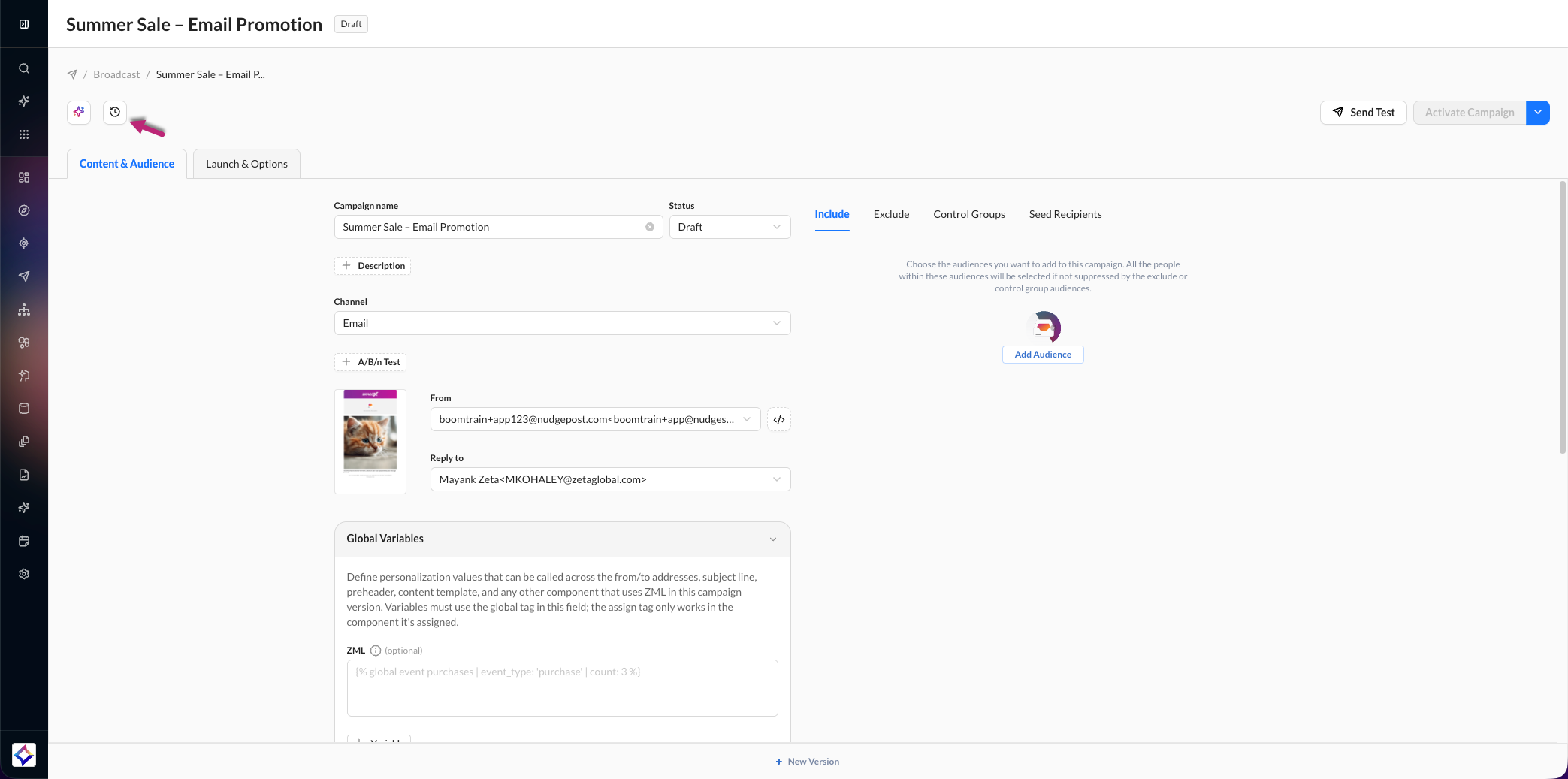
Open Version History
1. Open the broadcast campaign in the editor and click the Change History button in the editor header.
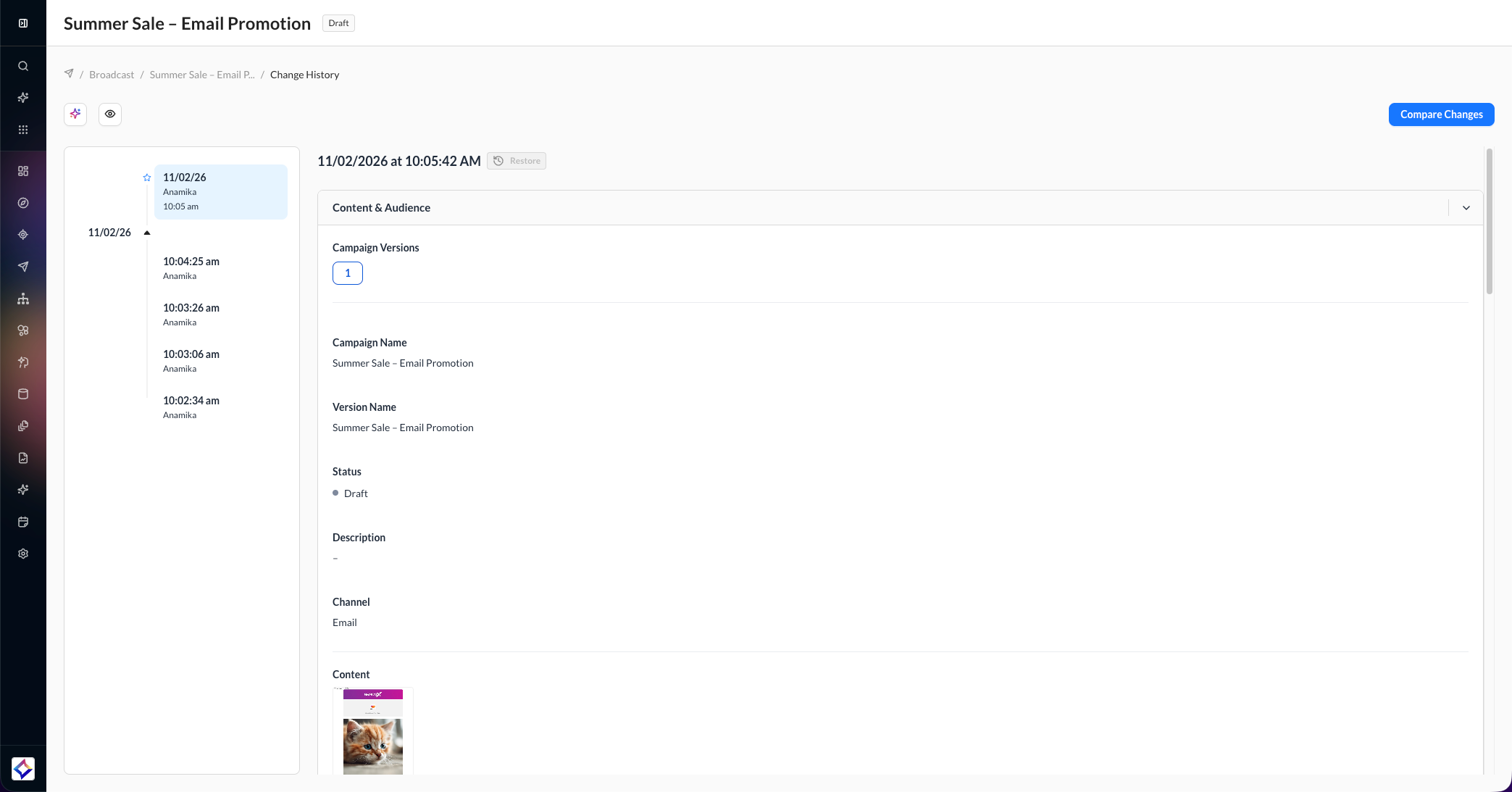
2. Review the checkpoints. They are listed newest first, with the name of the person who made the change and the time in your account timezone.
-
Expand a date that has more than one checkpoint to see each one.
If Version History does not refresh, save the campaign and try again. The editor may show: "Version history could not be refreshed. Check that your changes are saved, then retry."
Compare versions
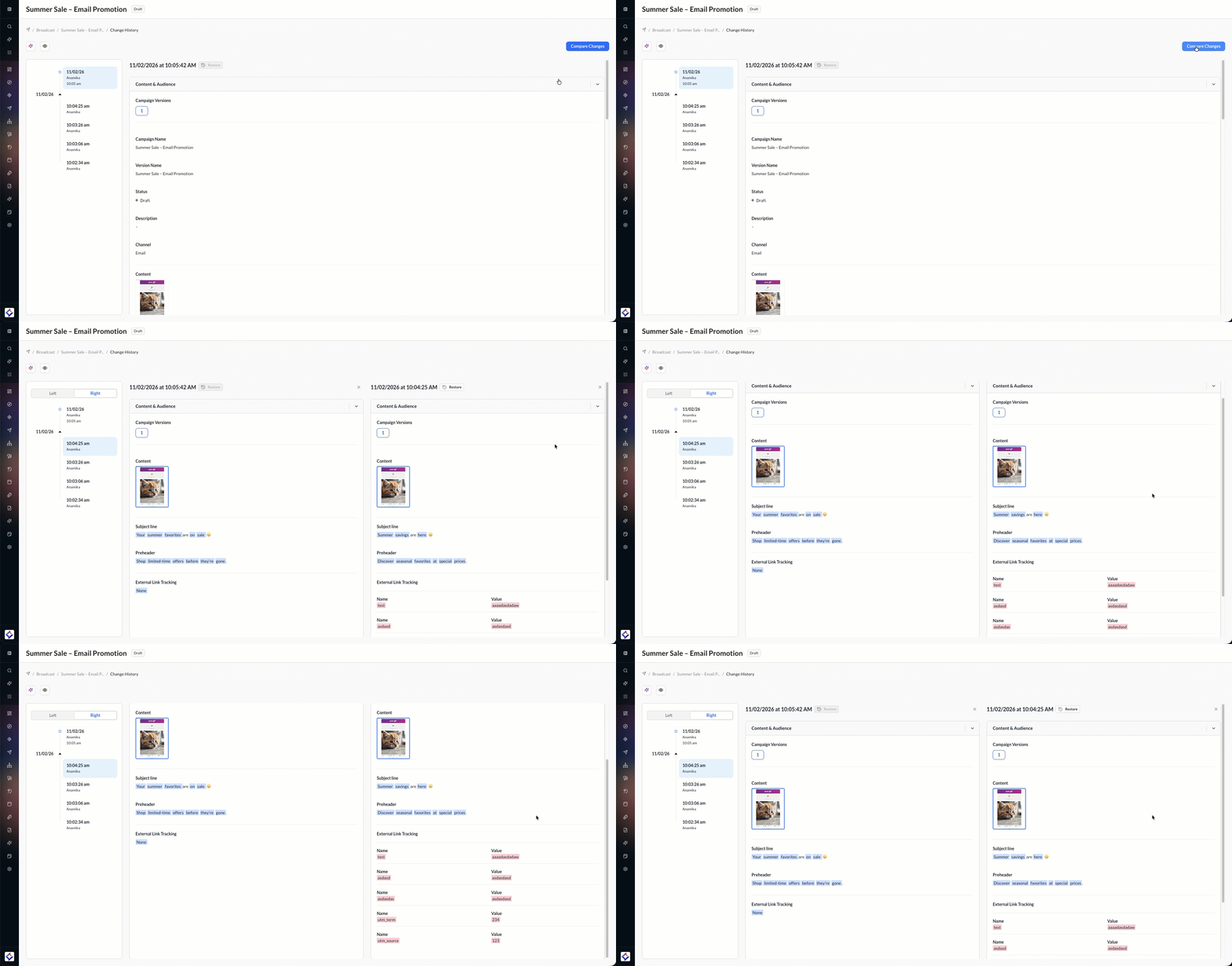
Compare Versions shows the earlier and later values for the checkpoints you selected, such as the campaign name, audience, and schedule.
Click Compare Versions.
-
Select the earlier checkpoint and the later checkpoint.
Restore a previous version
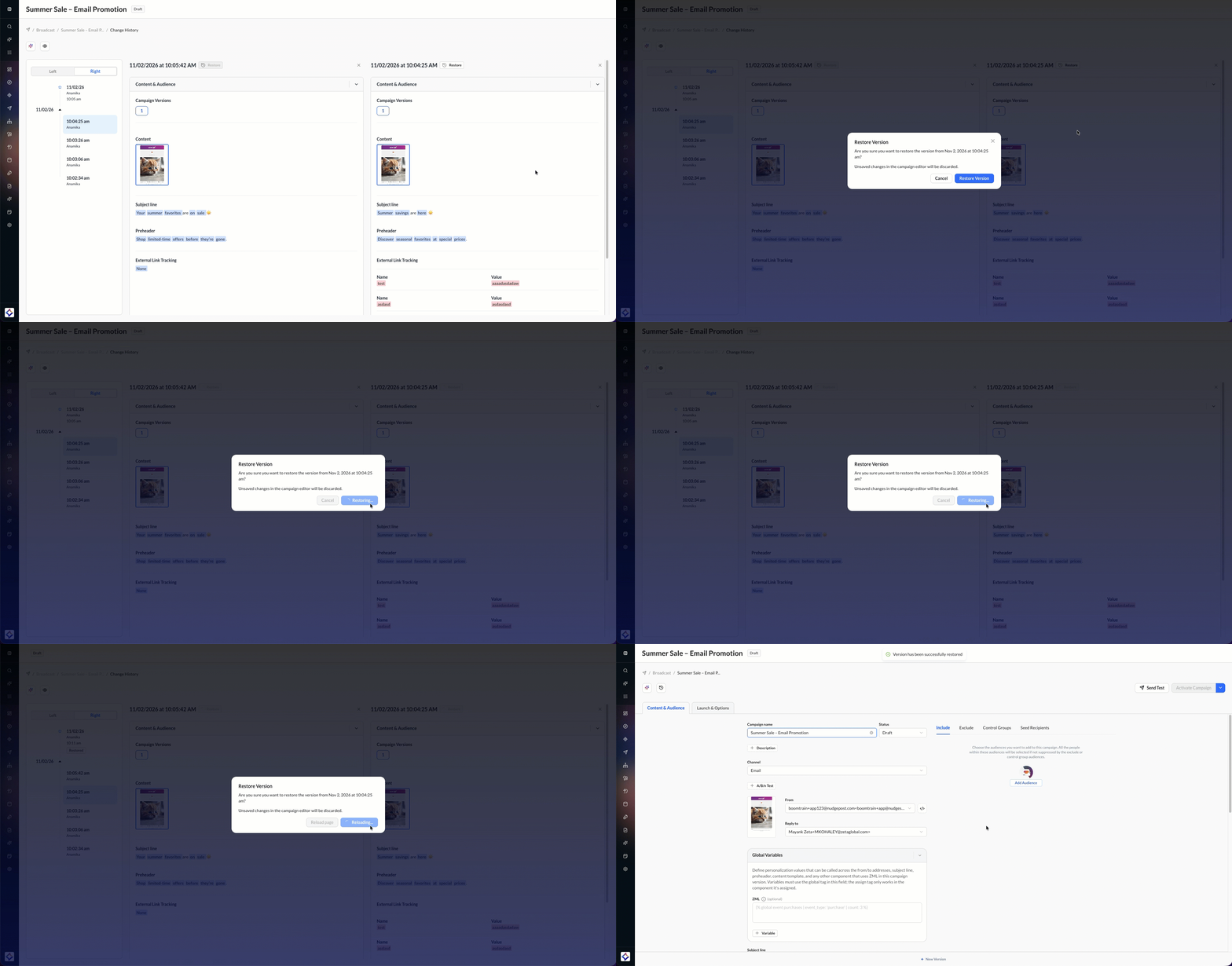
Restore is available only while the campaign is a draft, and only if you can edit the campaign. You can open Version History on an active or paused campaign, but Restore stays unavailable.
-
Choose Restore, then confirm Restore Version.
-
The editor reloads with the selected values and shows "Version has been successfully restored." The restore is saved as a new checkpoint, so the later history stays in the timeline.
A checkpoint is not created for every keystroke. Version History records a checkpoint when:
-
A different person edits the campaign.
-
The current editor goes idle or leaves the editor.
-
The campaign is launched, paused, or scheduled.