

A custom dataset is a dataset you define for reporting when a standard dataset does not include the fields you need. You choose a data source, confirm the query, set up columns and metrics, and publish the dataset so it can be used in Report Builder.
What you can do:
-
Build a dataset from a SQL query, or from an existing table or view.
-
Set column labels, descriptions, date fields, dimensions, and filters.
-
Add aggregate metrics with a SQL expression.
-
Save a draft, or publish the dataset for reporting.
-
Duplicate a dataset you created, then use that copy on a new report.
-
Start from an existing report or template and save a new report on a different dataset.
Navigation
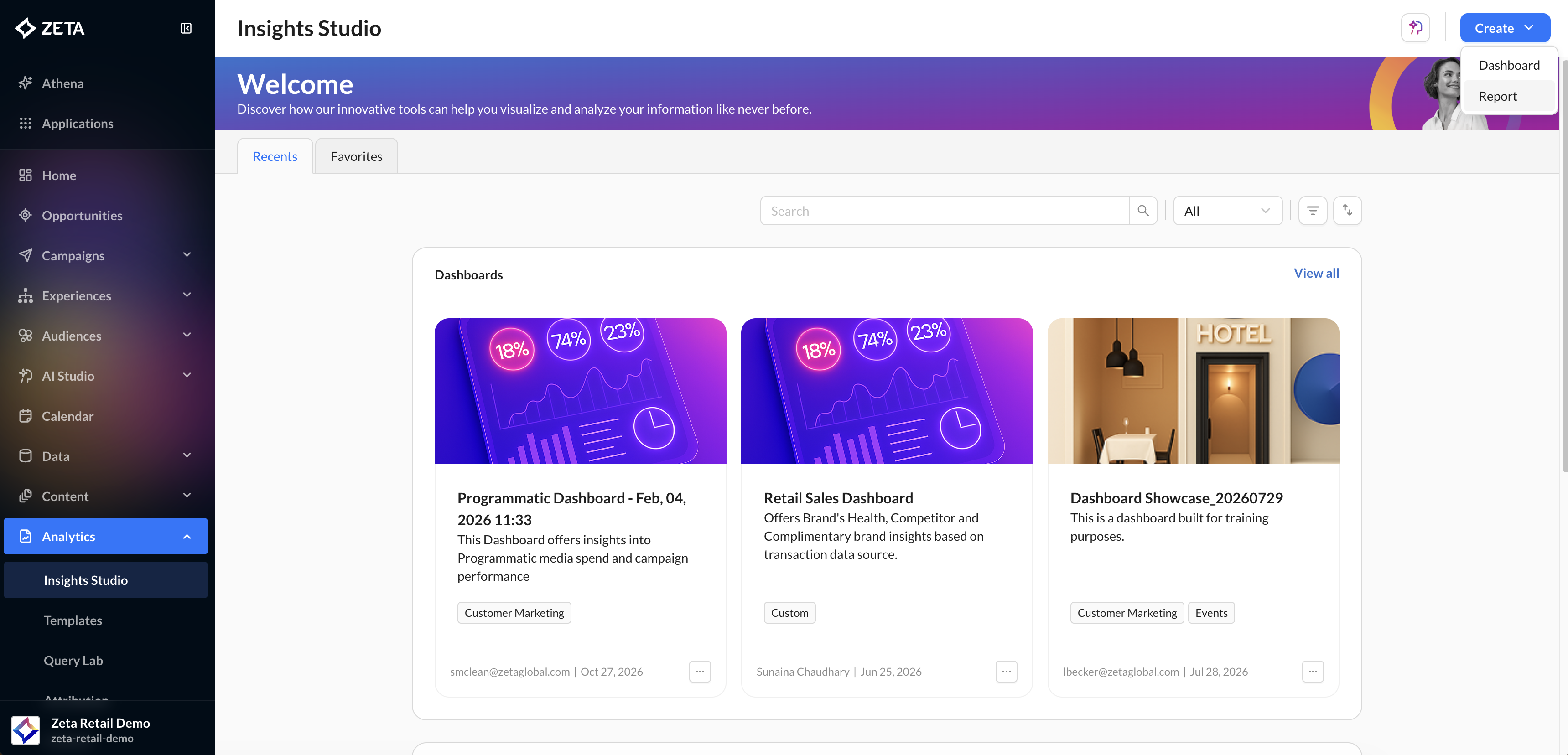
1. From the menu on the left, navigate to Analytics > Insights Studio and click on the Create button.
-
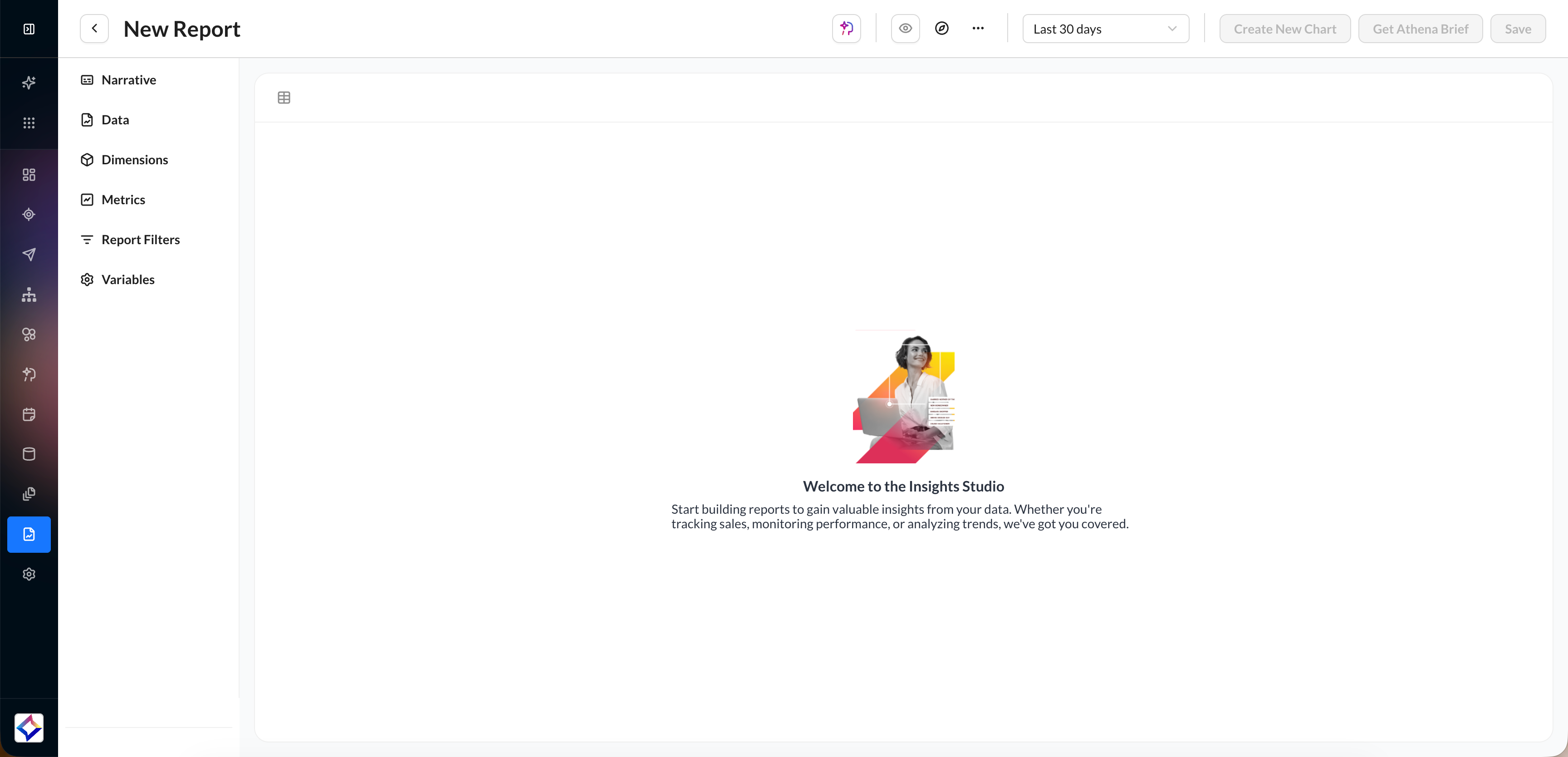
Select Report from the dropdown to enter the report builder screen.
Create a custom dataset
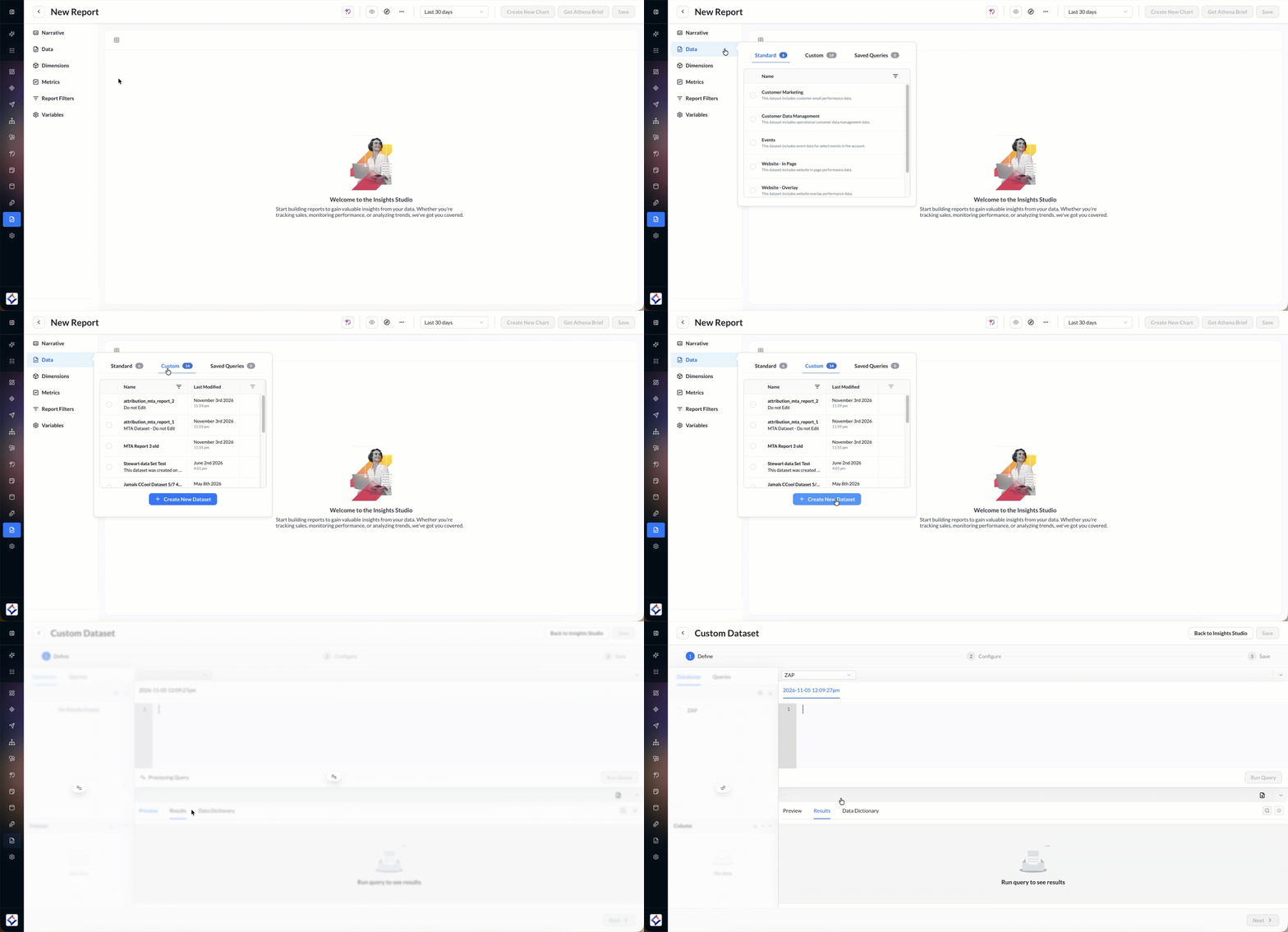
Within the report builder, open Data and navigate to the Custom tab.
-
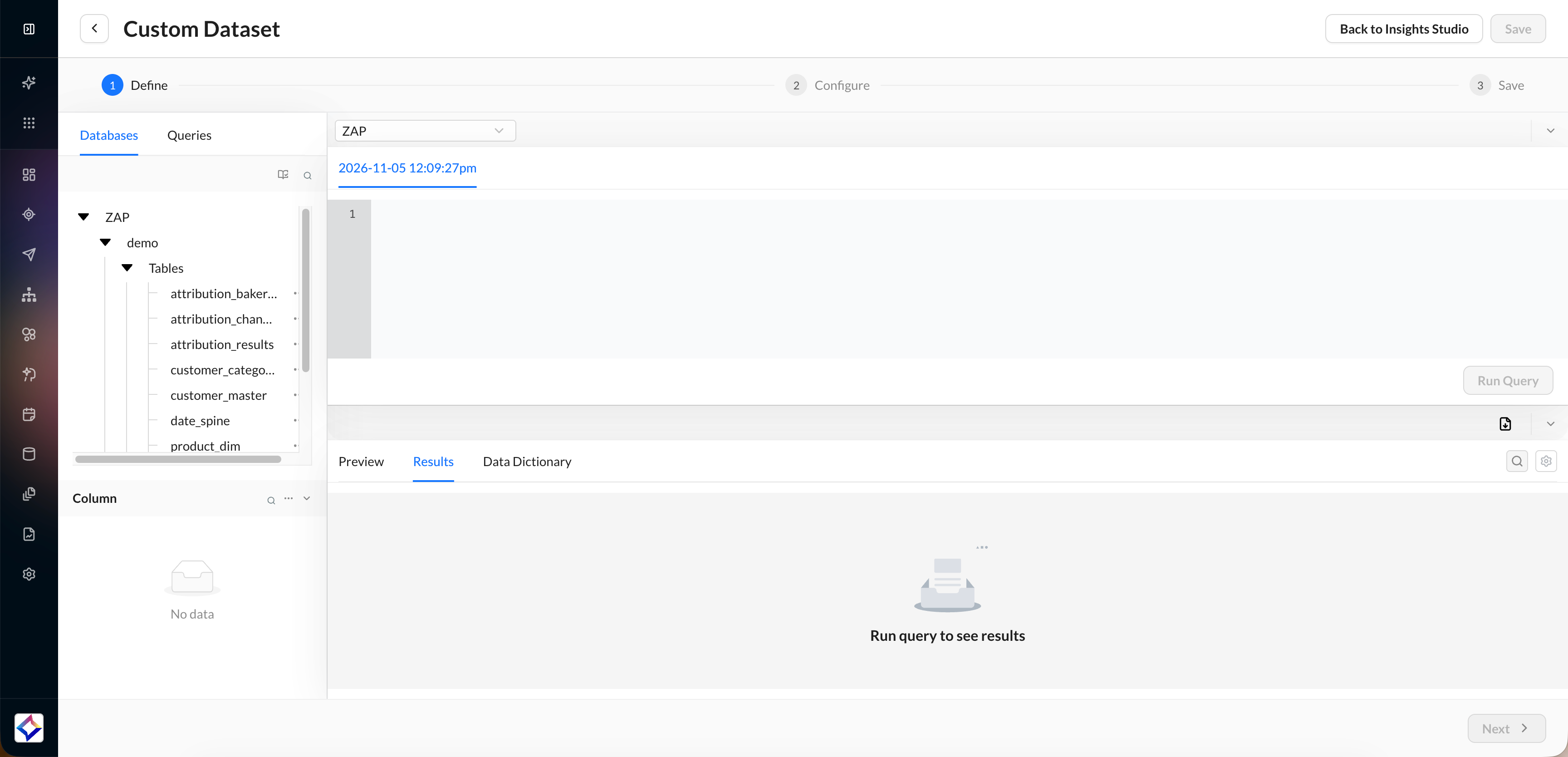
You can see the saved queries/datasets here. Click on Add Custom Dataset and complete Define, Configure, and Save.
Define the query
1. Select a data source connection. The first connection is selected by default.
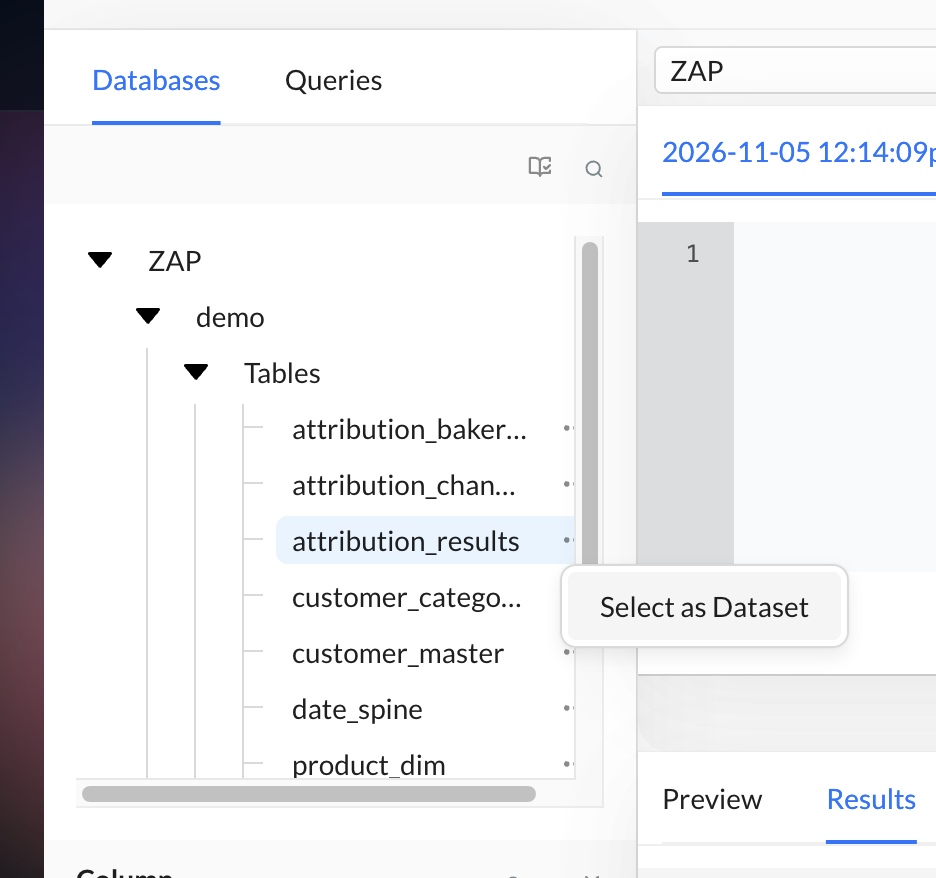
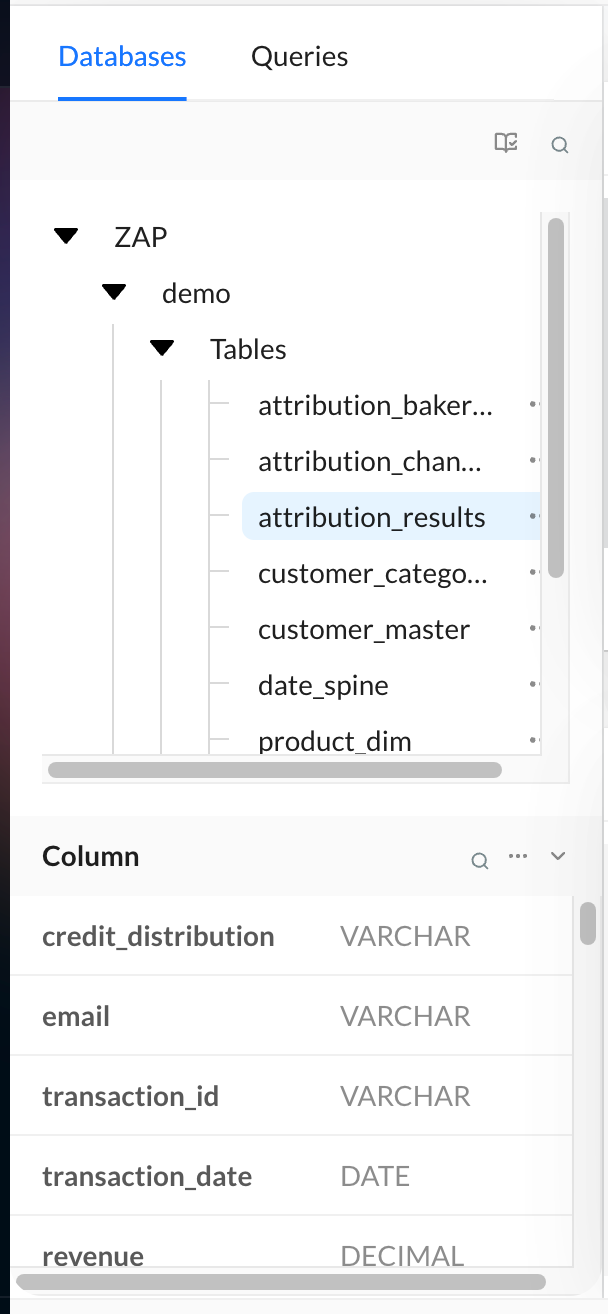
2. In the Databases panel, explore tables and views.
-
Saved Queries lists work saved from Query Lab.
-
Datasets lists published and draft datasets.
3. Use the menu on a table or view to preview data, sort columns, or open the data dictionary. Select Select as Dataset to fill in the SQL from that table or view.
4. Review column details, and select a column name to copy it.
5. Write or edit the SQL. The editor offers type-ahead and syntax highlighting.
6. Select Run Query. On the Results tab, search the results, rearrange or show and hide columns, and download a CSV if you need one.
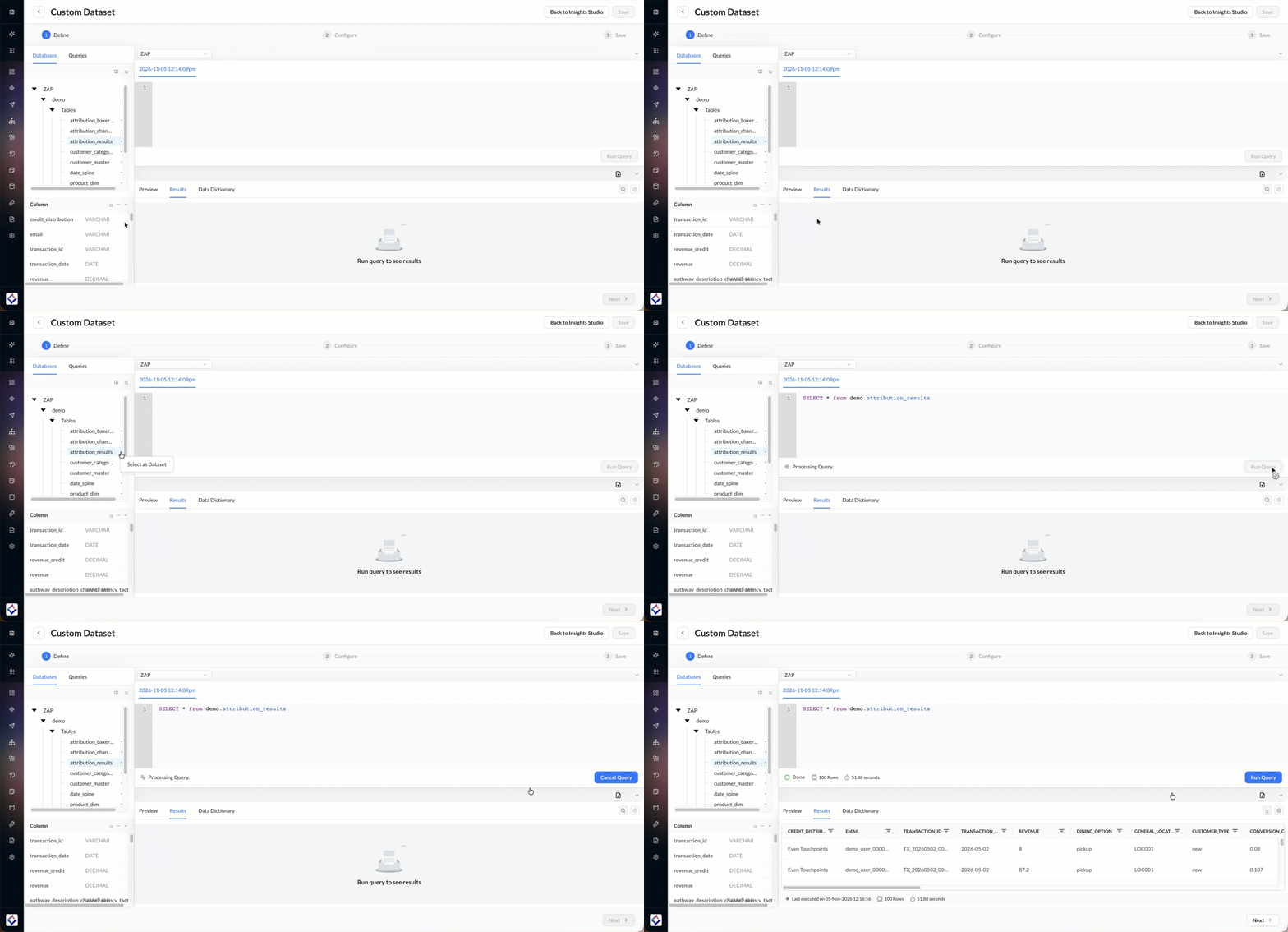
7. Select Next after the query validates. Insights Studio saves a draft with a timestamped name. You can rename it before you publish.
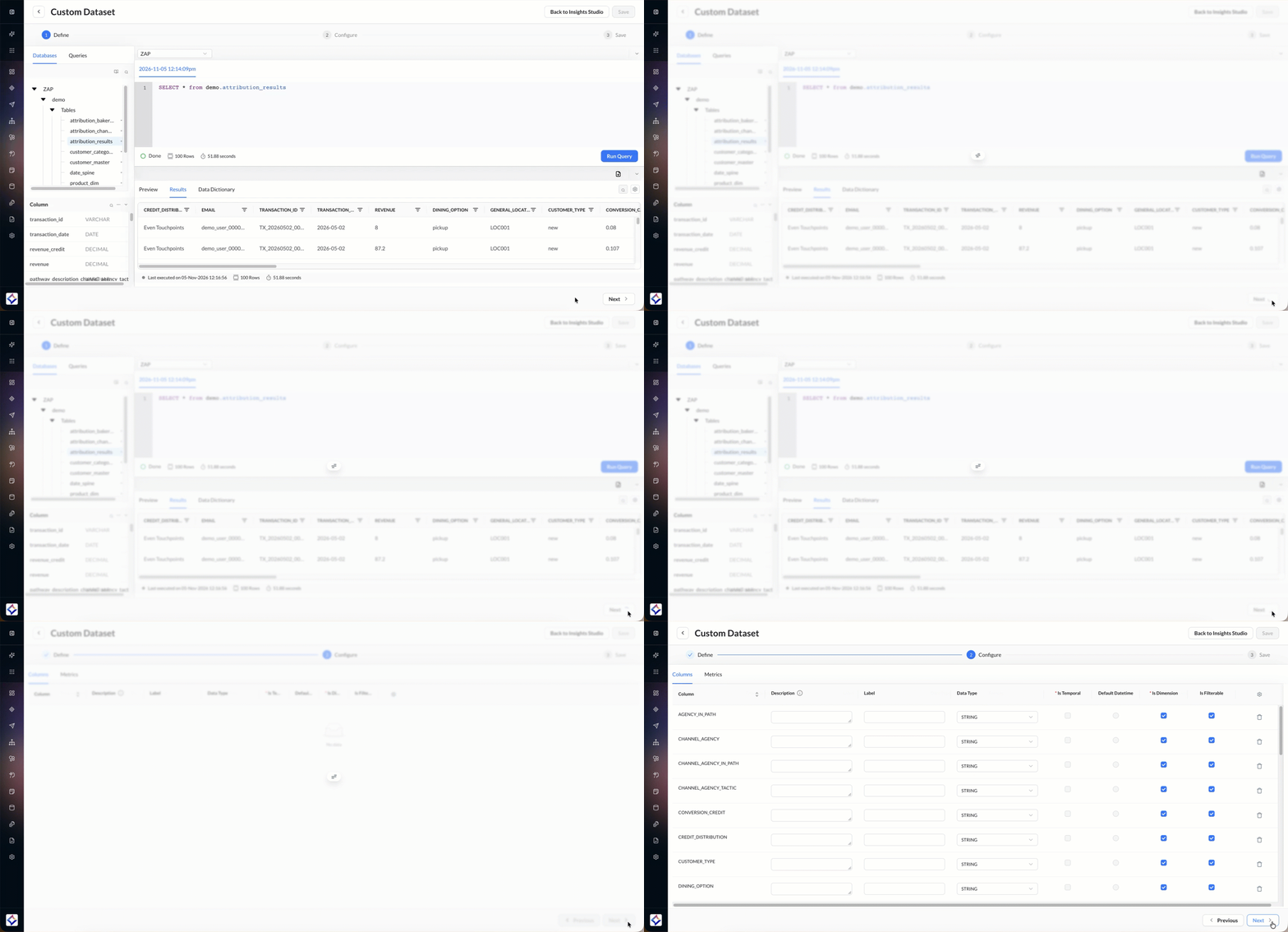
Items opened from the browsing panel are read-only.
To change a saved query, edit it in Query Lab. Contact your account team to discuss enablement.
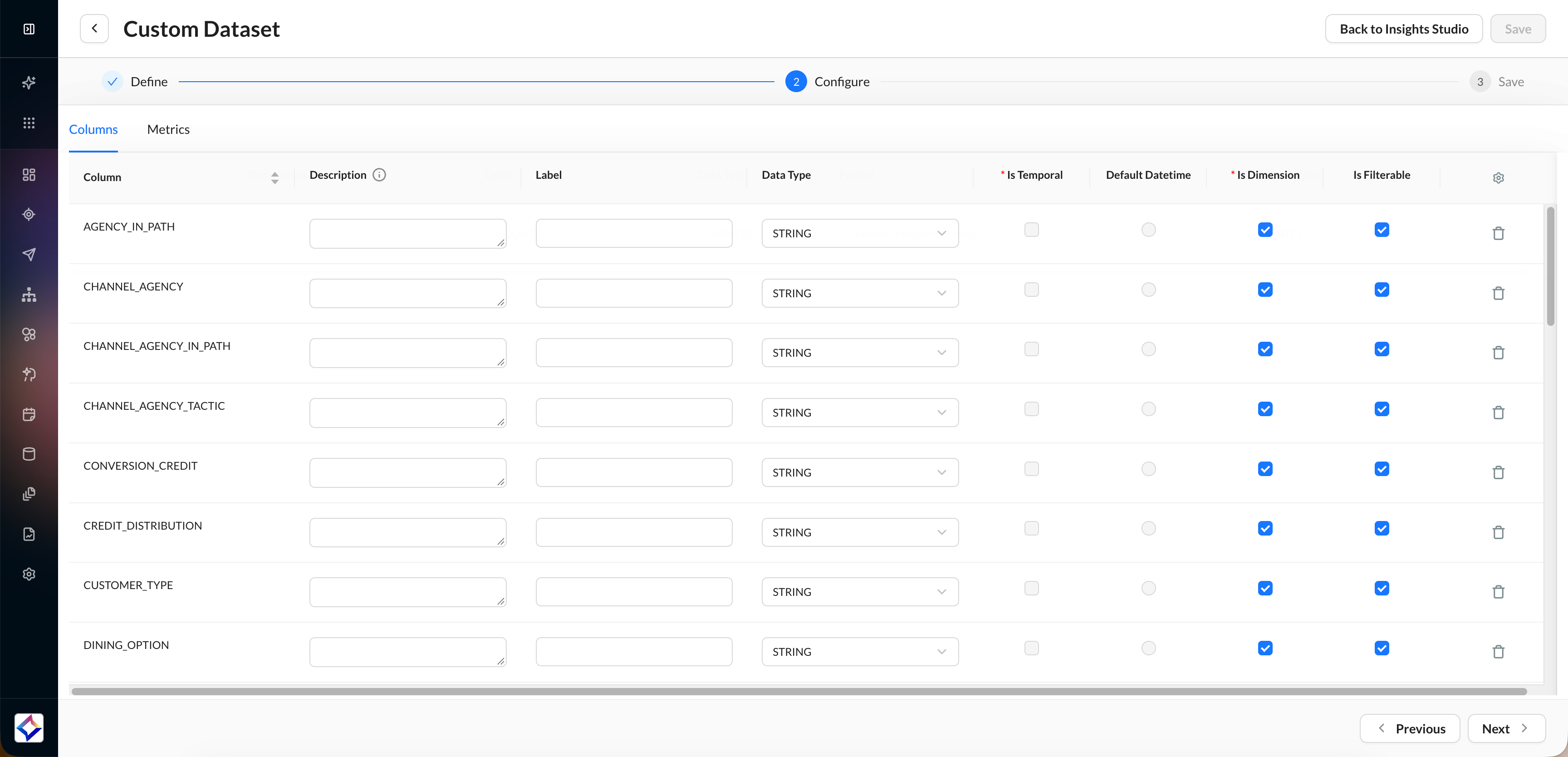
Configure columns
|
Field |
What it does |
|---|---|
|
Column |
Field name returned by the query. |
|
Description |
Help text for the field in Report Builder. |
|
Label |
Display name. When left blank, the field name is used. |
|
Data Type |
Taken from the SQL. To change it, cast the column on Define. |
|
Is Temporal |
Marks a date column. At least one date column is required. |
|
Default DateTime |
The date column used for date filtering when the dataset has more than one. |
|
Is Dimension |
Makes the column available as a dimension. A column that is not a dimension can still be used in a metric. |
|
Is Filterable |
Makes the column available as a report filter. |
|
Delete |
Removes the column from the dataset. To restore it, edit the query. |
To keep a column available for metrics without showing it as a dimension, clear Is Dimension.
Configure metrics
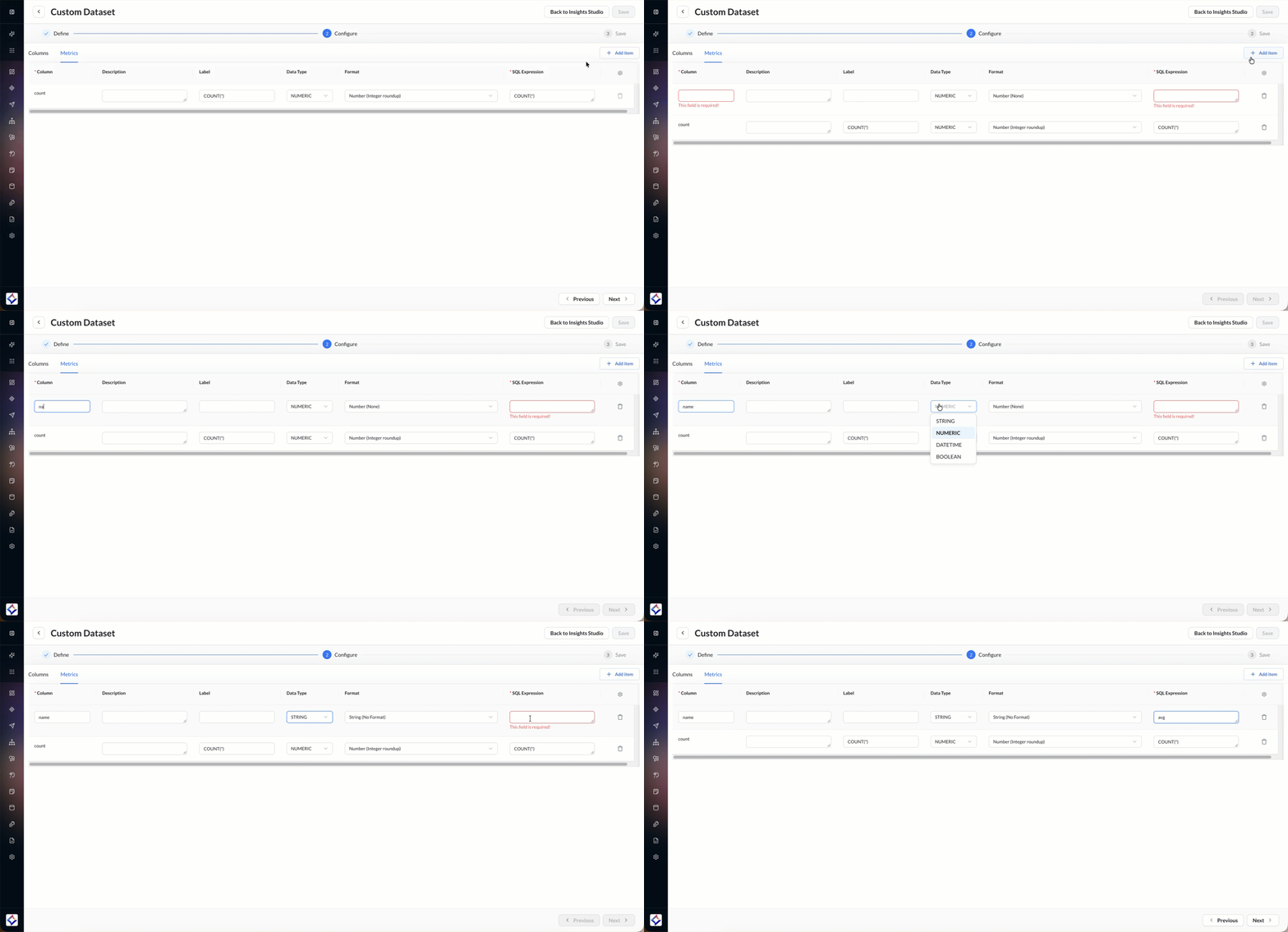
On the Metrics tab, select Add Item for each field that needs an aggregate. Set the name, label, data type, format, and SQL expression.
-
Supported data types are Numeric, String, DateTime, and Boolean. The formats you can choose depend on the data type. Expressions can use functions such as
SUM,AVG, andCOUNT. -
Leave dimensions on the Columns tab when you want to use them as they are. For a numeric field used only in an aggregate, clear Is Dimension.
-
Previous to return to Define. Next saves the configuration and opens Save.
Save or publish
Enter a short name and a description of the dataset’s purpose and granularity.
-
Leave Publish off to keep the dataset as a draft.
-
Turn Publish on to make the dataset available for reporting.
Draft datasets are not listed when you choose a dataset on Save As. Publish the dataset before you use it on a report.
Duplicate a dataset
Open the dataset’s action menu. The menu includes Edit, Duplicate, and Delete.
-
Edit opens the dataset so you can change it.
-
Delete asks you to confirm. Deletion is permanent and affects reports and dashboards that use the dataset.
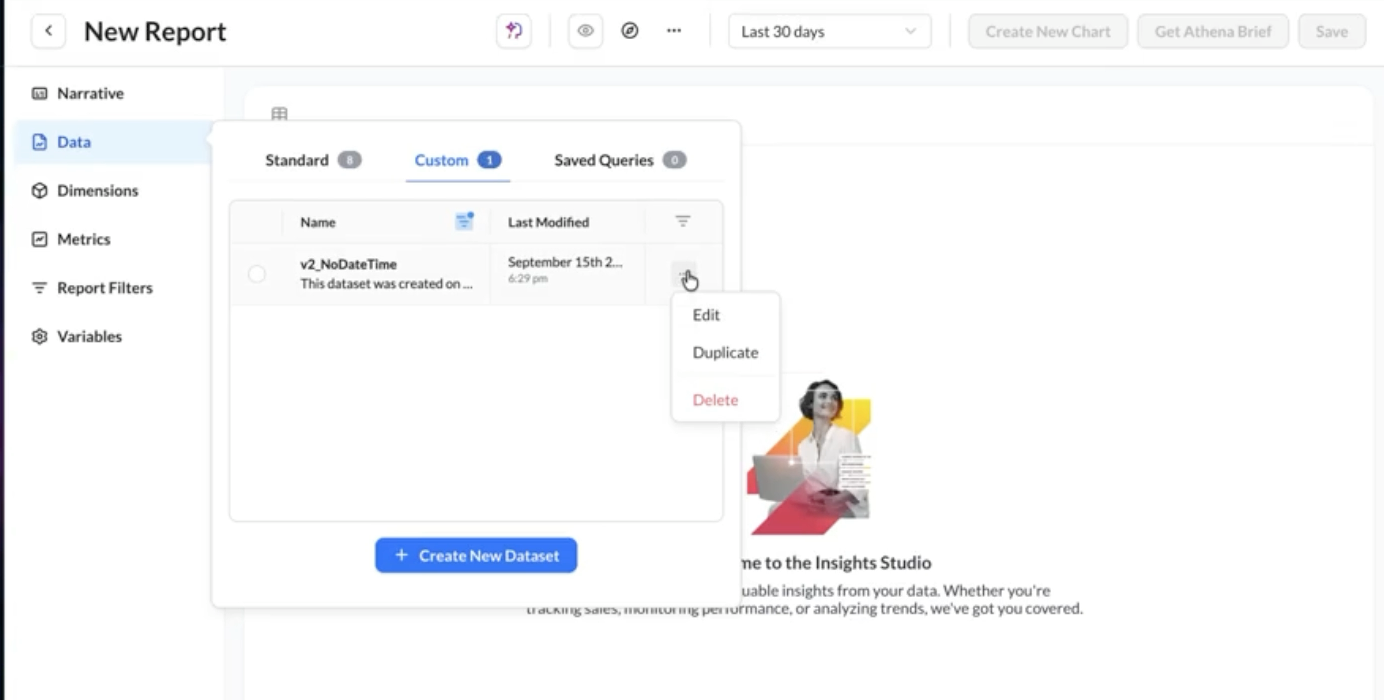
If duplication fails, Insights Studio shows Unable to duplicate this dataset at this time. No draft is created.
Duplicate copies the full definition, including descriptions, formatting, dimensions, and metrics. The copy is a draft named <Dataset Name> - <date time>. A successful copy shows Dataset duplicated successfully. The dataset you copied stays as it is.
Only the person who created the custom dataset can duplicate it. If you did not create it, Duplicate does not appear.
Publish the copy before you select it for a report. If Custom is filtered or sorted, the copy appears where that search and sort place it. Clear the search if you do not see the new name.
Use the copy on a report
-
Duplicate the dataset.
-
Publish the copy. Drafts are not listed under Dataset.
-
Open the report or template you want to reuse.
-
Open Save As, select the published copy, and save.
The report or template you started from stays as it is. For example, duplicate Dataset 1 to create Dataset 2. Open Report 1, then use Save As to create Report 2 on Dataset 2.
Use a different dataset
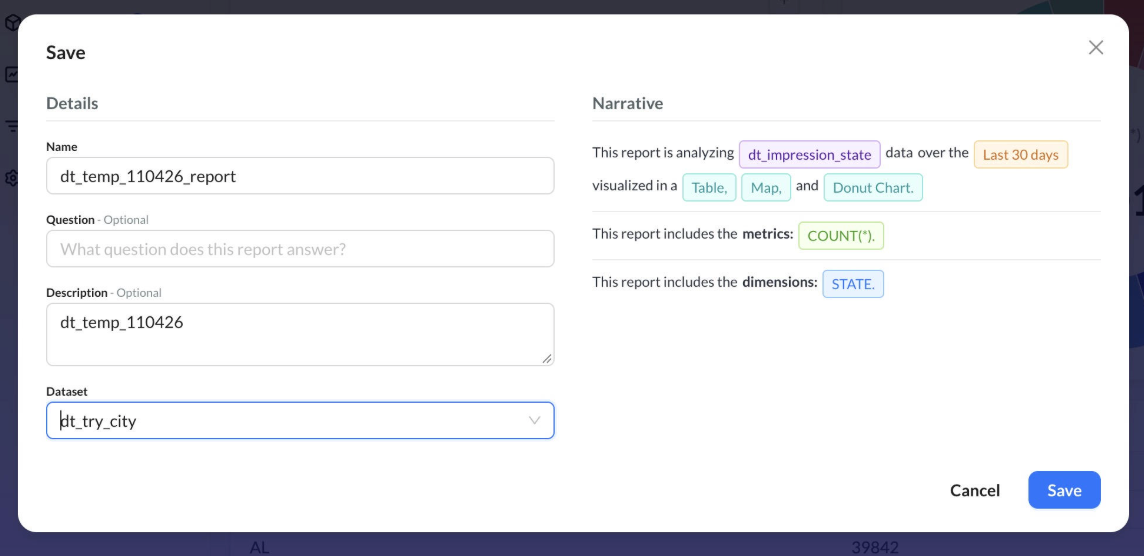
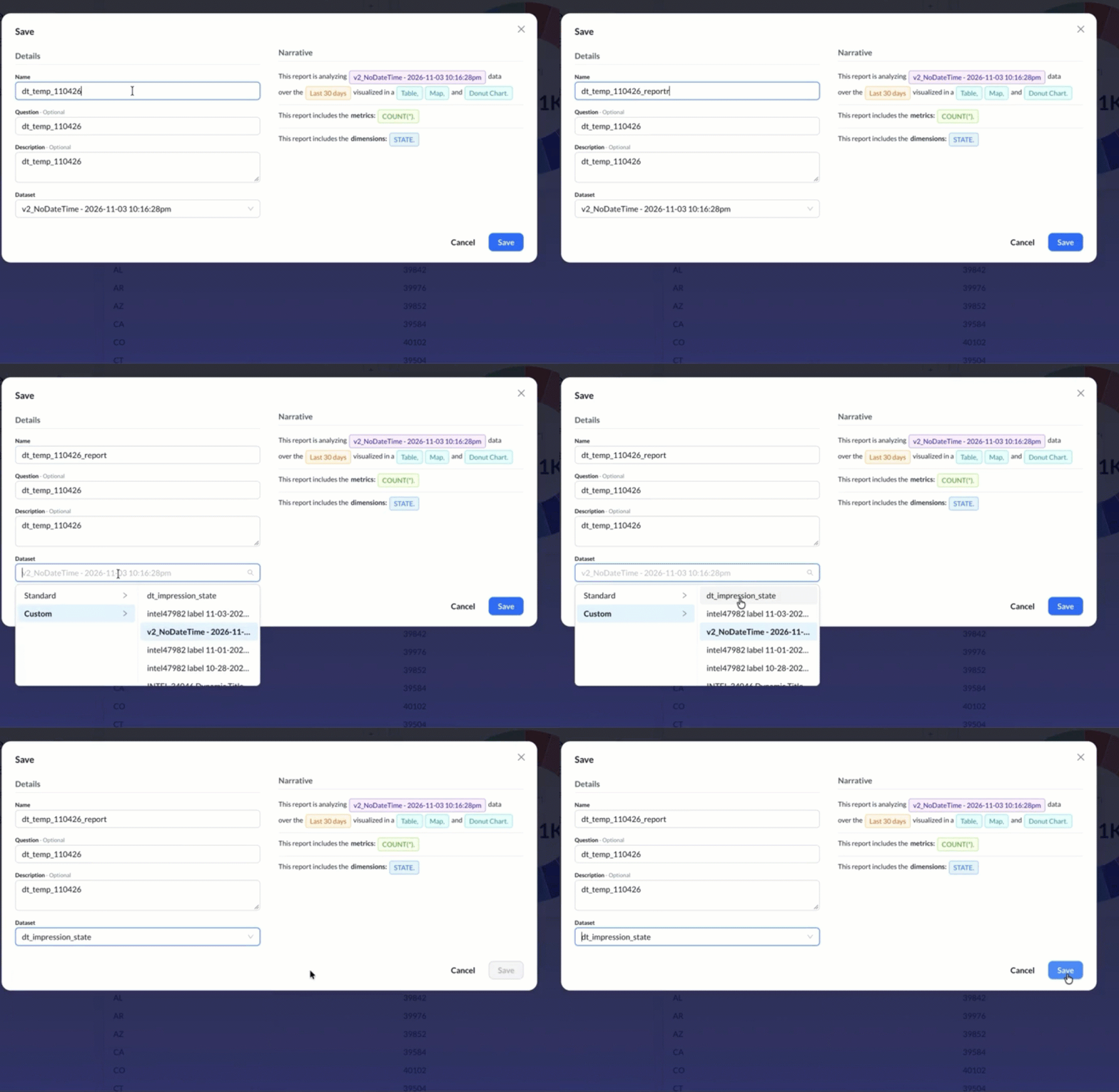
On an existing report or template, open Save As. Dataset lists Standard and Custom datasets.
-
Only published datasets are listed. Search includes datasets past the first page.
-
If the account has no custom datasets, Custom is not shown.
-
Save stays off until the selected dataset’s fields have loaded. The new report uses the dataset selected when loading finishes.
Save As with another dataset always creates a new report, including when you start from a template. The original report, its dashboards and exports, and the source template stay unchanged.
-
Save updates the open report and keeps its current dataset. A report that has not been saved yet does not show Dataset. It uses the dataset selected under Data.
-
Cancel or close leaves the open report on its original dataset.
Matching ignores letter case and uses the new dataset’s field names. One selection is kept per field.