

Zeta provides a secure SFTP (Secure File Transfer Protocol) option for exchanging data between your systems and the Zeta Marketing Platform (ZMP). This guide explains the setup process, folder structure, and best practices.
When transferring files, Zeta recommends using Zeta-hosted SFTP because:
-
Files uploaded to Zeta-hosted folders are automatically detected, processed, and archived.
-
This eliminates extra steps and latency.
-
With client-hosted SFTP, Zeta must first transfer files into the Zeta-hosted SFTP environment, which may slow processing.
For exporting data back to clients, both Zeta-hosted SFTP and client-hosted SFTP are supported.
Adding Ad Accounts
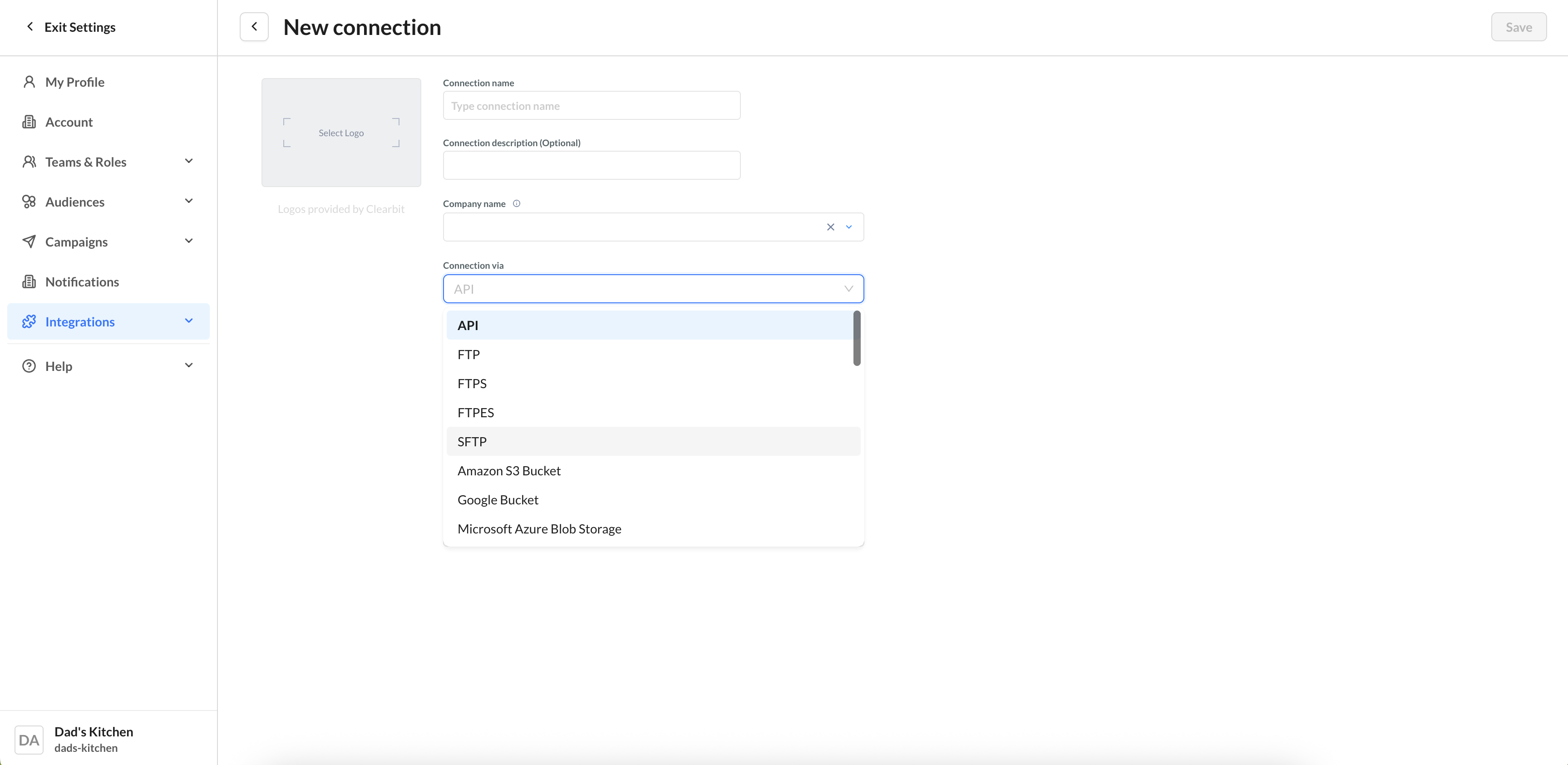
1. On a new Connection page, select SFTP from the Connection via dropdown list.
2. Once selected, fill in the Hostname (SFTP server address), Port (default: 22), Root Directory (e.g., /inbound/profiles/), Username, Authentication Method (choose Password or SSH Key), and Password (if using password authentication).
Keep “Use secure copy protocol” enabled.
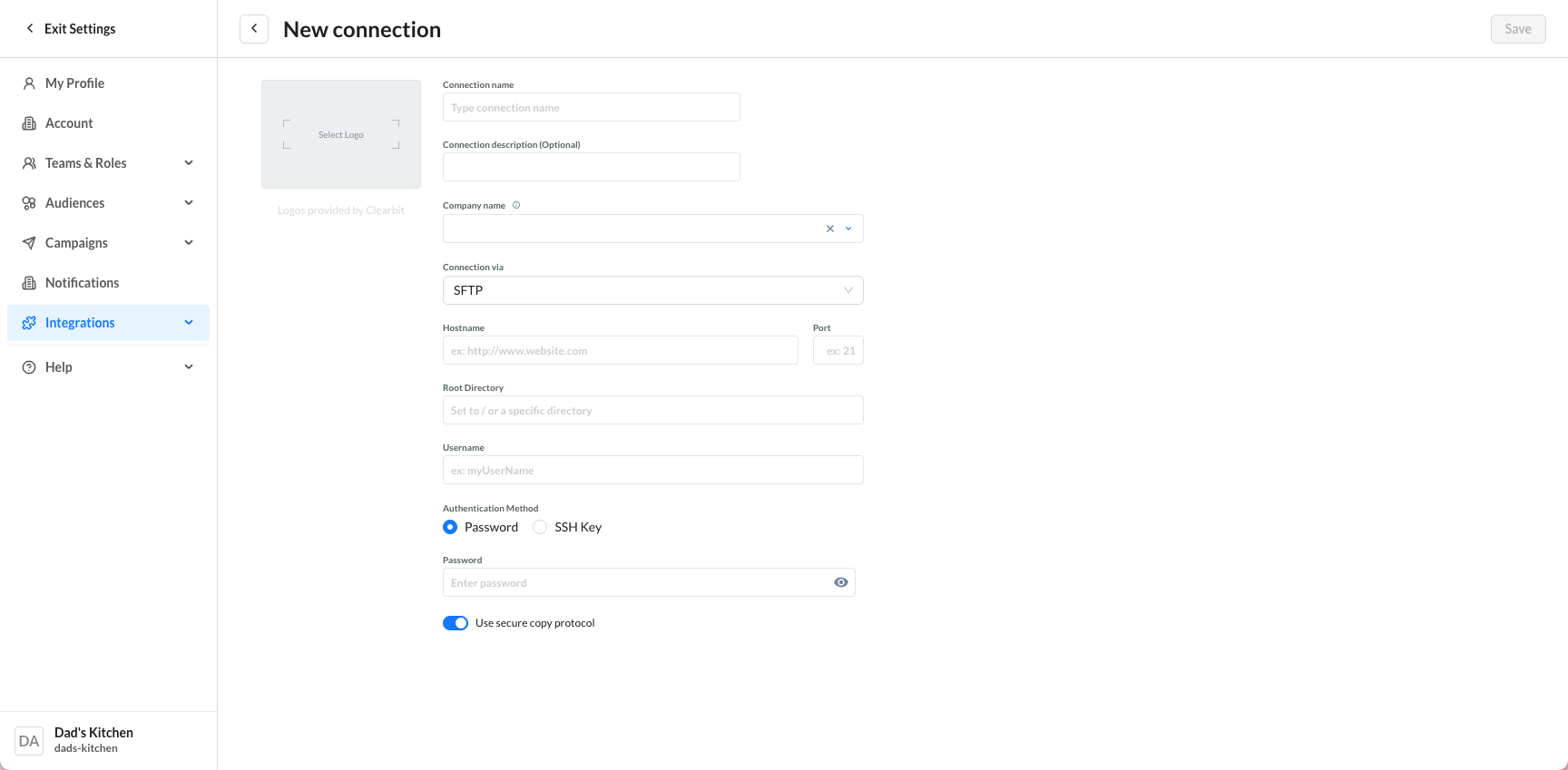
Once an account is created, only the Account Name may be updated if necessary. The site_id (also used as the FTP username) and account_id are permanent and cannot be modified.
Standard Folder Structure
Zeta-hosted SFTP sites include the provisioning of the following standard set of folders. Their names, purpose, and descriptions are defined below:
|
Folder |
Subfolder |
Purpose (Data In, Data Out, Both) |
Description |
|---|---|---|---|
|
attributions |
n/a |
Both |
Used for the asset library. Any files that are placed in these folders are available in the asset library list and can be exported by the customer to external destinations. |
|
batch_imports |
n/a |
Data In |
Folder to be created by the Zeta team for Historical Event Load. This process will do a direct storage of the events to Snowflake tables, and will remove some additional processing of events. To note, events from this folder will be direct to storage but not accessible for real-time targeting events. |
|
campaigns |
One-Time [Campaign_ID[ |
Data In |
The One-Time folder holds audience files to be selected for direct targeting in One Time “Campaigns Based on a File”
Campaign_ID folders will be created when you create a file-based recurring campaign. Dropping a file to these folders will trigger a new instance of the campaign. |
|
coupon_codes |
n/a |
Data In |
Utilized when clients are providing Zeta with pools of coupon codes to issue to users in content personalization |
|
data |
Events
Users
|
Data Out |
All user/segment exports or event exports are pushed to these folders |
|
events |
n/a |
Data In |
This is the inbound folder for file loads of events. Event files dropped to this folder should be treated as triggering events. These files will be displayed under the Data > Files tab. |
|
events_non_real_time |
n/a |
Data In |
This folder is to be used for events that need to be loaded for segmentation, personalization, but do not require real-time triggering from. |
|
file_share |
n/a |
Data In |
Folder to hold inbound files to be shared |
|
models |
n/a |
Data Out |
Used for the asset library. Any files that are placed in these folders are available in the asset library list and can be exported by the customer to external destinations. |
|
others |
n/a |
Both |
This folder is currently not being consumed by any ZMP downstream products. However, files dropped in this folder will be displayed under the Data > Files tab. |
|
resources |
n/a |
Data In |
Utilized for file-based loads of Resources (Content > Resources). These files will be displayed under the Data > Files tab. |
|
seeds |
n/a |
Both |
Used for the asset library. Any files that are placed in these folders are available in the asset library list and can be exported by the customer to external destinations. |
|
segments |
New_list Segment_id |
Data In |
New_List: This folder will create a new audience with the file
Segment_id: List-based audiences will be created as folders using their segment id. Dropping a file into this folder will replace the existing file for the audience |
|
users |
n/a |
Data In |
Users loaded via the users folder will be added to the db but will not create an audience. The max recommended file size is 20GB. Files exceeding 20GB should be split before being dropped into the users folder. These files will be displayed under the Data > Files tab. |
|
client_inbound_data |
n/a |
Data In |
Data that requires advanced ETL processing (beyond Data Flows) |
Note: Folder setup may vary slightly depending on your implementation.
Domain Whitelisting
To establish a secure connection, your IT team must whitelist Zeta’s SFTP domains.
Domains:
-
app.zetaglobal.net -
api.zetaglobal.net -
cdn.app.zetaglobal.net -
sftp.app.zetaglobal.net
Authentication Options
When connecting to Zeta’s SFTP, you can authenticate using:
-
Password authentication (credentials provided separately), or
-
SSH key authentication (preferred).
For SSH key authentication, the client generates and shares a public key, which Zeta installs on its SFTP server.
Data Direction
SFTP supports two-way data exchange:
-
Client → Zeta: Upload profile, event, and resource files into the inbound folders.
-
Zeta → Client: Retrieve export files generated by Zeta from the outbound folders.