

Audience Insights in the Audience Explorer show demographic breakdowns for the audience you are exploring. The Customer panel and the Prospect panel are sourced differently. Empty Customer charts with populated Prospect charts can be expected behavior, depending on the filters you apply.
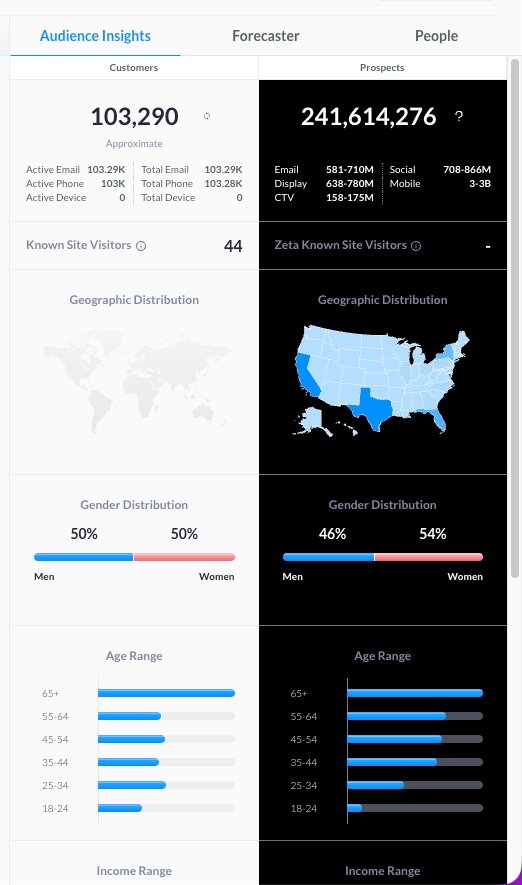
Customer demographic charts (gender, age, income, geography, and similar attributes) come from first-party data when only Account / CRM filters are applied. Zeta Data enrichment is applied to the Customer panel only when Zeta filters are used, either on their own or together with CRM filters.
How Insights are Sourced
The insights panel has two views:
-
Customers — people in your first-party CRM dataset.
-
Prospects — people in the Zeta Data Cloud.
Filters to apply in the explorer that determine what each panel can display:
|
Filters applied |
Customer panel (gender, age, income, geo) |
Prospect panel |
|---|---|---|
|
Account / CRM filters only (Properties, Contacts, Events, Campaigns, Segments, and other Account Data filters) |
Sourced from first-party data only. Zeta enrichment is not applied. |
Sourced from the Zeta Data Cloud and can still populate. |
|
Zeta filters only |
Zeta Data enrichment is applied for matched customers. |
Sourced from the Zeta Data Cloud. |
|
CRM filters and Zeta filters together |
|
Sourced from the Zeta Data Cloud. |
For more on Account Data versus Zeta Data filters, see Audience Sources.
What Customer Charts Require
When only CRM filters are applied, Customer insights (gender, age, income, and similar demographics) are sourced from first-party properties. Profiles need either:
-
Standard properties populated (
gender,age,income,zip, and other Zeta standard properties), or -
Custom properties mapped to those standard properties.
Audience Explorer uses only standard properties, or custom properties mapped to them, for Customer demographic insights. A populated custom field that is not mapped does not appear in those charts.
For example, a profile may have gender_flag populated in first-party data. That value will not appear in the Customer gender chart until gender_flag is mapped to the standard gender property.
To map a custom property, go to Settings > Audiences > Customer Properties and follow the steps in Standardization of Attributes.
Also, confirm that the data type matches the standard property specification. An incorrect data type, such as storing income with commas so it is treated as a string, prevents aggregated insights from generating.
Demographic Filters versus Insight Charts
Demographic filters in the explorer refine who is included in the audience. Demographic insight charts summarize attributes for the people already in that audience.
-
Applying a demographic filter does not, by itself, fill the Customer insight charts.
-
If you apply only CRM filters, Customer charts still require standard or mapped first-party properties.
-
If you apply Zeta demographic filters, enrichment can populate Customer charts for matched people, and Prospect charts from the Data Cloud.
Expected Behavior
These outcomes are expected with the current product behavior:
-
Customer charts empty, Prospect charts populated on a CRM-only exploration. Prospect insights come from the Zeta Data Cloud. Customer insights come from first-party standard or mapped properties unless Zeta filters are also used.
-
Customer counts look healthy, but gender, age, or income charts are empty. Counts can come from identifiers and CRM membership. Demographic charts need the corresponding standard properties (or mappings).
-
A custom demographic field is populated on the profile, but the chart is empty. Map that custom property to the matching Zeta standard property.
-
Zeta enrichment does not automatically overlay onto Customer charts when only CRM filters are applied. Add a Zeta filter if you need enriched demographics on the Customer panel.
Troubleshooting Empty Customer Insights
|
What you see |
What to check |
|---|---|
|
Customer demographic charts are empty on a CRM-only segment |
Confirm standard properties such as |
|
Prospect charts populate, Customer charts do not |
Expected when only Account / CRM filters are used. Add a Zeta filter if you want enrichment on the Customer panel. |
|
A custom field (for example, |
Map the custom property to the standard property in Settings > Audiences > Customer Properties. |
|
Standard property exists, but charts still look empty |
Confirm the data type matches the standard (for example, numeric |