

Zeta supports integration with Google BigQuery for seamless data access and segmentation within the Zeta Marketing Platform (ZMP). This guide will help you set up a secure connection using service account credentials and key pair authentication.
Prerequisites:
Before you begin, ensure that External databases are enabled for your ZMP account.
-
This requires submitting a support ticket to Zeta to enable the
ext_db_segmentation_enabledflag on your account.
Setting Up the BigQuery Connection
Once external databases are enabled:
1. Navigate to Settings > Integrations > Connections. Click on Create Connection.
.png?cb=df168e1849363dc7638b70916354c55d)
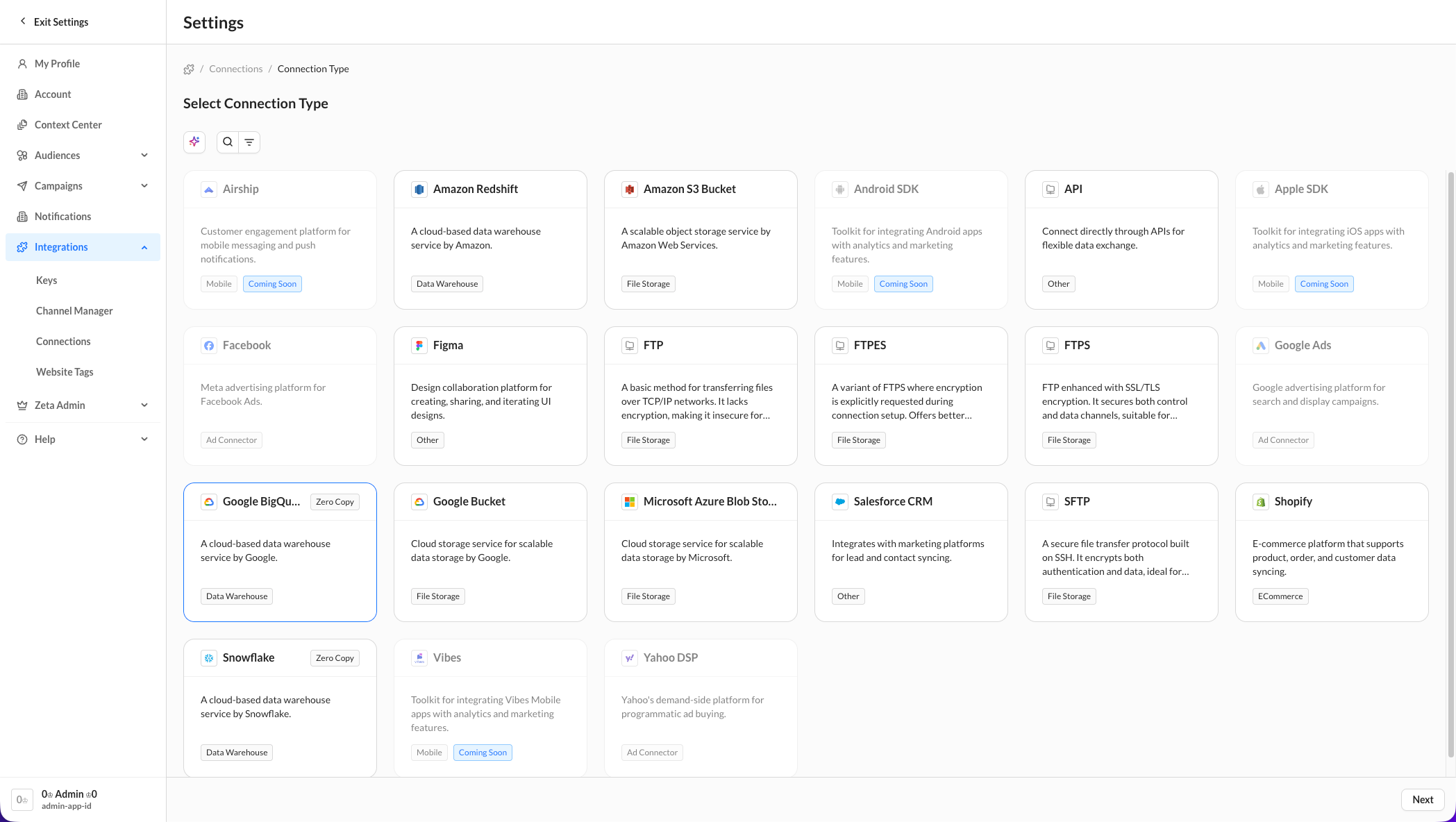
2. On the Select Connection Type page, click on the Google BigQuery tile. Click on Next.
-
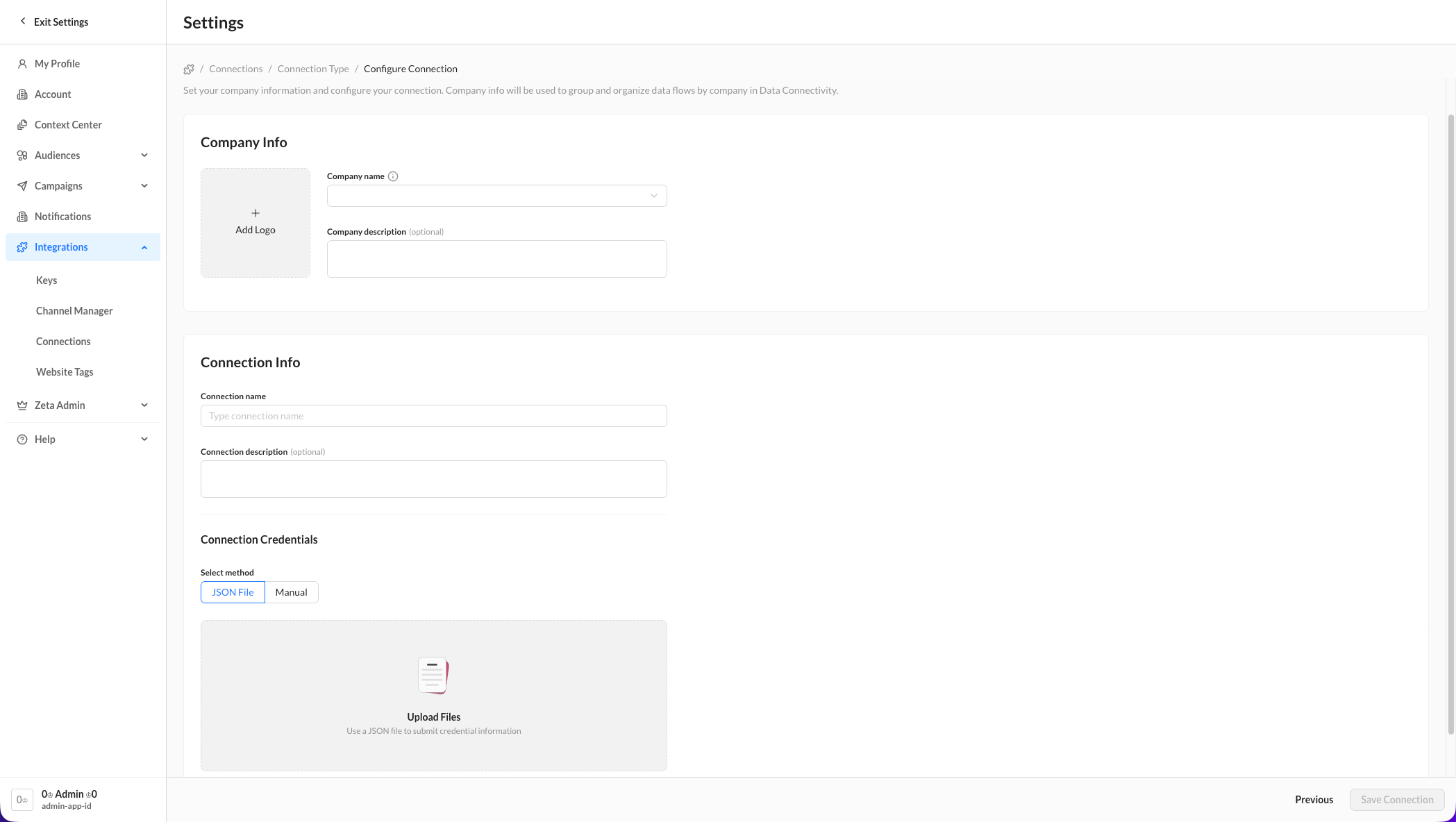
Zeta uses Key Pair Authentication to connect to your BigQuery instance.
3. Create a Service Account in Google Cloud Console.
-
Once the key is created, download the JSON key file; you will need it for ZMP configuration.
4. Zeta provides a BigQuery test instance for onboarding and sandbox testing: Zeta Demos Project on Google Cloud Console. [Invite required; reach out to David Harry]
Service Account Key Configuration (Sample)
When adding the connection in ZMP, you'll be asked to provide details from your service account JSON. The required format looks like this (example only):
{
  "type": "service_account",
  "project_id": "zeta-demos",
  "private_key_id": "xxxxxxx",
  "private_key": "-----BEGIN PRIVATE KEY-----\n...",
  "client_email": "bq-services@zeta-demos.iam.gserviceaccount.com",
  "client_id": "xxxxxxx",
  "auth_uri": "https://accounts.google.com/o/oauth2/auth",
  "token_uri": "https://oauth2.googleapis.com/token",
  ...
}
There is a parameter called tmp_dataset. If unsure what to enter, use: zeta-demos
Using BigQuery After the Connection Is Live
Once your BigQuery connection is saved and active, you can typically:
-
Use Zero Copy Database Explorer to segment and personalize against BigQuery tables without copying data into ZMP first. See Zero Copy Database Explorer.
-
Use BigQuery as a source in Data Flows when you want selected data ingested into ZMP. See Data Flows.
If you plan to use Zero Copy, open the connection’s action menu (⋯) → Configure Tables & Groups, assign a User ID, and configure targeting / personalization columns as needed.