

The Voter Files Onboarding App enables political teams to upload, organize, match, and activate voter files directly within Zeta, removing friction from intake to execution. Designed for campaigns operating under tight timelines, the experience prioritizes speed, transparency, and scale while supporting non-email identifiers commonly found in voter data.
Using Zeta’s deterministic identity graph and automated workflows, voter files begin matching and can be pushed for activation as records are processed—without waiting for full file completion.
Within a simple, action-oriented interface, users can:
-
Create and manage voter files
-
Upload files via drag-and-drop
-
Monitor processing and activation status
-
View detailed file-level status and timestamps
The experience is built to make file uploads and status tracking fast, intuitive, and highly visible, giving campaigns clear insight into readiness for activation at every stage.
How to Use the App
Your experience will differ depending on whether it’s your first time entering the app or if you use FTP ingestion.
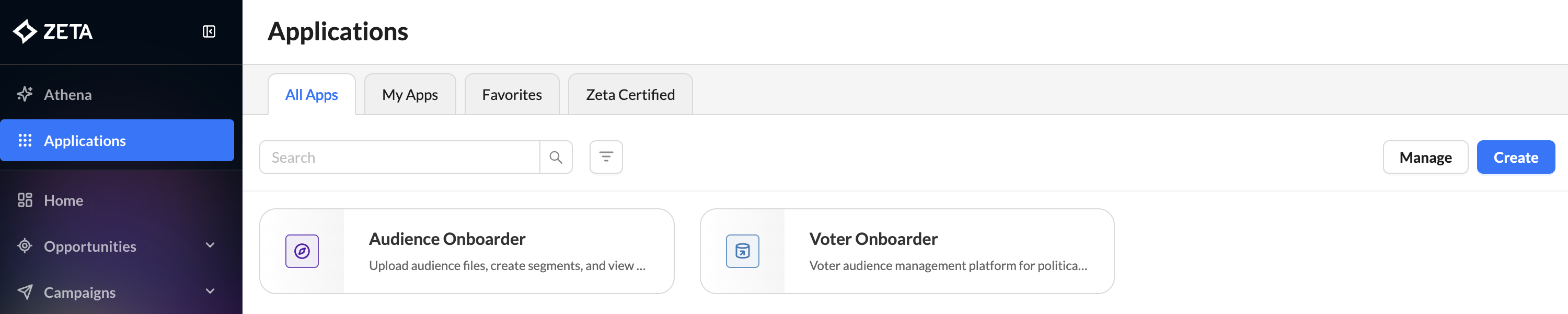
1. Navigate to the Voter Onboarder App by clicking on Applications, then Voter Onboarder.
2. Audience Type selection when uploading your file
You'll see an Audience Type option when uploading your voter file:
-
Household and Individual (default) — select this if your campaign includes CTV.
-
Individual — select this if your campaign does not include CTV.
If you're unsure, leave the default selected. Audience Type can't be changed after upload, so a file uploaded with the wrong selection will need to be re-uploaded.
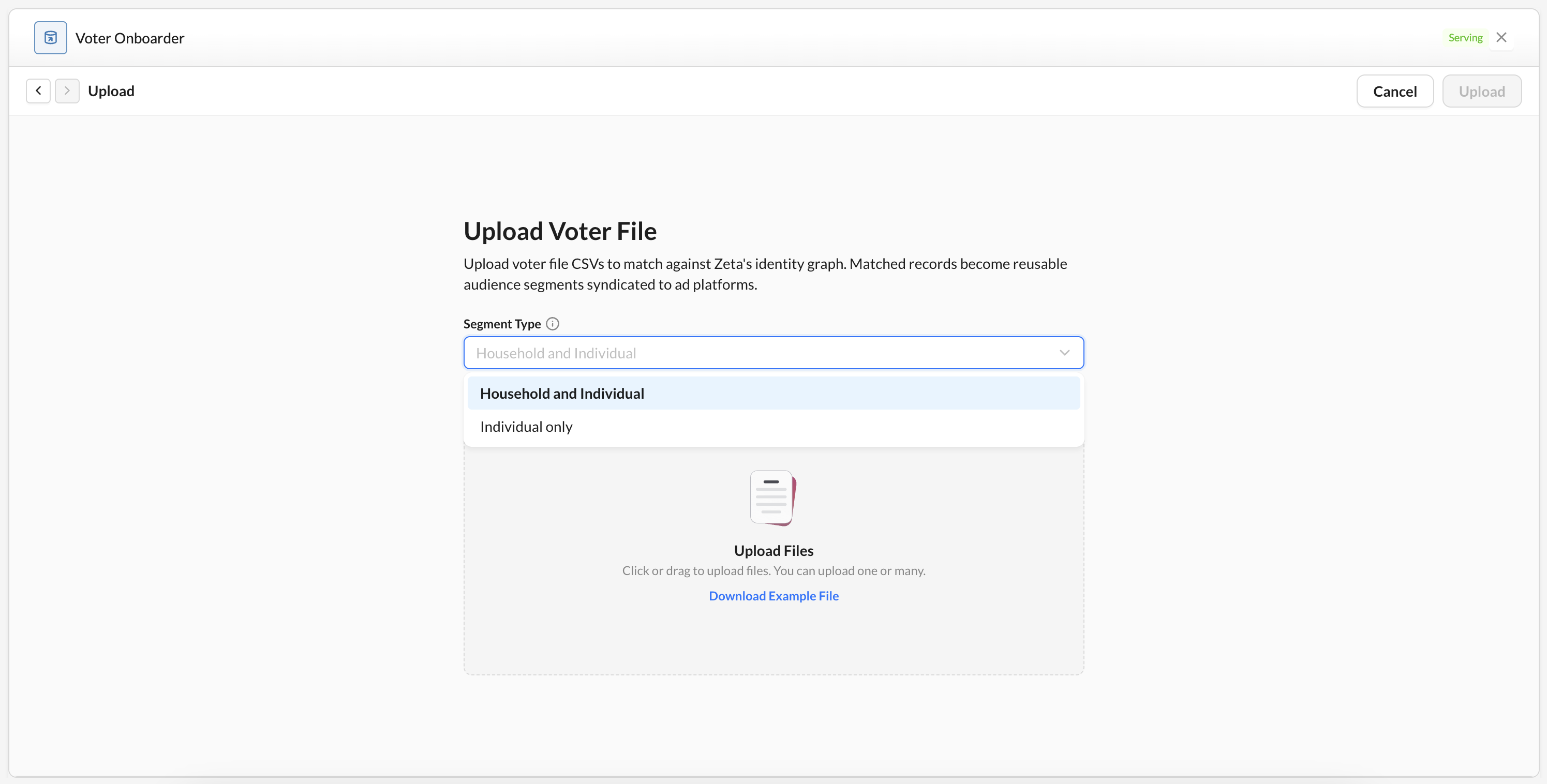
3. Drag and drop voter files into the upload area. Confirm the files as they appear in the file list, and click Upload.
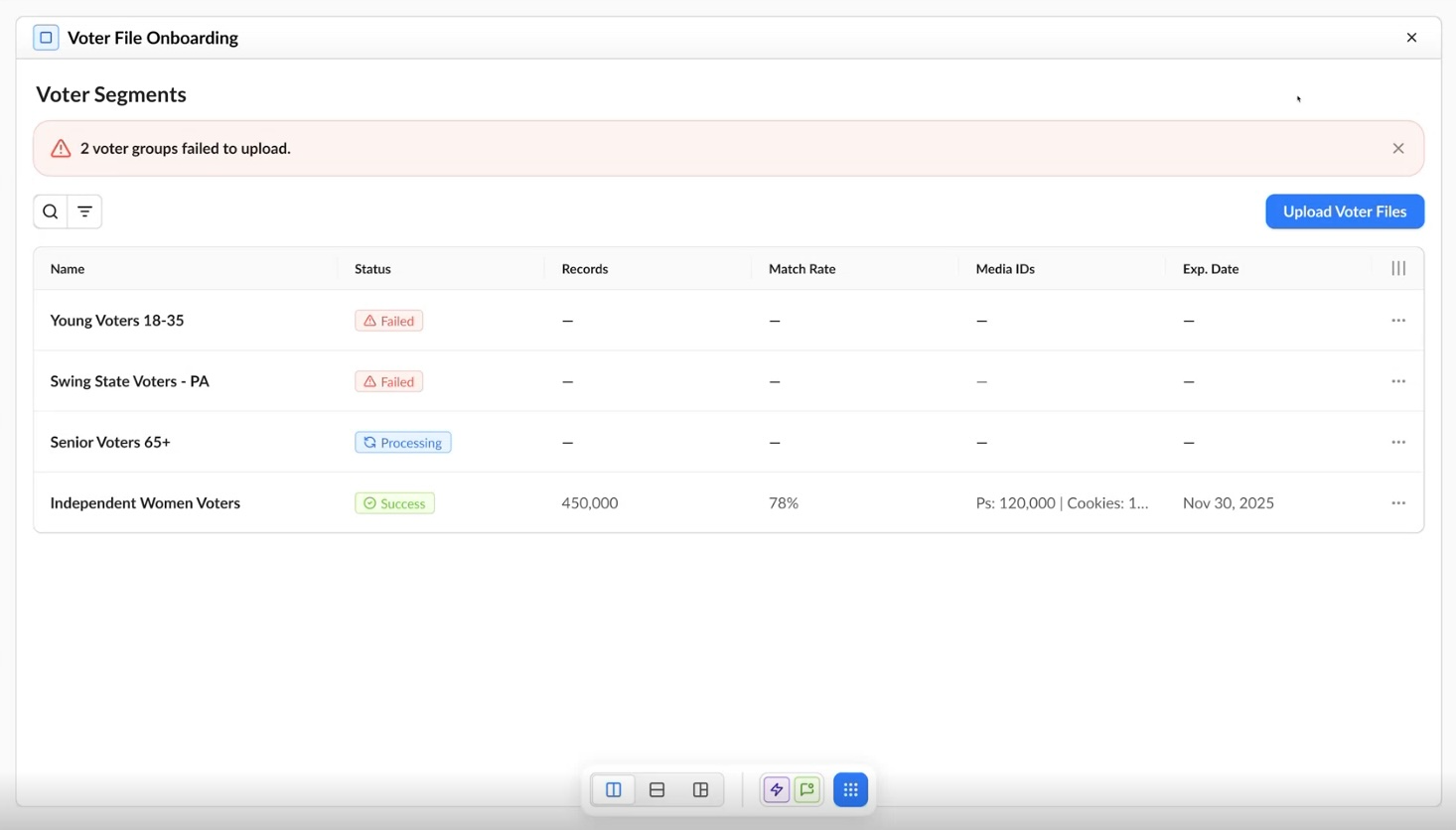
4. You will then be redirected to the Main Table, which provides a centralized dashboard.
If your campaign uses FTP ingestion, the app automatically pulls existing segments from your FTP location. You will skip the initial upload screen and will land directly on the Main Table View.
-
From this view, users can view all voter files, monitor processing status, track total records uploaded and matched, monitor match rates, and upload additional files.
-
Each row represents a voter file and includes clear status visibility.
-
To upload additional files, please follow Steps 2-3 above.
Required match fields: Your file must use the exact headers from the seed file. Custom headers are not accepted, and do not remove any fields or headers. These headers are required: first_name, last_name, address_line_1, city, state, and zip. Include address_line_2 where it applies, especially for apartments in places such as NYC, LA, and Miami. Other columns, including email and phone, are optional. Including more of those optional fields improves your match rate. A record missing a required field will not match.
How Political Teams Can Use It
-
Launch voter-targeted campaigns within hours instead of days
-
Monitor match rates and activation readiness in real time
-
Reduce manual onboarding effort and operational delays
-
Maximize reach by leveraging non-email voter identifiers
Voter Files Onboarding provides a streamlined path from voter data to live media, ensuring campaigns can respond immediately as the political environment shifts.
FAQ
|
Question |
Answer |
|---|---|
|
Can an audience already onboarded via Voter Onboarder be repushed/reprocessed without a new file upload? |
Not currently a capability; the Zeta Product team is actively working on adding this. Until it's available, there are two options:
|
|
Is there a difference between the CTV match and the general match rate provided? |
The match rate we provide reflects how many of your records matched a unique, deduplicated individual in our data; this rate is the same across channels, not a separate CTV-specific figure. |