
This tool is currently in beta. If you are interested in being an early tester, please reach out to your LiveIntent account manager.
LiveIntent’s Forecasting is a self-service tool designed to help publishers confidently plan inventory, evaluate availability and booked inventory, and make data-driven decisions for upcoming direct-sold campaigns.
How to Access Forecasting
-
Log into the LiveIntent Platform
-
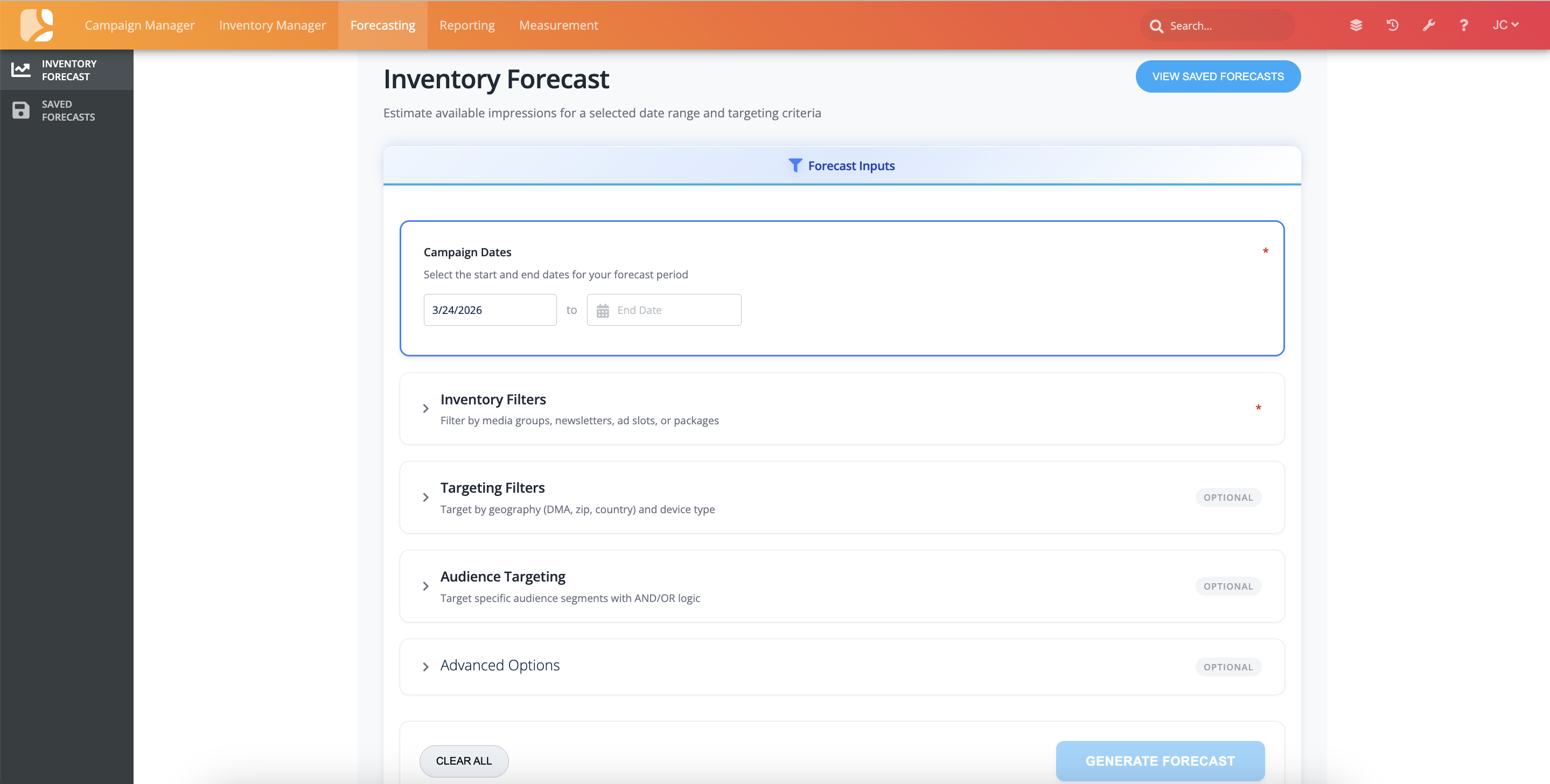
From the orange navigation bar at the top of the screen, click Forecasting.
This will take you to the Forecast Inputs page, where you can create a new forecast or view previously saved ones.
-
To start a new forecast, remain on the Forecast Inputs page.
-
To view previously saved forecasts, click View Saved Forecasts in the top-right corner or select Saved Forecasts from the left-hand menu.
Creating a New Forecast
Follow the steps below to generate a new forecast.
-
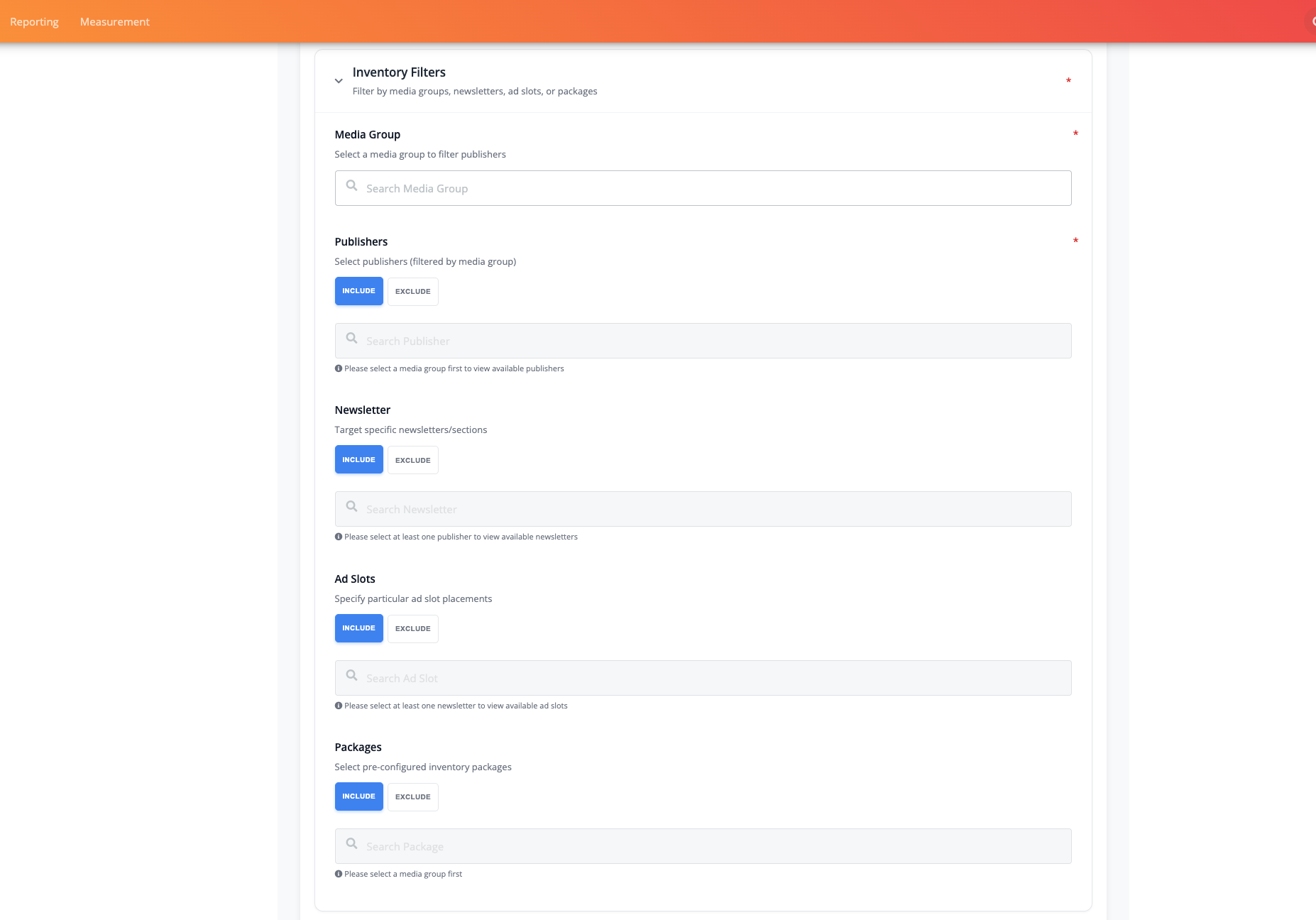
Choose your Campaign Dates: Select the date range for your forecast.
-
You can forecast up to 180 days from the current date
-
-
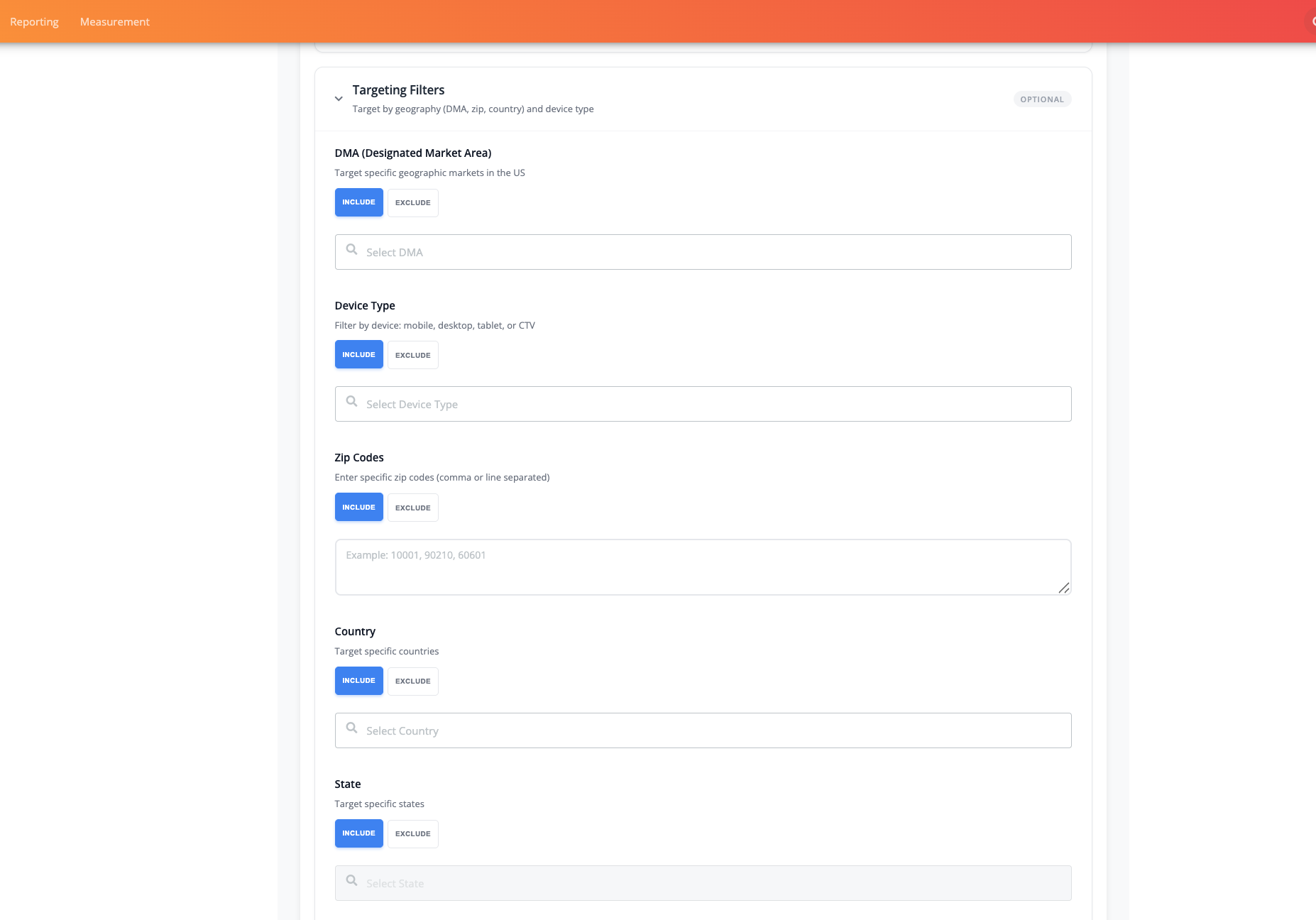
Add Inventory Filters: Define the inventory you want to forecast by selecting from the following filters-
-
Media Group (required)
-
Publisher (required)
-
Newsletter
-
Ad Slots
-
Packages
-
For each filter (except Media Group), you can Include or Exclude it from your forecast to hone the results.
-
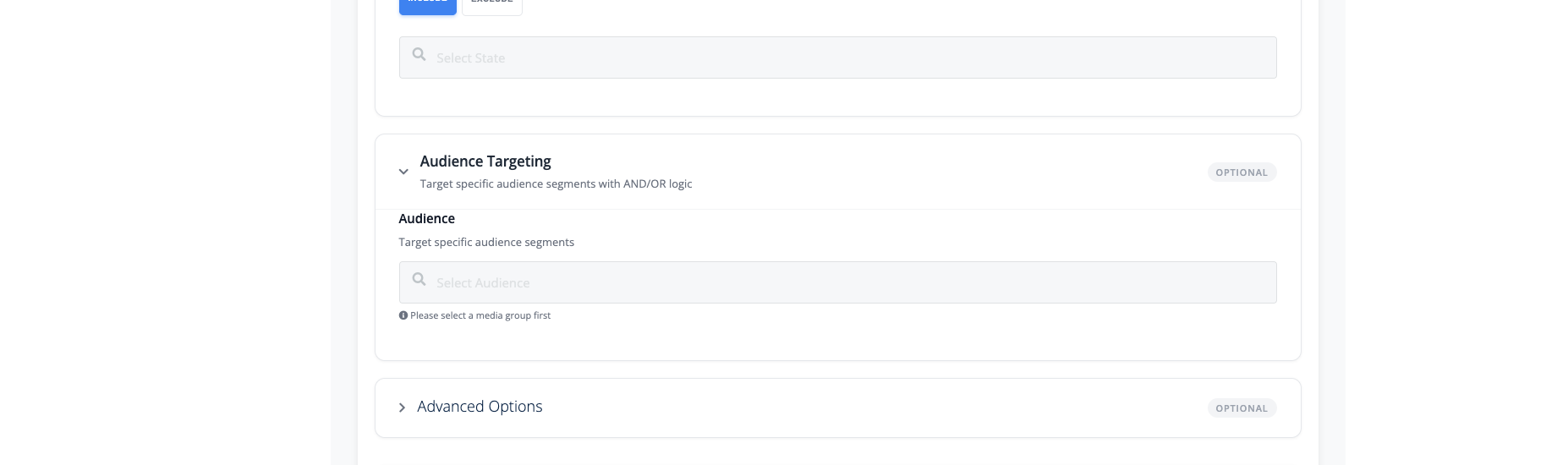
Add Targeting Filters (Optional): Refine your forecast further by applying targeting criteria such as:
-
DMA
-
Device Type
-
Zip Codes
-
Country
-
State
-
You can also Include or Exclude each targeting filter based on your needs.
-
Add Audience Targeting (optional)
-
If desired, target specific first party audience segments to understand how inventory availability changes when targeting those audiences.
-
-
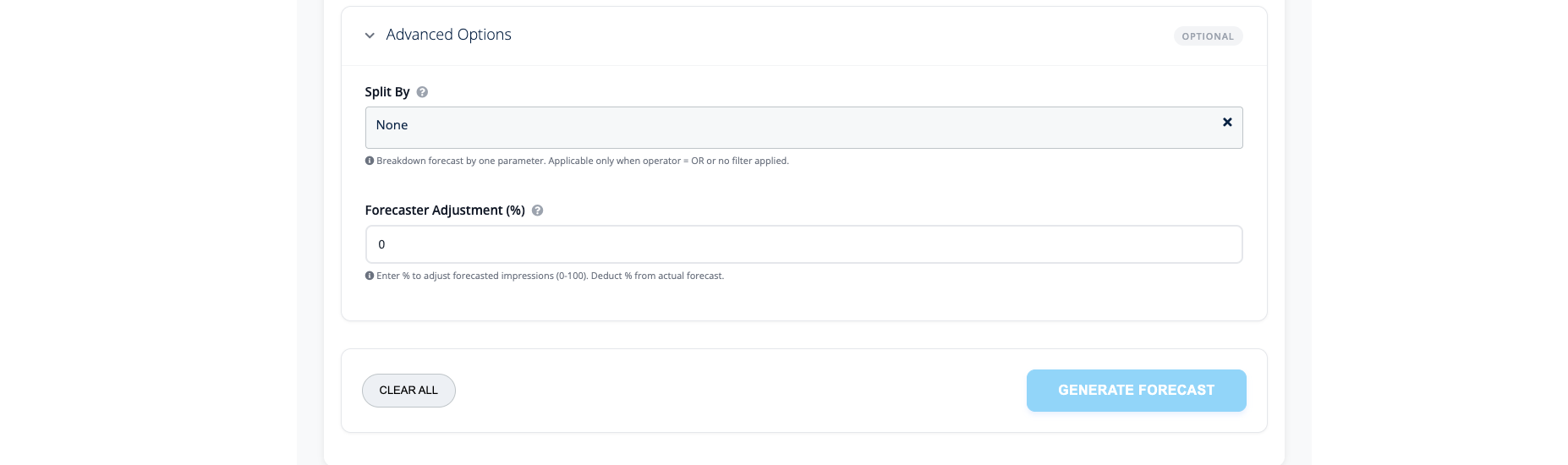
Advanced Options (optional)
-
Split By: Use this to break down forecast results by one of the following parameters for a more granular breakdown -
-
Country
-
Device Type
-
DMA
-
State
-
Zip Code
-
Ad Slot
-
-
Forecaster Adjustment (%): If you already have impressions reserved for upcoming campaigns outside of the LiveIntent platform, you can adjust the forecast by deducting a percentage to account for that committed inventory.
-
Once all inputs are set, click Generate Forecast to view the results.
Understanding Your Forecast Results
After generating your forecast, you’ll be taken to the Forecast Results page.
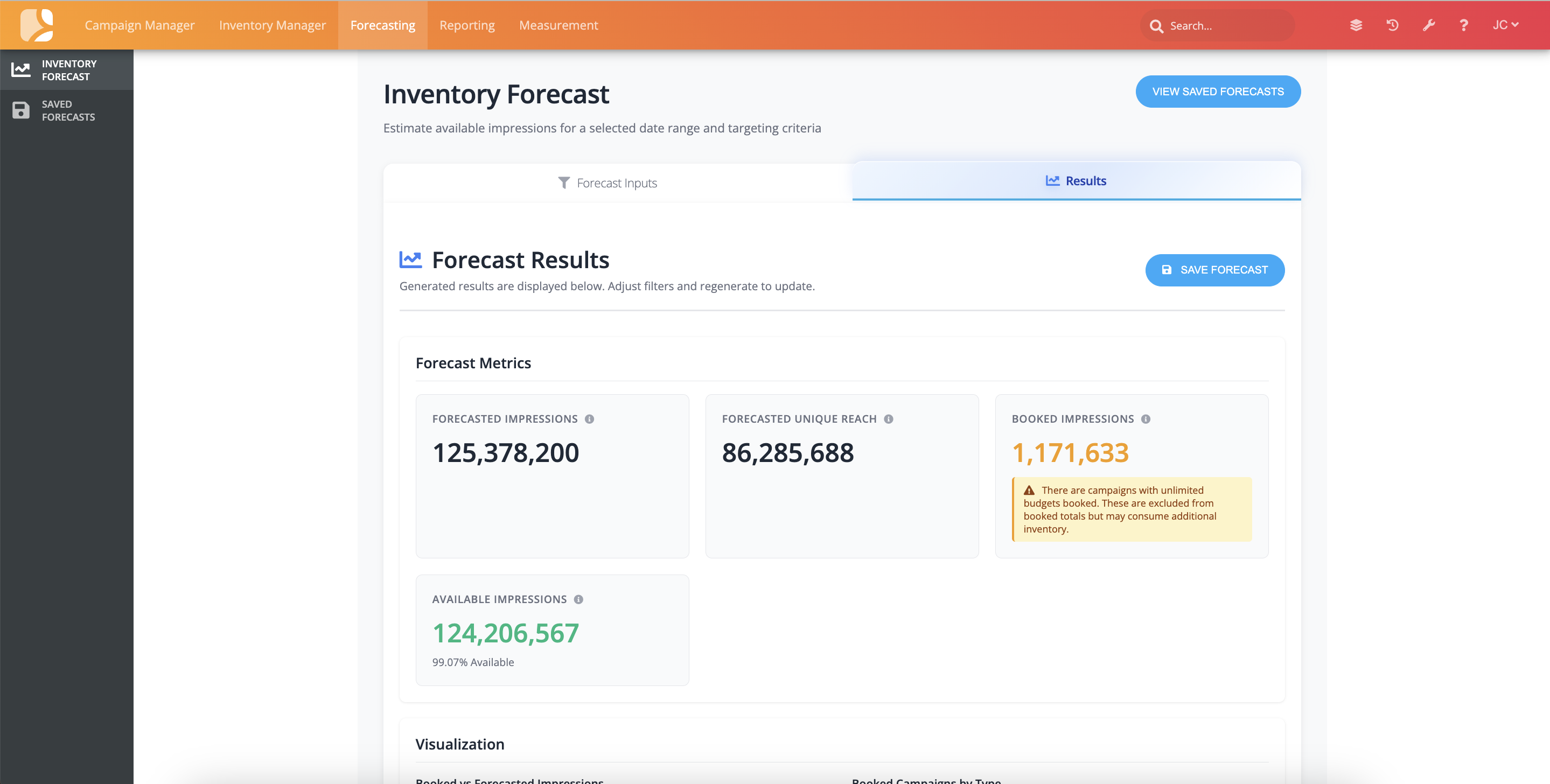
Forecast Metrics
-
Forecasted Impressions: The estimated total impressions predicted for the selected date range and targeting criteria. This represents estimated inventory availability and does not account for booked campaigns.
-
Forecasted Unique Reach: The estimated number of distinct people likely to see the campaign at least once.
-
Booked Impressions: The total impressions already committed across all campaigns for the selected date range.
-
Campaigns with unlimited budgets are excluded from this calculation.
-
If there are booked campaigns with unlimited budgets, you’ll see a yellow box (see image above) that indicates that these budgets may consume additional inventory.
-
-
Available Impressions: A calculated metric showing remaining supply (Forecasted Impressions - Booked Impressions)
Booked Campaign Summary
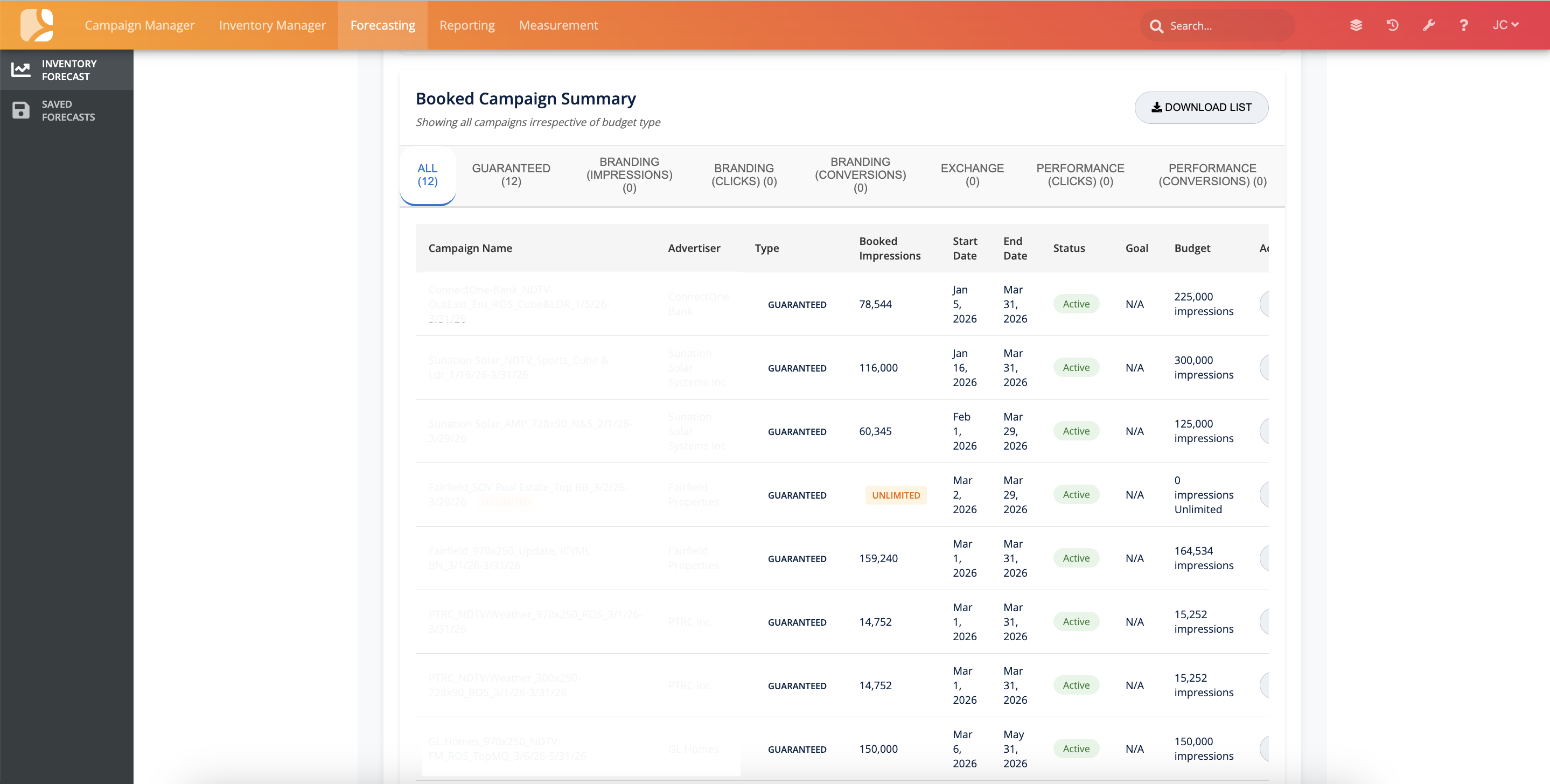
The Booked Campaign summary section shows all booked campaigns, regardless of budget type.
-
Booked campaigns are displayed by default across all types
-
Filter the view by selecting a campaign type at the top of the chart, such as:
-
Guaranteed
-
Branding (Impressions, Clicks, or Conversions)
-
Performance (Clicks or Conversions)
-
Exchange
-
-
Click Download List to export campaign details for auditing or planning purposes
Saving Your Forecast
To save your forecast for future reference, click Save Forecast in the top-right corner of the Forecast Results page. Saved forecasts can be accessed at any time from the Saved Forecasts view.
FAQ
Q: How does forecasting work?
The forecasting tool estimates what’s likely to happen in the future by looking at patterns from past activity.
We use specific forecasts that are detailed. These forecasts look at how impressions have trended over the past 14 days and use that recent activity to estimate what’s likely to happen over a selected time period.
For those interested, this is powered by a time-based statistical method (Double Exponential Smoothing), but simply put: it builds a forward-looking estimate based on recent patterns, giving you a running view of what’s expected to occur over time.
Q: Why am I seeing 0 impressions in my forecast?
You will see 0 when there is no impression history from the past.
Try reviewing your search settings to make sure you’ve selected active inventory and the right criteria. If you’re unsure about the results, please reach out to your account manager.
Q: What if there are no impressions for the last 14 days (e.g. a monthly newsletter)? Can we forecast on that?
Forecasting relies on recent activity to make predictions. If there hasn’t been any impression data in the past 14 days, the system may not have enough information to generate a forecast.
If related activity is available in the dataset, it may still be used; but in most cases, forecasts require recent impression data to be accurate.