
Audience Extension is a seamless way for Publishers to seamlessly extend their Direct Sold campaigns to target their first party audience across 2500+ publishers on the LiveIntent Exchange. This feature allows publishers to extend campaign scale beyond their O&O inventory, helping to grow ad revenue.
This article walks through the process of how to set up an Audience Extension campaign.
This feature is currently in Beta; if you’re interested in being a beta partner, please reach out to your LiveIntent account team.
-
Users must first upload their first-party audience(s) to Audience Manager. For guidance on how to upload your audiences, please see What is Audience Manager? and Sending Your First-Party Data to LiveIntent articles on the Knowledge Base.
-
Users must first set up a Direct Sold campaign and line item(s). For guidance in how to set up these campaigns and line items, please see the Knowledge Base articles Setting Up a Guaranteed Direct-Sold Campaign and Line Items and Setting Up a Non-Guaranteed Direct-Sold Campaign.
Reminder: Make sure to target your first party audience for the direct sold line item.
-
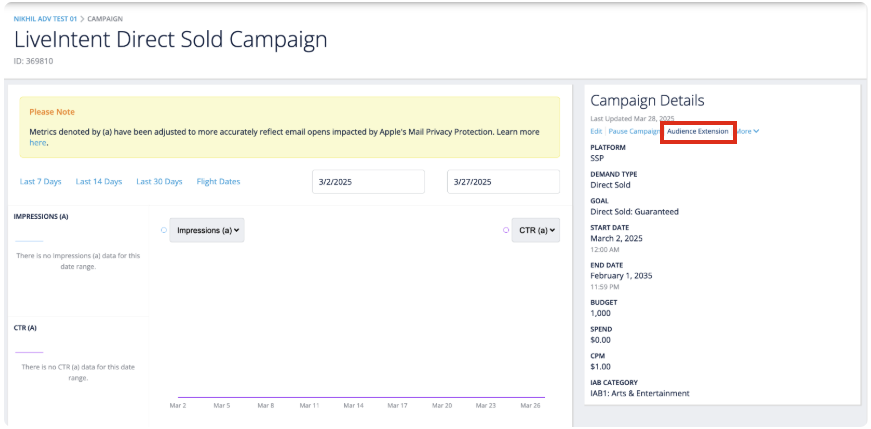
Click on ‘Audience Extension’ from the top right Campaign Details menu to open up the Audience Extension screen.
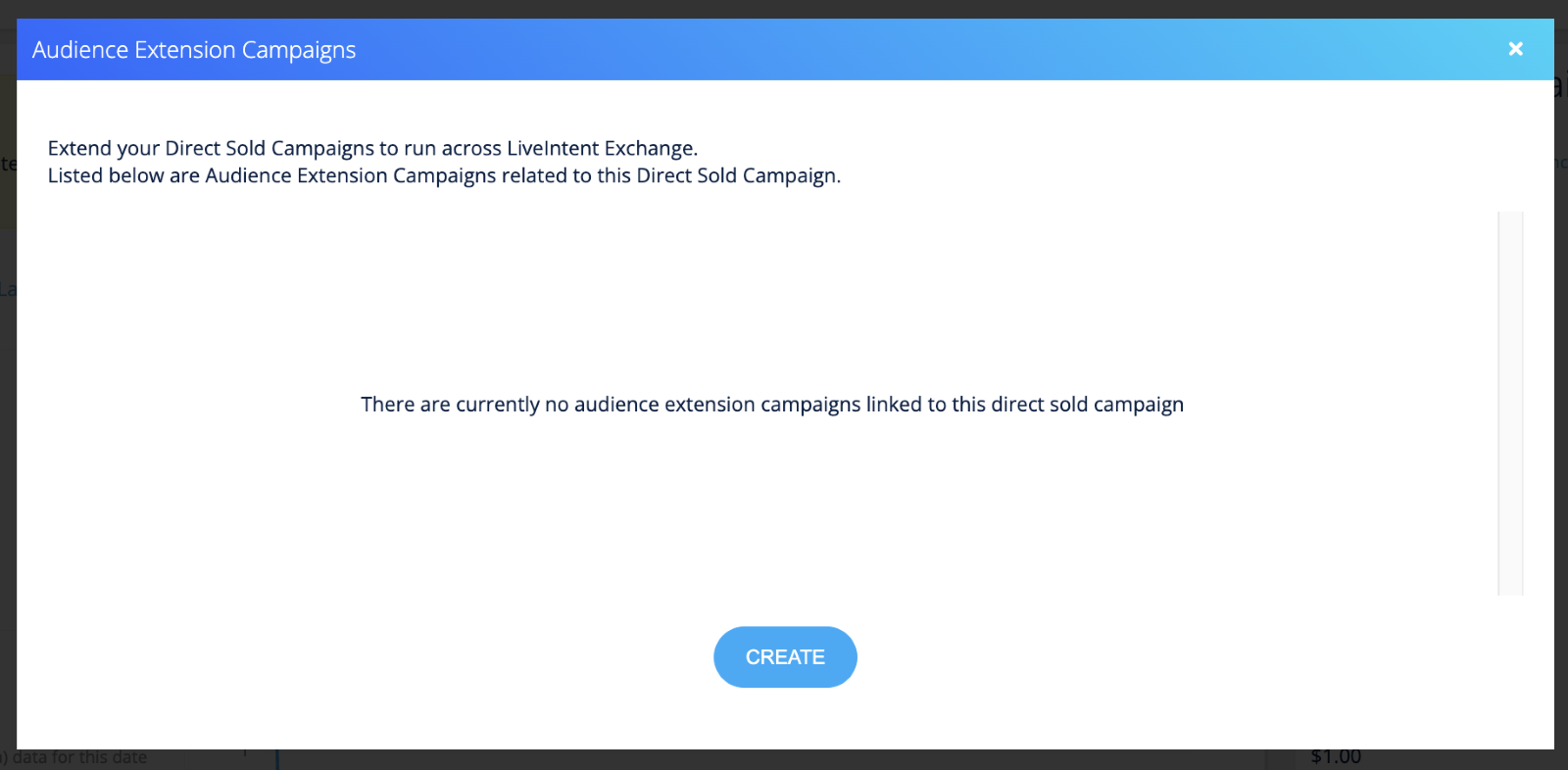
Any existing Audience Extension campaigns created will be displayed on this screen.
-
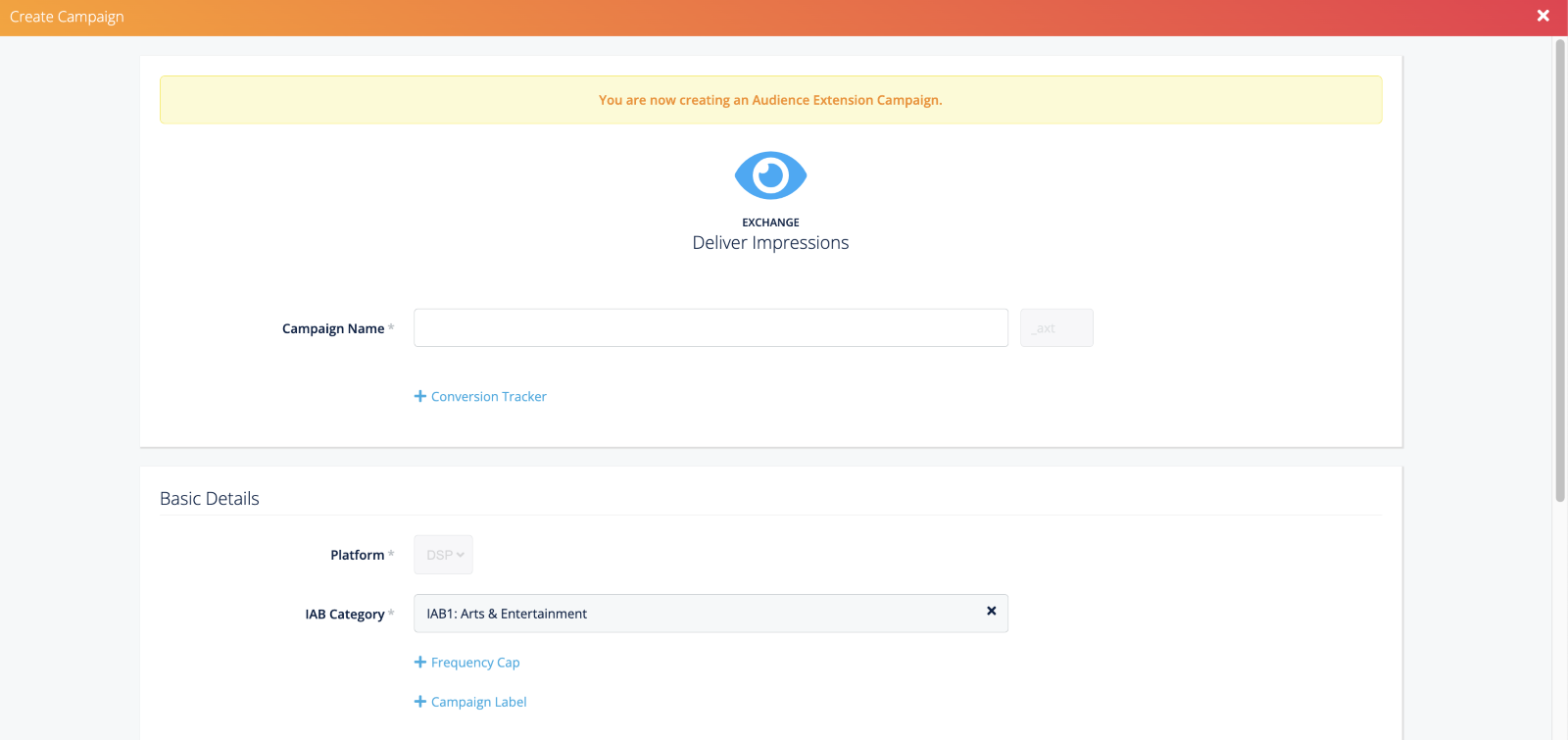
Click ‘Create’ to add a new Audience Extension campaign. This will launch the Create Campaign screen where you can create a campaign.
Note
-
The schedule is tied to the parent direct sold campaign and will be flighted the same way.
-
Budget is not tied to the parent direct sold campaign which allows publishers to sell it independently of the parent campaign.
-
In this workflow, Audience Extension campaigns are set up as CPM/Impressions based.
-
Once this campaign is created, the platform will automatically create line items copied from the parent direct sold campaign.
-
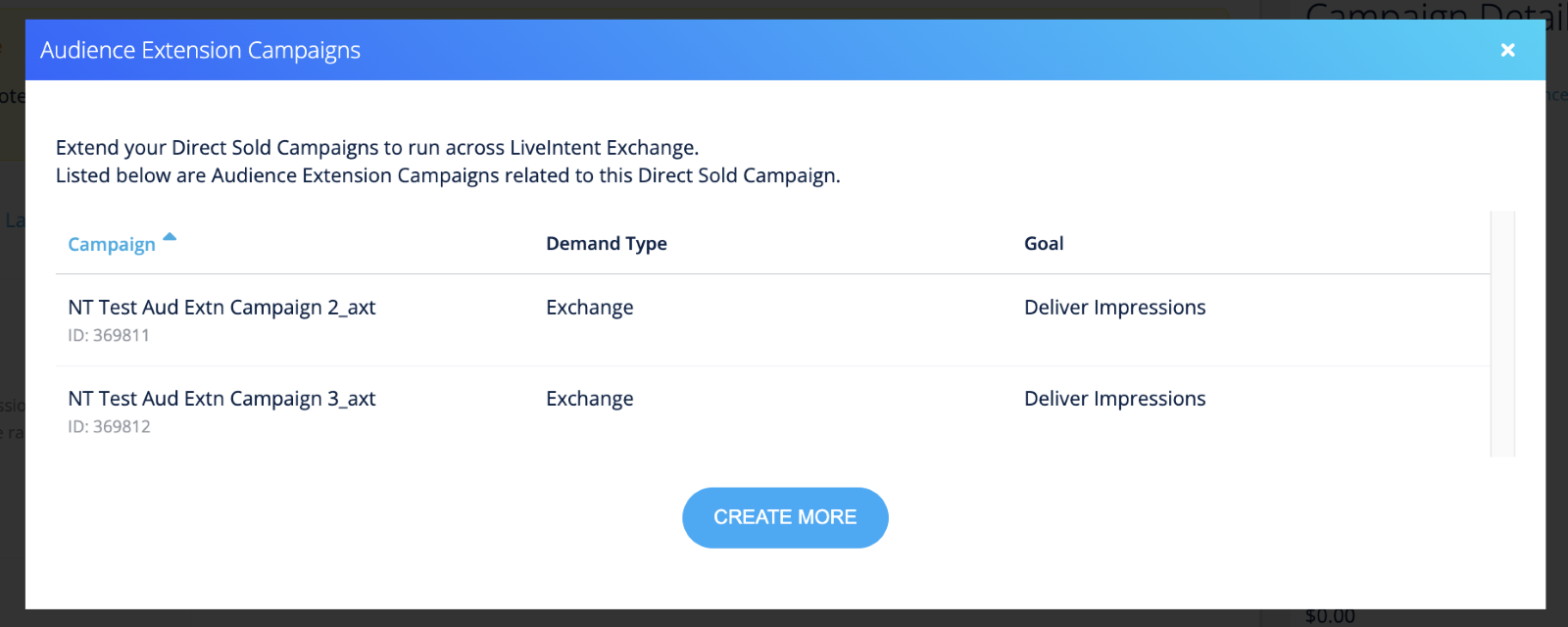
A list of all related Audience Extension campaigns can be viewed by clicking on the Audience Extension link under Campaign Details on the Direct Sold Campaign page.
-
On the Audience Extension campaign, you can also link back to the parent Direct Sold campaign by clicking on ‘Parent Campaign’
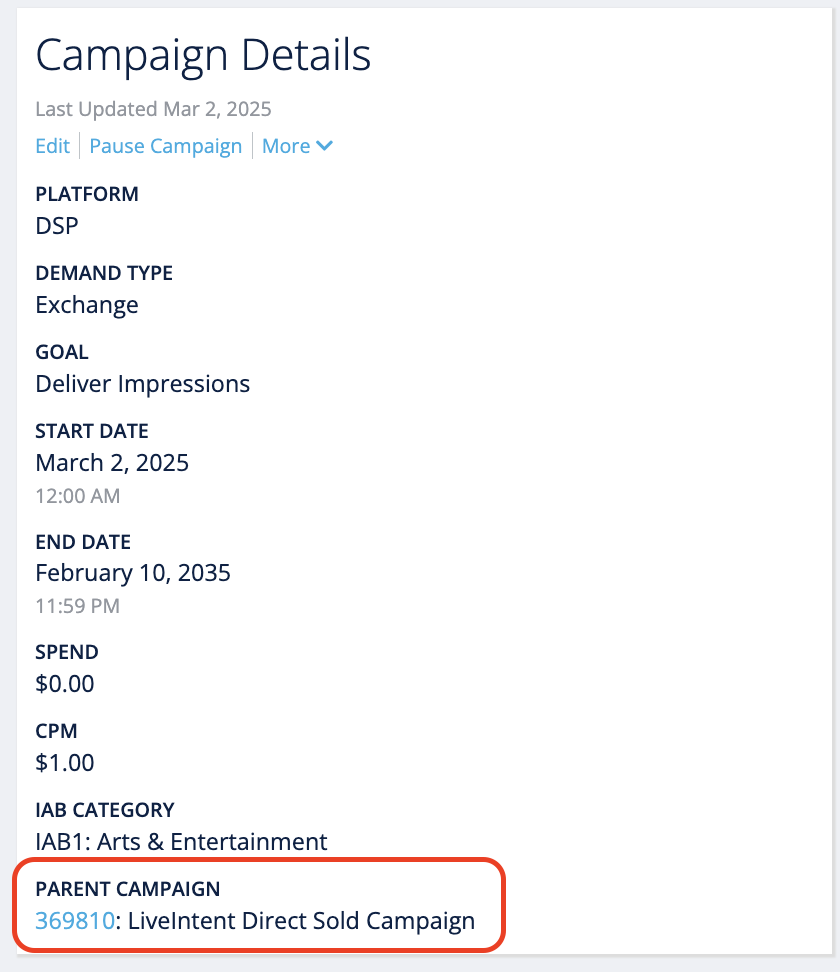
Note: Once an Audience Extension campaign/line item is created, they are treated independently of the parent Direct Sold campaign. Changing settings on the parent Direct Sold or on the Audience Extension campaign/line item will not change the settings in the other.
Your Audience Extension campaign is now setup and is ready to serve!