
Getting started with Zeta is an exciting milestone — but onboarding to a new platform can sometimes feel complex. At Zeta, we’ve designed Align to make that process effortless. Align helps you collaborate seamlessly with our teams while keeping your business operations running smoothly.
Align is a powerful solution that streamlines your entire journey — from onboarding to long-term success on the Zeta Marketing Platform (ZMP).
What is Align?
Align is Zeta’s proprietary system for orchestrating and managing your onboarding through the Onboarding Manager in the ZMP.
It brings together what was once a fragmented, manual process into a unified, AI-supported workflow that connects you with Zeta’s teams in one collaborative space. Align ensures every requirement, decision, and milestone is clearly documented and visible throughout your onboarding journey.
The Onboarding Manager gives you a modern, transparent experience — helping you track progress, provide inputs, and stay informed every step of the way. Using Align accelerates your setup and ensures a smoother, faster transition onto the Zeta platform.
Key Purpose
Align helps you:
-
Accelerate onboarding by standardizing workflows and automating setup actions.
-
Maintain continuity across phases and teams by storing decisions, documentation, and progress in one place.
-
Improve collaboration and transparency through shared visibility and tracked communications.
-
Leverage Zeta’s Athena AI for intelligent summaries and actionable workflow insights.
Why Align Matters
-
Keeps your onboarding transparent, structured, and auditable.
-
Ensures that your expectations and Zeta’s delivery timelines are always synchronized.
-
Reduces onboarding time by up to 30%, based on aggregated onboarding performance data.
Align Components
Align is built around three core components that each play a vital role in delivering exceptional results:
Align: Goals
Align Goals collects and documents your business requirements during the pre-sales phase, setting the stage for a smooth project kickoff. If you’re working with tight migration deadlines, our Strategic Blueprint offers valuable market, competitor, and customer intelligence to help you reach better outcomes and faster success.
Align: Solution
This collaborative tool helps ensure that every detail of your functional requirements is captured accurately. Align Solution also provides modern, transparent documentation that leaves no room for miscommunication, so you never have to wonder, “But you didn’t tell me that!”
Align: Outcomes
This prescriptive framework helps you go beyond implementation to achieve tangible ROI. Align Outcomes fosters technology adoption, optimizes your technology stack, and supports program growth—helping you maximize the value of your investment.
Note: Onboarding Manager primarily corresponds to what’s mentioned within the Align: Solution section. Align: Outcomes will map to Performance Advisor. Goals will be logged in Performance Advisor during Align: Goals, and progress toward each goal, along with recommended next actions, will be available in Performance Advisor from that point on.
How to Use Align via Onboarding Manager
How to Set Up
-
To enable Align via Onboarding Manager for your ZMP instance, please reach out to Zeta Support.
-
For Product Feedback, please file an enhancement ticket through the service desk.
-
Refer to Zeta Hub Support Ticket Submission to learn more about the process of submitting or filing support tickets within the Zeta Marketing Platform Support Portal.
Navigation
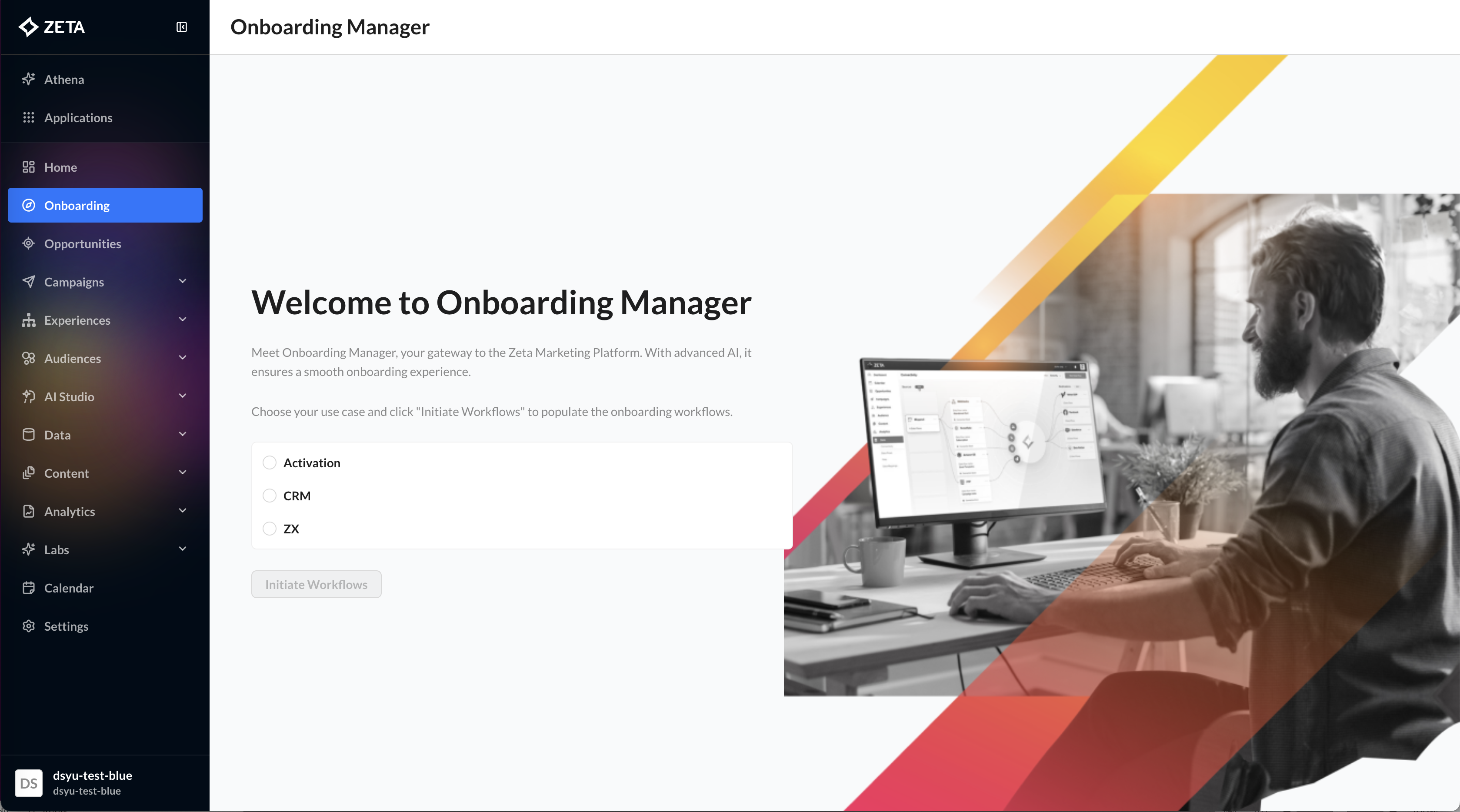
To access Align within the ZMP, you must have the appropriate site-level flag and user-level permissions configured. Reach out to Support if you don’t see Onboarding in your left-hand menu.
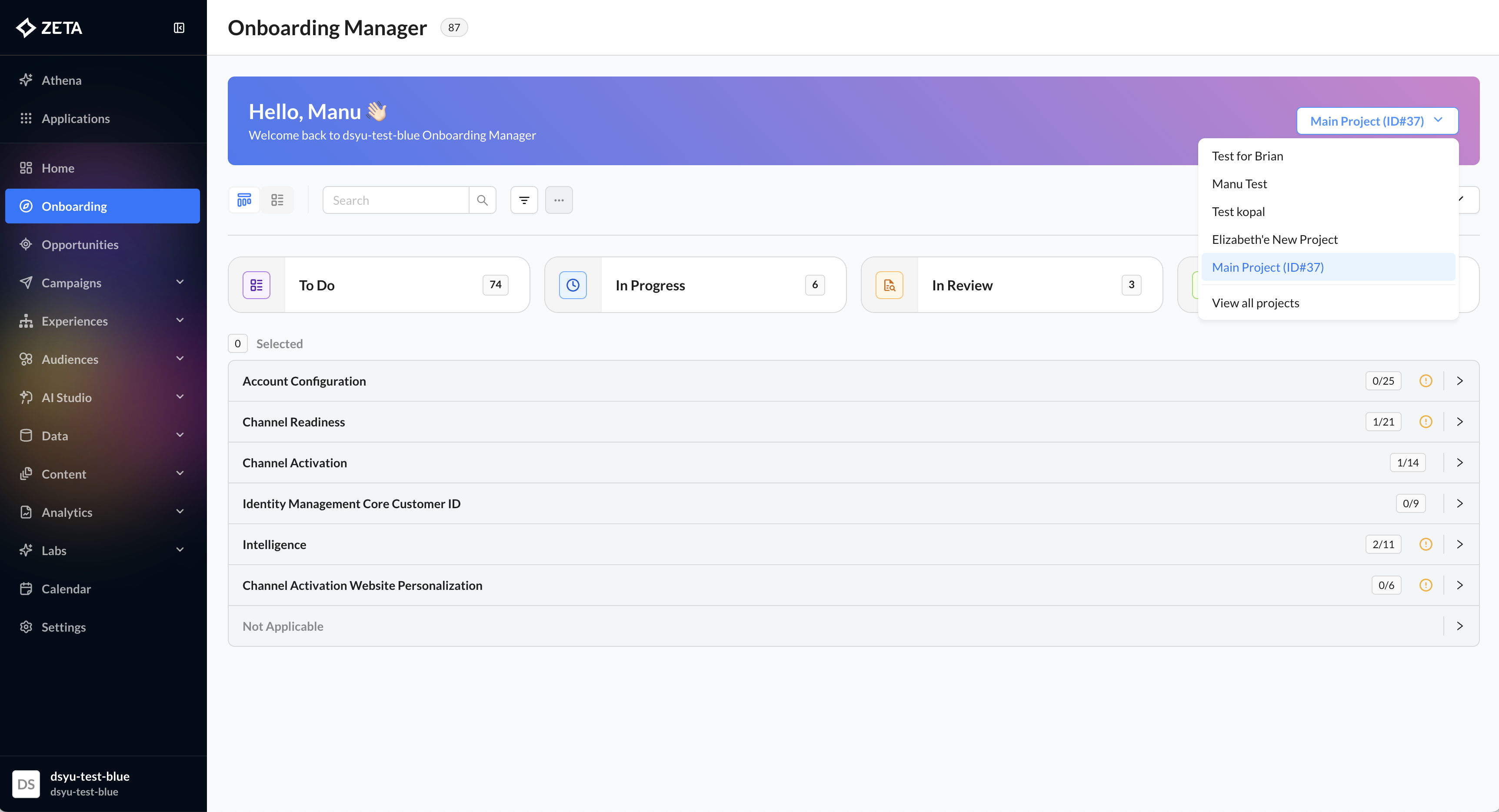
Navigate to Onboarding from the left-hand navigation.
Views
-
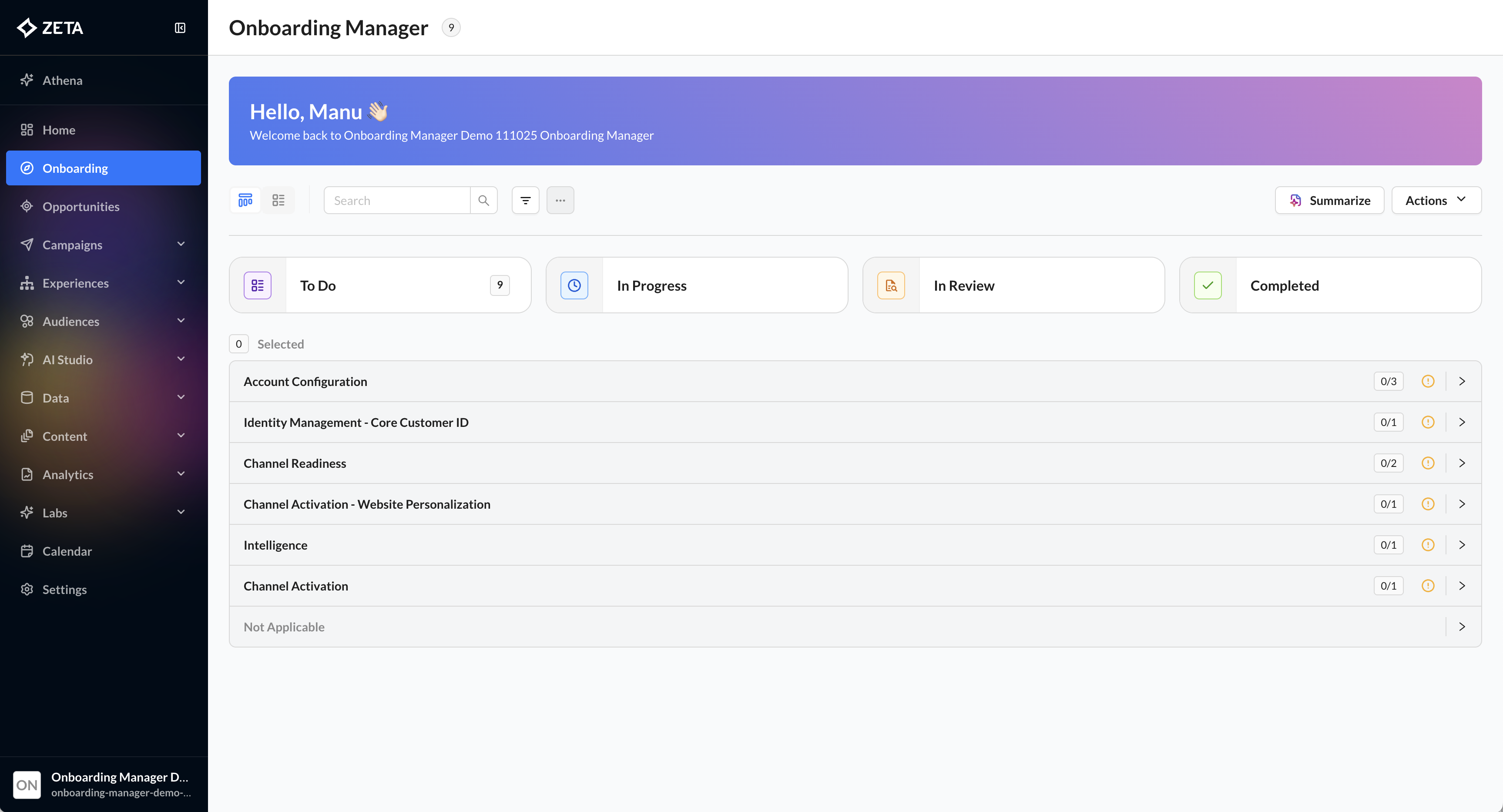
Kanban View:
Displays job cards organized into four columns:
To Do → In Progress → In Review → Completed
-
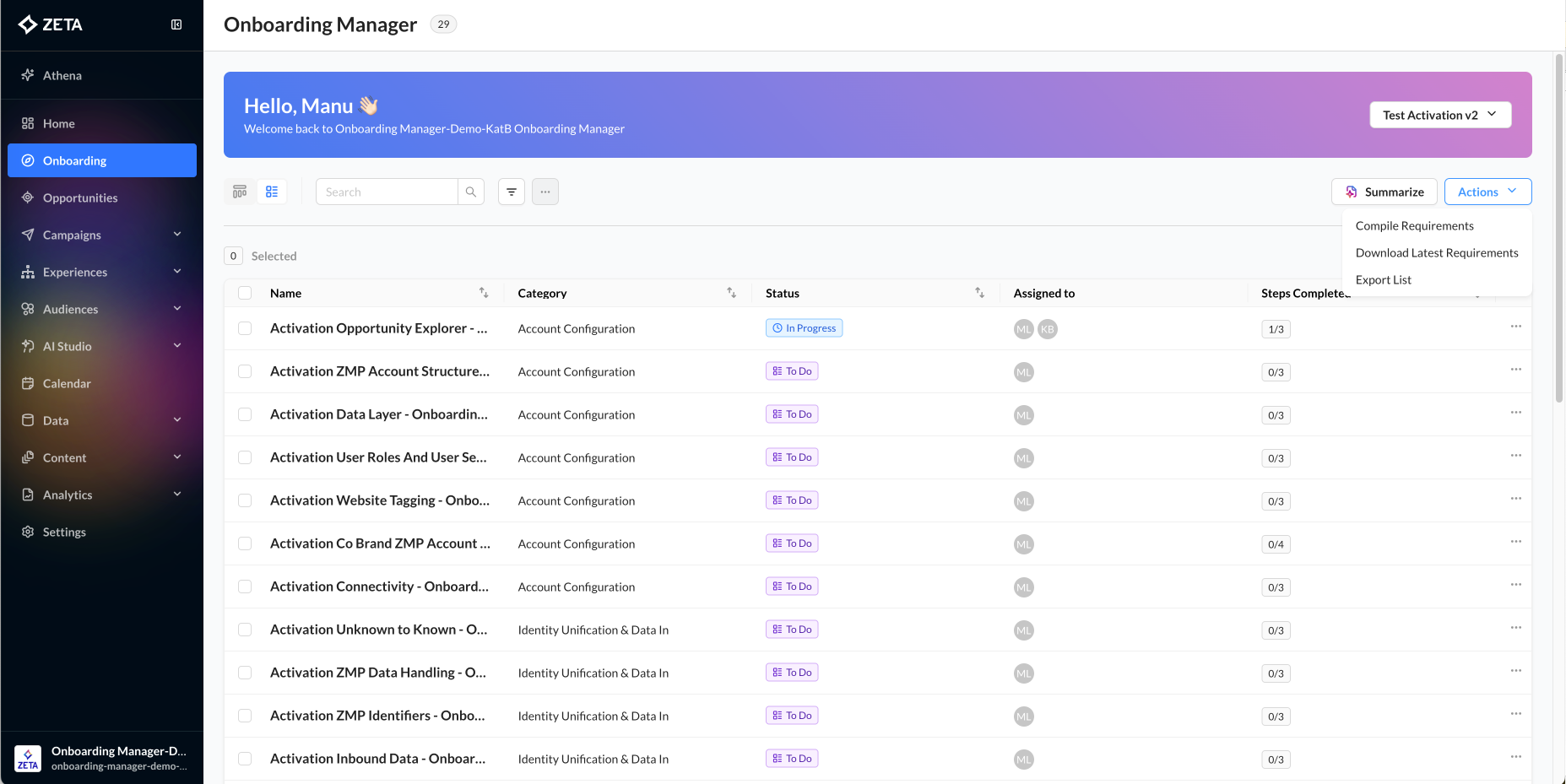
List View:
A condensed table layout that allows sorting, filtering, and bulk management of job cards.-
After defining the list via search, sort, or filters, you can click Export, enter a destination email, and receive a confirmation that the CSV has been generated and sent to your inbox.
-
Sorting and Filtering
-
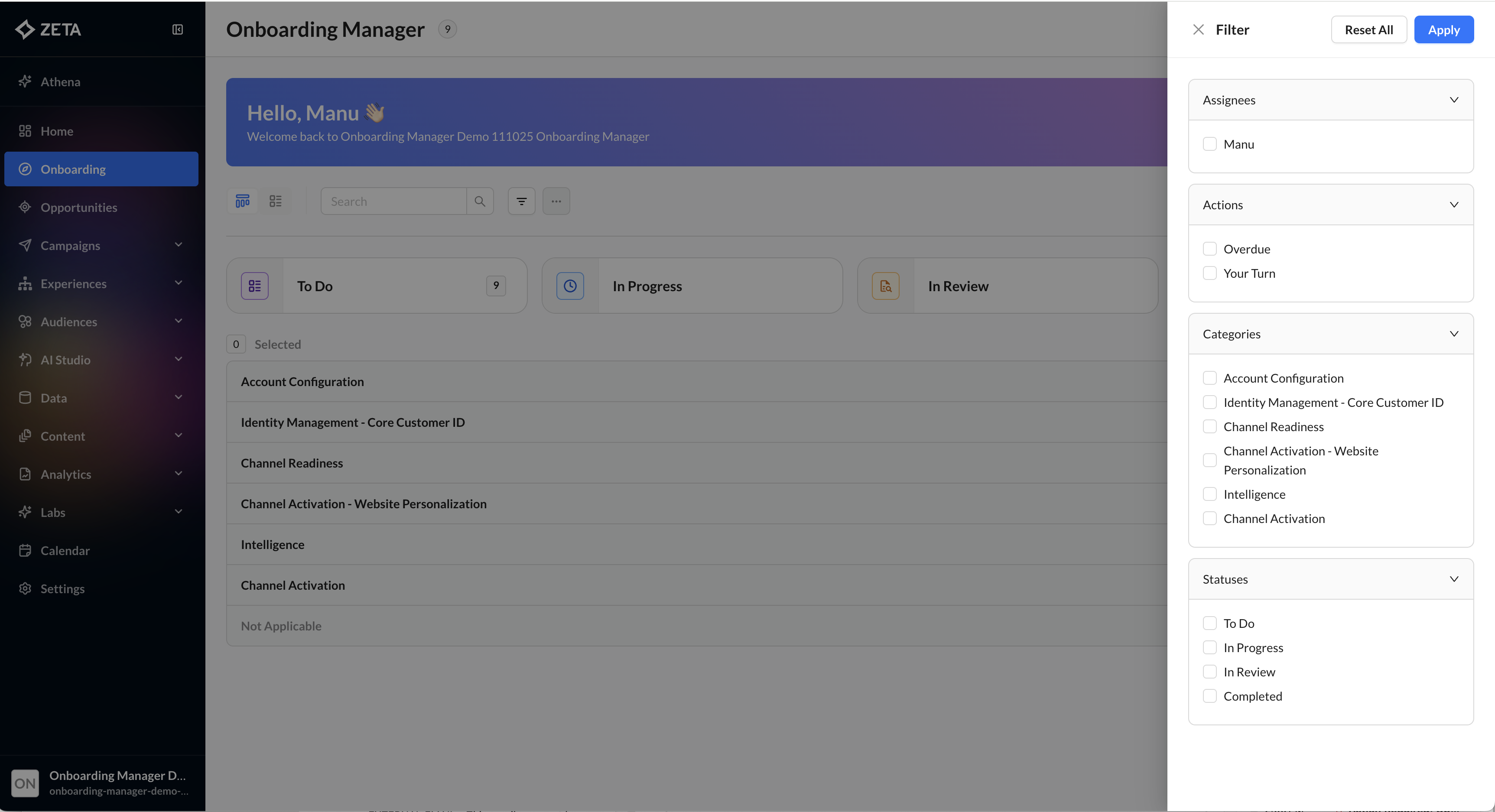
Use the search bar to find cards by keyword or title.
-
Apply filters to narrow down cards by status, owner, or project.
-
Sort by creation date, due date, or priority to customize your workspace.
Quick Filters
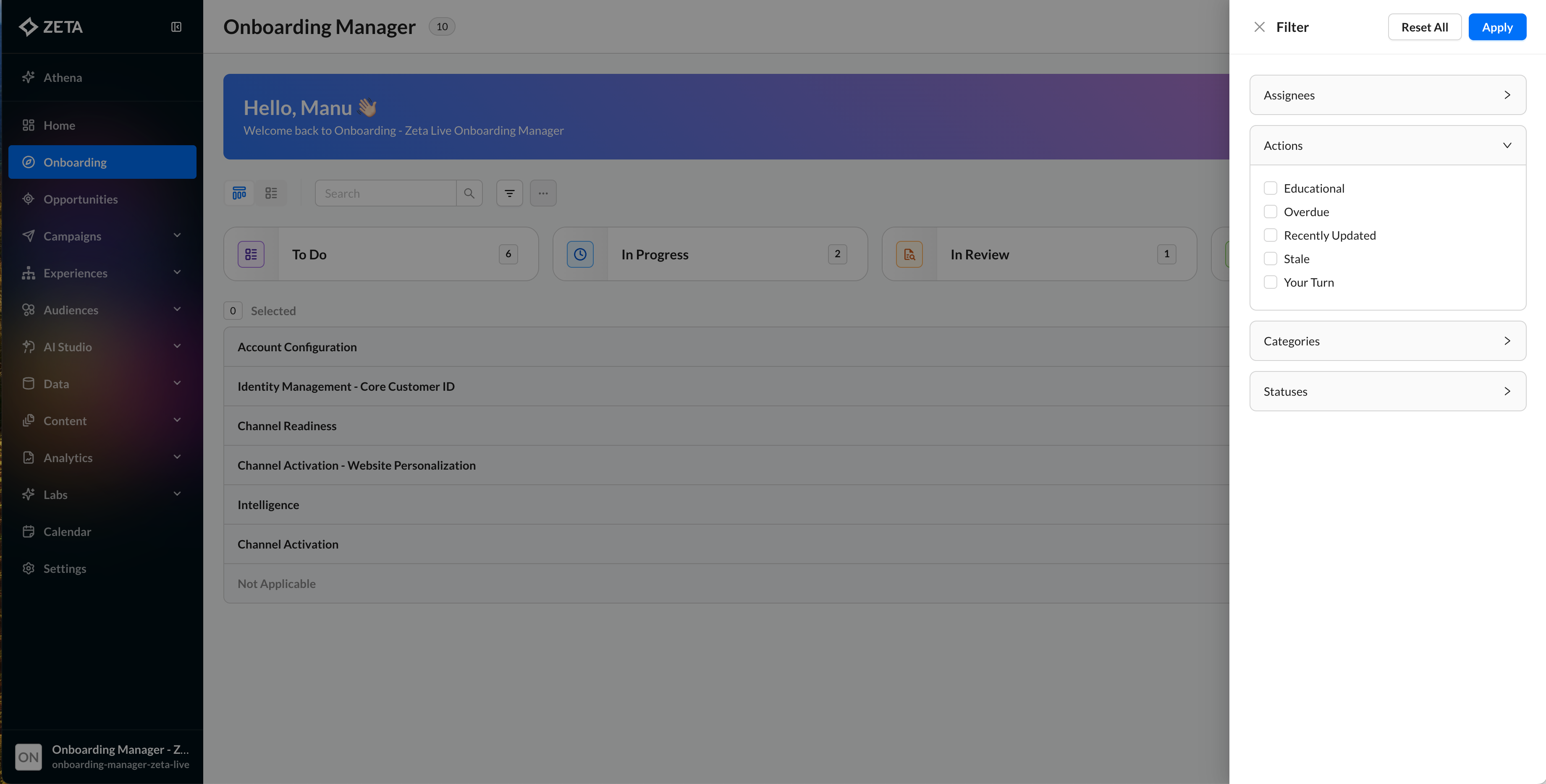
Quick Filters are available in the Actions menu, providing one-click access to high-priority job cards.
-
Overdue – Cards with at least one task past its due date
-
Your Turn – Cards with tasks currently assigned to you
-
Educational – Cards requiring client review but no action
-
Recently Updated – Cards updated within the last 7 days
-
Stale – Cards that haven’t changed in 14 days
Quick Filters can be combined with search and column filters for more precise views.
Managing Job Cards
Each job card represents a specific onboarding requirement or task group. Cards can be moved across stages as tasks progress.
Getting Started
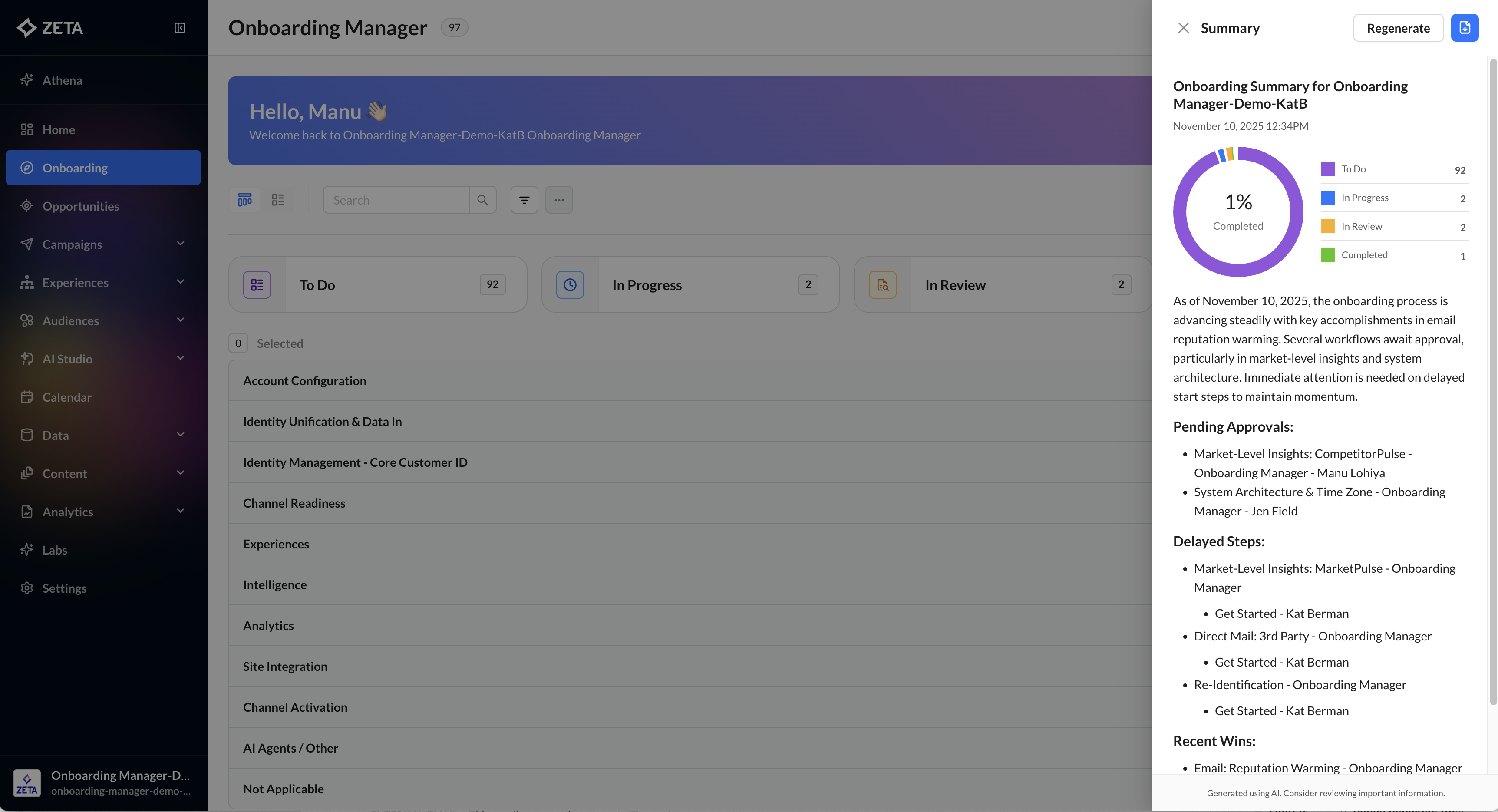
1. Select a card from the To Do column.
2. Click Get Started to activate it; this moves it to In Progress.
3. Use the right-hand rail to view:
-
Task history
-
Assigned members
-
System metadata (from ZMP or Jotform integrations)
Members and Permissions
-
By default, only the assignee and card owner can edit or view details.
-
To invite others:
-
Open the action menu (…) for More Options.
-
Select Add Members and enter their ZMP credentials.
-
-
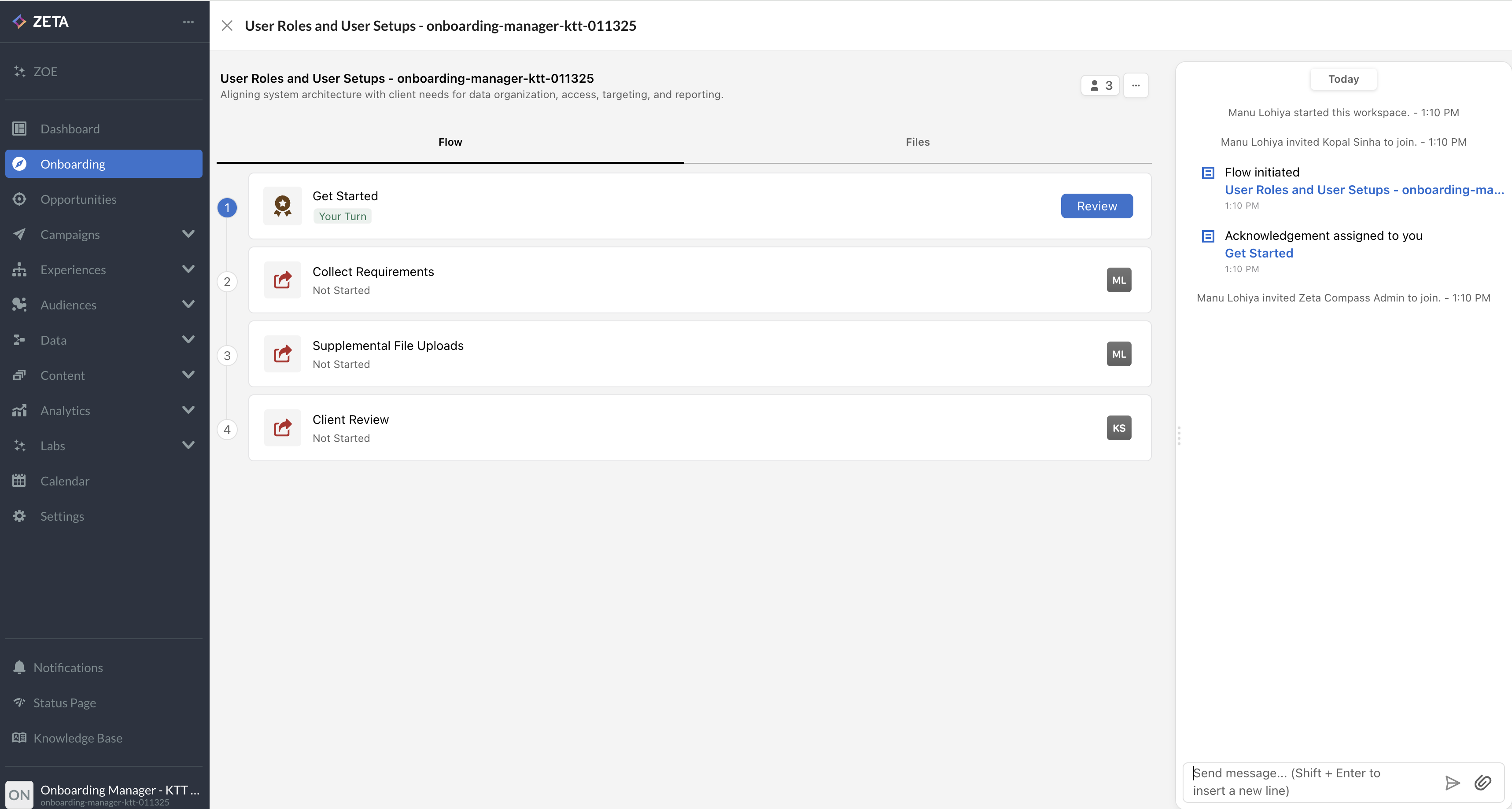
Tasks can be reassigned by hovering over the assignee's name.
Teams Integration
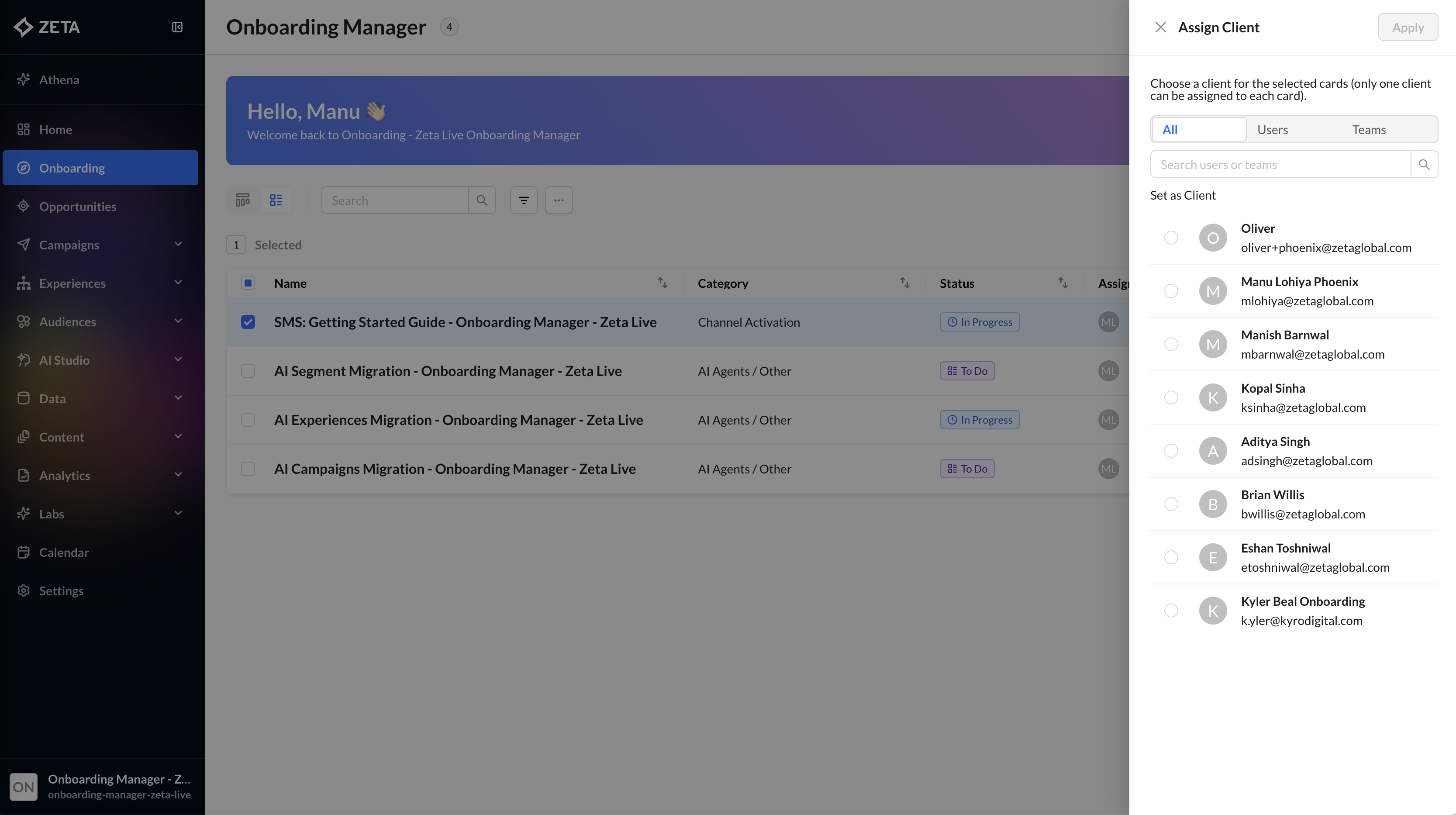
You can now assign onboarding tasks to teams, not just individual users. This works for both internal teams (for example, the Zeta Implementation Team) and client-side teams (such as a Client IT Team).
Assigning work to teams instead of individual users allows onboarding activities to begin immediately, even when the final owner hasn't been identified. Once a team member accepts the task, ownership automatically transfers to that individual, providing clear accountability while reducing manual reassignment.
-
Assign a task to a team when the exact owner hasn’t been determined yet.
-
Any member of the team can pick up the task.
-
Once a team member accepts it, the task is automatically assigned to them, ensuring clear ownership and accountability.
This approach reduces manual reassignments, supports real-world onboarding workflows, and keeps projects moving forward even when roles are still being finalized.
Archiving
Old or completed workflows can be archived via the Settings menu.
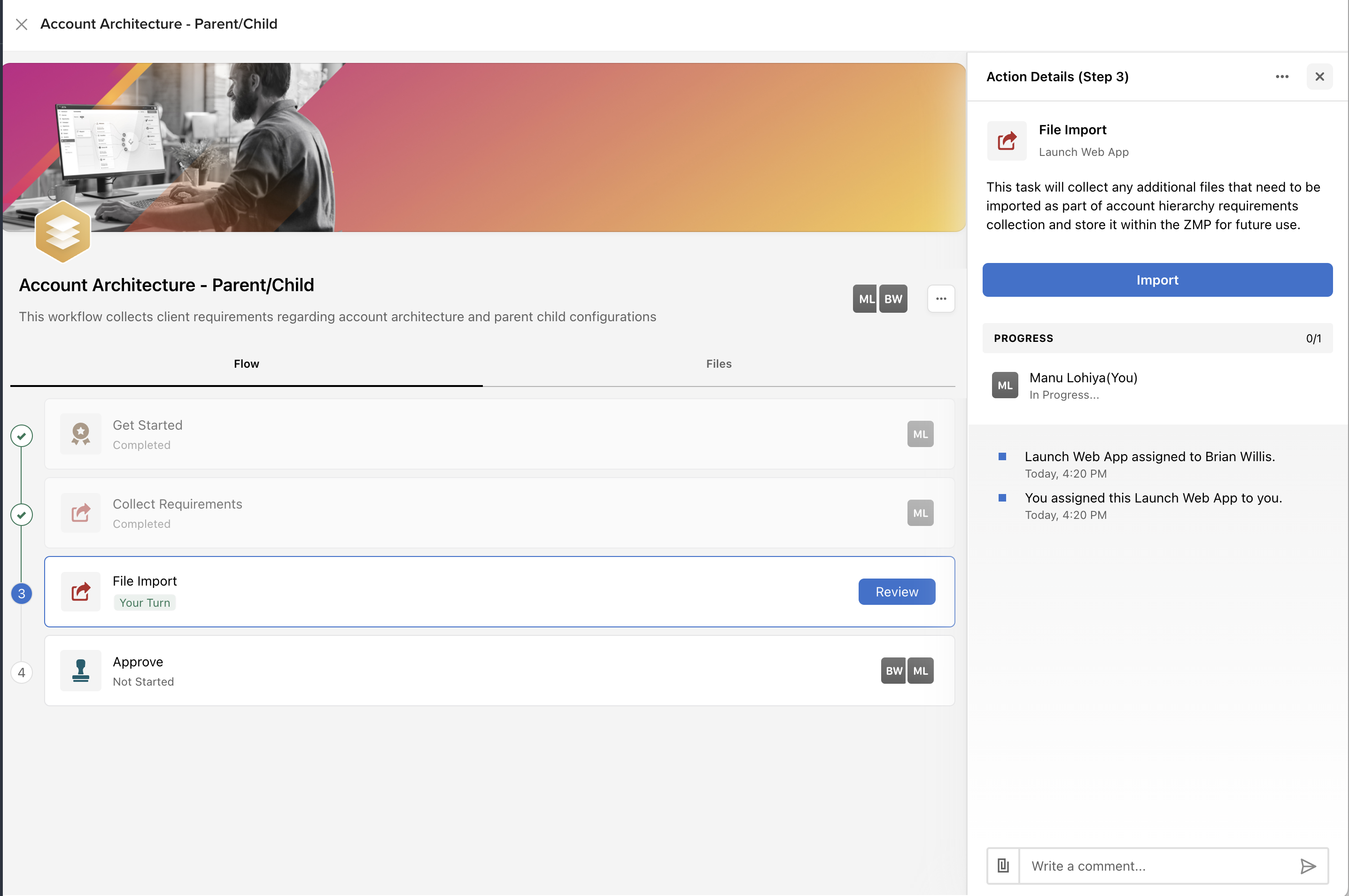
Using Forms
Each job card has an associated Collect Requirements task, which links to a dynamic form:
-
Opens in a new browser tab.
-
Allows multiple saves before final submission.
-
Once submitted, the form is locked and generates a PDF summary within ~30 minutes.
-
The submission triggers a ZMP event named:
jobcard_form_submission -
Once a form is submitted, Onboarding Manager generates the jobcard_form_submission event. This event can trigger downstream automations such as:
-
Jira ticket creation
-
Account configuration updates
-
Backend workflow integrations
This enables onboarding information collected through forms to automatically drive subsequent implementation workflows.
-
AI Project Summary
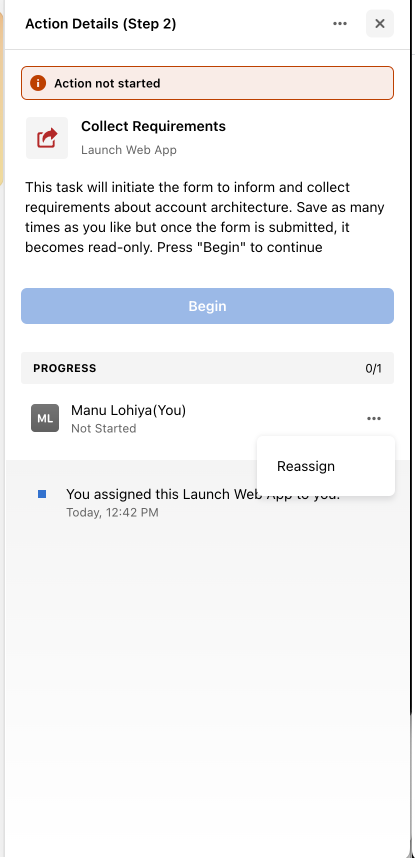
Select Summarize from the top-right corner of the dashboard to generate an AI-powered overview of your onboarding project.
Athena analyzes all active onboarding job cards and generates a project-level summary highlighting:
-
Pending approvals
-
Delayed steps
-
Recently completed milestones and wins
You can regenerate the summary at any time and optionally download it as a shareable PDF.
Because summaries are AI-generated, review the output before sharing externally.
.png?cb=7c4dc993a1c1a804ea2cd4006b520f26)
Ask Athena About Your Onboarding Forms
In addition to generating project summaries, Athena can answer questions about information collected through your onboarding forms. Instead of manually searching through individual job cards, ask Athena questions in natural language to quickly retrieve submitted onboarding information.
-20260731-065715.gif?cb=2c32a8efe84b76e3cc15be16cf5c8a76)
For example, you can ask Athena:
-
What time zone did the client select?
-
Which primary channels did they choose during onboarding?
-
What account hierarchy did they submit?
Athena reviews the submitted form content and responds in plain language. If the requested information has not yet been submitted or cannot be found, Athena will let you know.
You can use this capability through both Athena Chat and Athena Voice.
Note: This is an experimental capability and is not enabled by default for every ZMP instance. Contact Zeta Support if you would like this feature enabled for your site.
Ask Athena to Take Action in Onboarding Manager
In addition to answering questions about your onboarding forms, Athena can perform actions directly within Onboarding Manager on your behalf — without requiring you to navigate through individual menus or the board interface.
While you are actively viewing an Onboarding Manager page, you can instruct Athena using natural language to complete a wide range of workflow actions, including:
-
Filter job cards — For example: "Show me only cards that are my turn."
-
Switch views — Toggle between List View and Kanban View.
-
Assign or update roles — Assign or change the Client or Zeta Lead on a card.
-
Add members — Add users as members to a job card.
-
Change card scope — Mark a card as In Scope or Out of Scope.
-
Clone or archive a card — Duplicate an existing card or remove it from the active board.
-
Compile or download requirements — Trigger the requirements compilation and download the latest document.
-
Export the job card list — Export the current filtered view of cards.
-
Generate a project summary — For example: "Summarize this project for an exec update."
Athena enforces the same permissions as the Onboarding Manager UI. Actions you do not have permission to perform manually cannot be executed through Athena either.
This is an experimental capability and is not enabled by default for every ZMP instance. Contact Support if you would like this feature enabled for your site.
Bulk Actions
Available only to Admin users in List View.
Once the job cards have been created, you can streamline workflows by making updates in bulk using the Bulk Actions feature, available directly from the List View. This powerful tool helps reduce manual effort and maintain consistency across multiple cards. The following five bulk actions are supported:
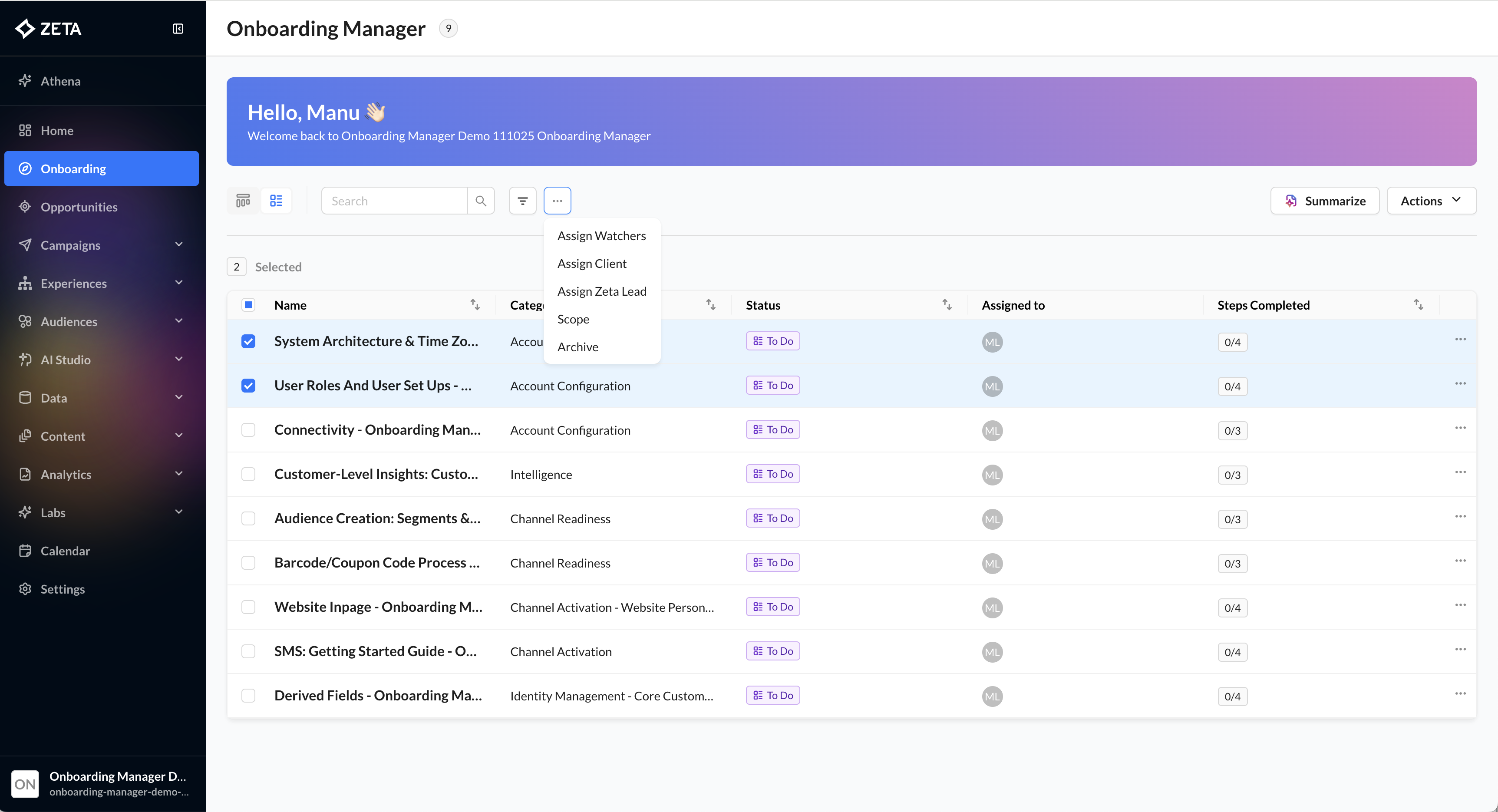
-
Assign Watchers: Watchers can monitor job card progress and collaborate on requirement forms.
-
Assign Owner: Designate a primary owner for review and approvals.
-
Assign Zeta Lead: Assign a Zeta Lead responsible for managing key deliverables.
-
Change Scope: Mark a card as In Scope or Out of Scope to focus only on relevant tasks.
-
Archive: Archive cards that are no longer active.
Compile Requirements
The Compile Requirements feature allows Admin users to consolidate all approved and submitted forms into a single, shareable document.
How to Compile
1. Within Onboarding Manager, click Actions → Compile Requirements on the top navigation bar.
2. Select the job cards you wish to include.
-
Only cards with completed form submissions will be selectable.
3. Click Create to generate the compiled document.
4. Once ready, download the latest version by selecting Download Latest Requirements.
.png?cb=2f7767a49793a3054f31a8401a2f1226)
.png?cb=4ec25ef0c914482aa15e512a5849adcd)
-
The compiled document includes each submission’s data, structured in order of project workflow.
-
A timestamp and site ID are automatically included in the header for traceability.
-
The document can be downloaded as a PDF and shared internally or with your team.
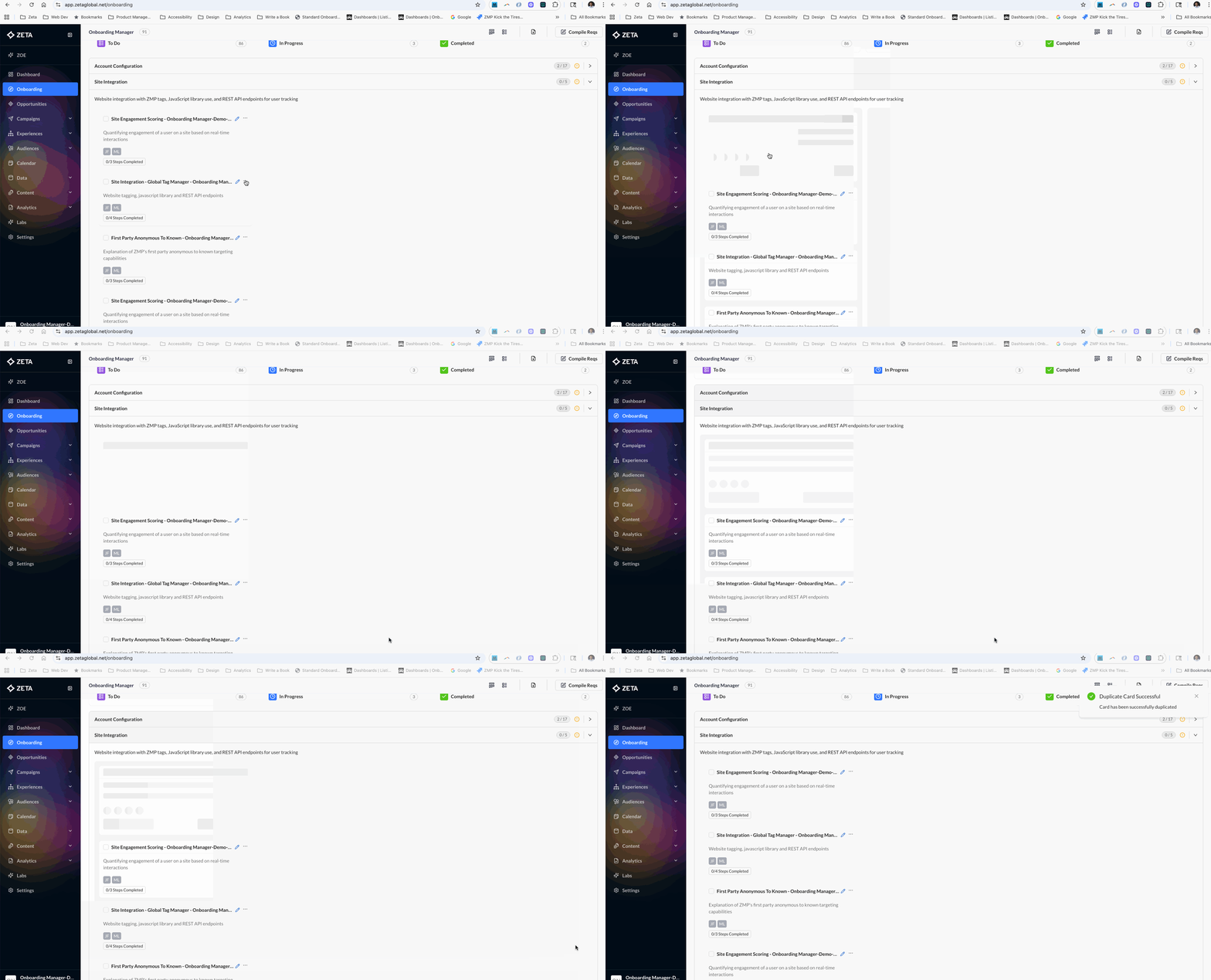
Duplicating Cards
1. Open the action menu (…) on a card.
2. Select Duplicate Card.
3. The system creates a new card in To Do status, inheriting metadata and structure.
4. Reassign Zeta Lead, Owner, and Watchers as needed.
5. Rename the card using the pencil icon next to its title.
Note: If you don’t have view permissions for a card, ask an authorized user to add you as a watcher first.
Managing Projects
If you’re managing multiple onboarding initiatives under the same site ID:
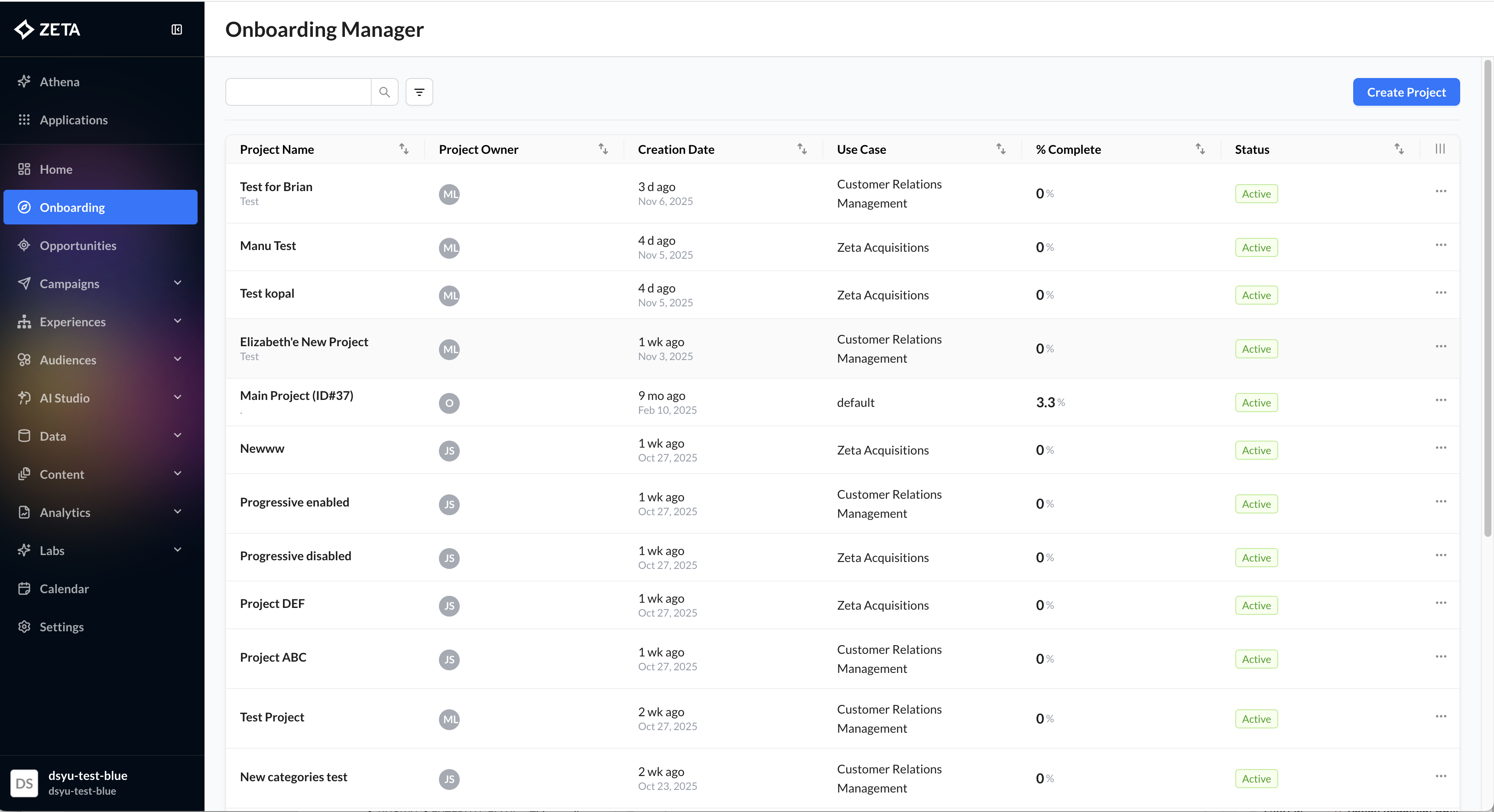
1. Use the top-banner Project Dropdown.
2. Select View All Projects.
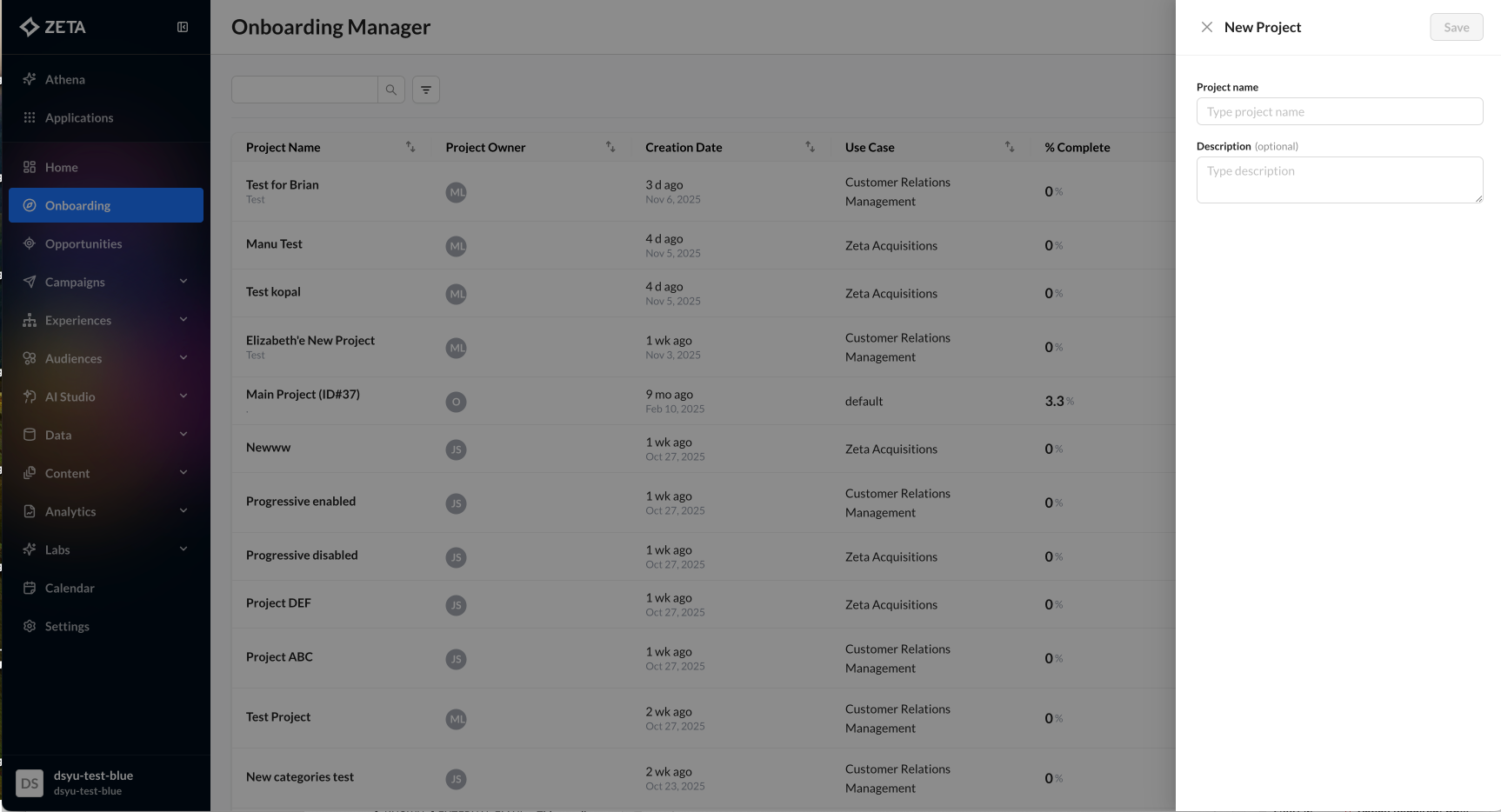
3. Create a new project or switch to an existing one.