
Native Campaigns
Native Creative Specifications
|
Field |
Description |
Notes |
|
Logo
|
Square format image with 1:1 aspect ratio. Min. 100 x 100 pixels Max width/height: 2000 x 2000 pixels Max. file size: 1200 KB Formats: JPG, PNG |
|
|
Main Image |
Minimum size: 1200×627 pixels
|
|
|
Square Image (optional) |
Minimum size: 627×627 pixels Supported image file formats: jpg, png Aspect ratio: 1:1 Maximum width/height: 2000 x 2000 pixels Maximum file size: 1200 KB |
*Optional |
|
Advertiser Name |
Write the advertiser's name. |
Maximum: 25 characters |
|
Headline |
Primary text. |
Maximum: 50 characters |
|
Body Text |
Lengthier text describing a brand or product. |
Maximum: 150 characters |
|
Caption URL |
A short version of the landing page URL to display in some native layouts via DV360. For example, https://www.example.com/shop |
Maximum: 30 characters |
|
Call-to-Action |
Text encouraging people to take action. For example, Shop Now. |
Maximum: 15 characters |
Trafficking Native Creative
-
Traffic native creatives
-
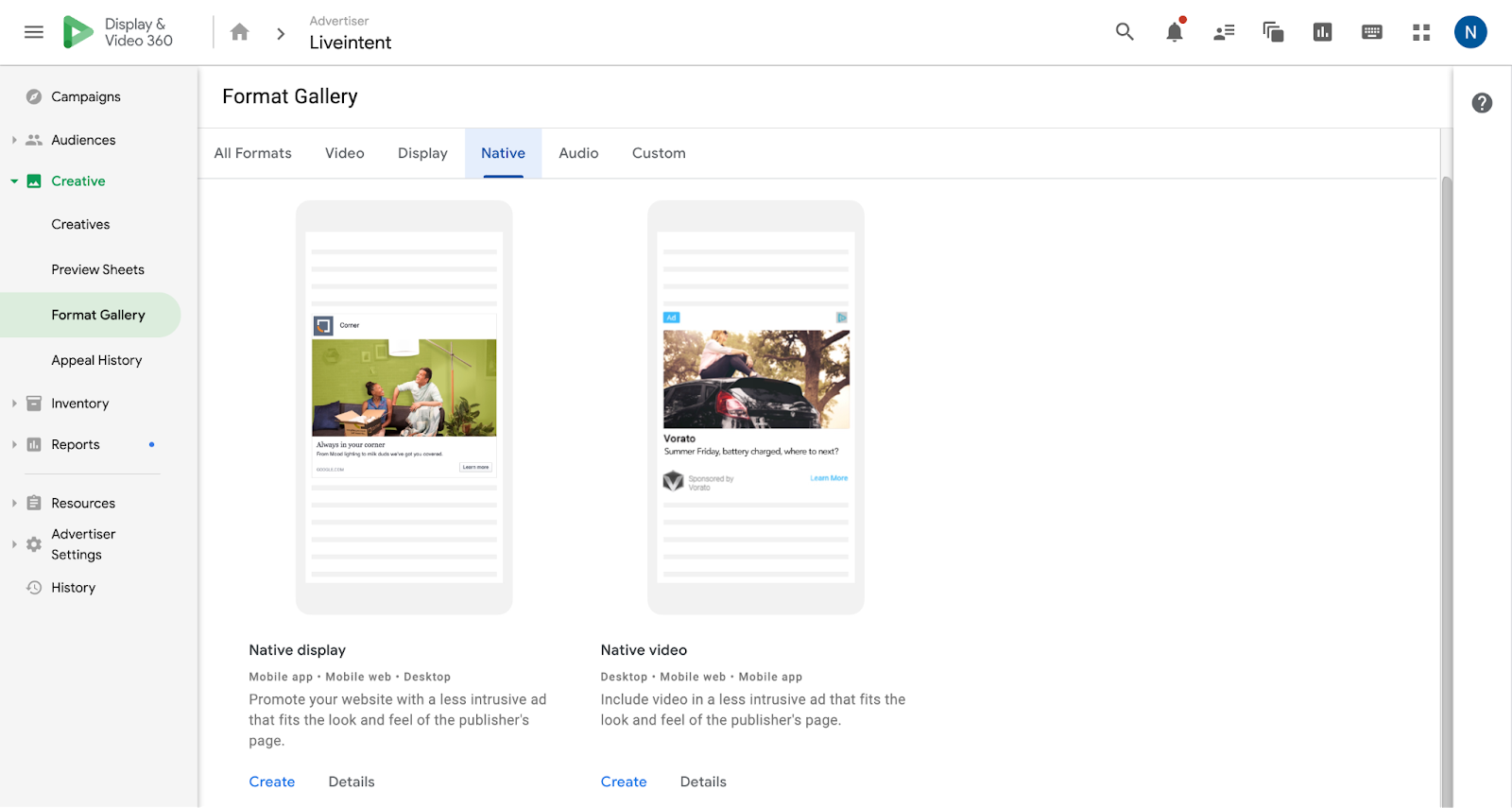
Navigate to the “Format Gallery” under Creative.
-
Select the “Native Display” format.
-
Input assets
-
Upload the logo and image in their corresponding sections.
2 (cont’d). Input assets
-
Add “Advertiser name”, “Headline”, “Body text”, “Caption URL”, and “Call-to-Action”.
-
Link creative to campaign manager 360 tracking ad
-
Navigate to the “Creative Details” section.
-
Input the click tracker into the “Landing Page URL”.
-
Input the impression (image) tag into “Impression tracking URL 1 (Optional)”.
-
If you have additional trackers, please use “Impression tracking URL 2 (Optional)”.
Display in Native Campaigns
If you do not have native creative assets, you can still run display ads via a Deal ID using the existing native workflow and our image flattening service.
Sizes available are 970×550, 970×250, and 300×250.
Assets must be provided to Liveintent prior to the campaign launch for resizing.*
Please note: Creatives will be resized with a transparent background to meet DV360 requirements for Native Display, but will render as Display.
Display Creative Specifications
|
Field |
Description |
Notes |
|
Logo |
Square format image with 1:1 aspect ratio. Min. 100 x 100 pixels Max width/height: 2000 pixels Max. file size: 1200 KB Formats: JPG, PNG |
A placeholder can be used when uploading to DV360. The placeholder will not show when rendering. |
|
Main Image |
Minimum size: 1200×628 pixels
|
Provide your LiveIntent Rep 970×250 and/or 970×550 assets in .jpg or .png as these will be resized to 1200×628. |
|
Square Image (optional) |
Minimum size: 628×628 pixels Supported image file formats: jpg, png Maximum width/height: 2000 pixels Maximum file size: 1200 KB |
Provide your LiveIntent Rep 300×250 assets in .jpg or .png as these will be resized to 628×628. |
|
Advertiser Name |
Write the advertiser name. |
A placeholder can be used when uploading to DV360. The placeholder will not show when rendering. |
|
Headline |
Primary text. |
A placeholder can be used when uploading to DV360. The placeholder will not show when rendering. |
|
Body Text |
Lengthier text describing a brand or product. |
A placeholder can be used when uploading to DV360. The placeholder will not show when rendering. |
|
Caption URL |
A short version of the landing page URL to display in some native layouts via DV360. For example, example.com/shop |
A placeholder can be used when uploading to DV360. The placeholder will not show when rendering. |
|
Call-to-Action |
Text encouraging people to take action. For example, Shop Now. |
A placeholder can be used when uploading to DV360. The placeholder will not show when rendering. |
Trafficking a Display Creative
-
Traffic display creatives
-
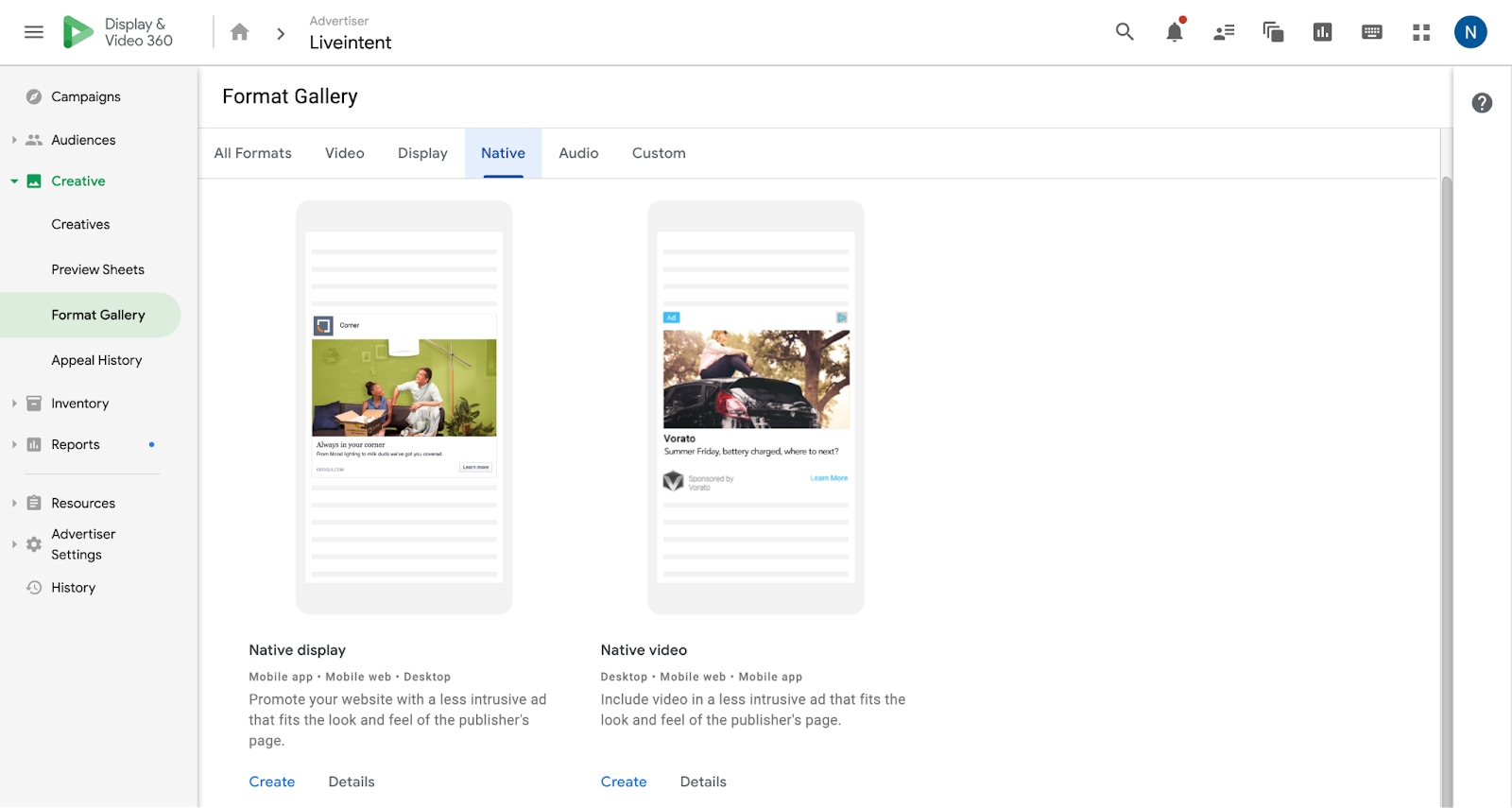
Navigate to the “Format Gallery” under Creative.
-
Select the “Native Display” format.
-
Input assets
-
Upload the logo and image in their corresponding sections.
-
For the main image:
-
Upload a 1200×628 resized image provided by your LiveIntent Rep. The creative can be either a 970×550 or 970×250 size, with the rest of the space acting as a border.
-
It must be a 1.91:1 aspect ratio.
-
-
For the square image (optional):
-
Upload a 628×628 sized image. The creative should be a 300×250 size, with the rest of the space acting as a border.
-
A 628×628 should always be paired with a 1200×628 when uploading as it can not be trafficked alone.
-
Please note: The logo will not be rendered in the final creative.
2 (cont’d). Input assets
-
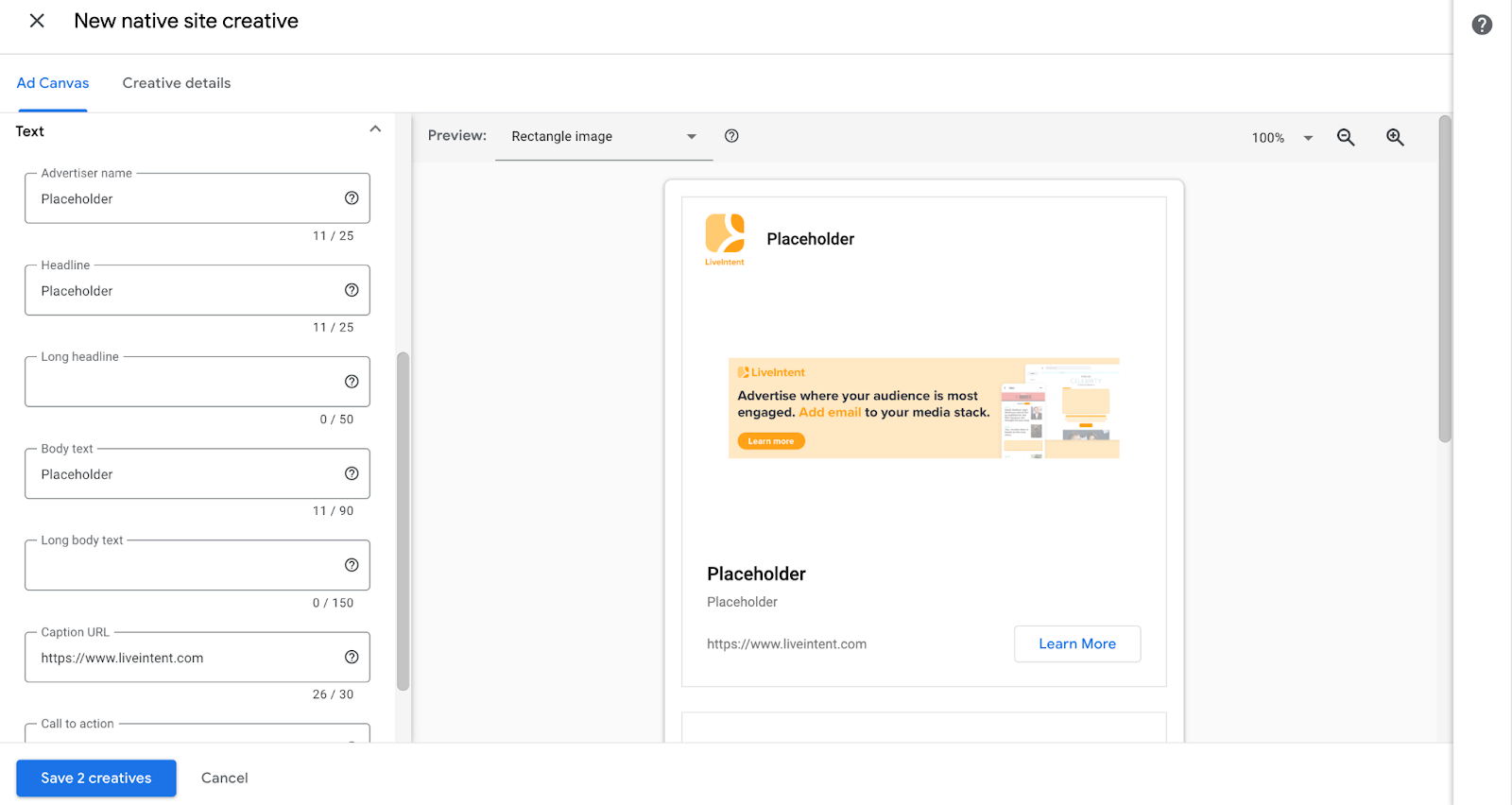
Add Placeholder text for the “Advertiser Name”, “Headline”, “Body Text”, “Caption URL”, and “Call to Action”.
Please note: The logo will not be rendered in the final creative.
-
Link creative to campaign manager 360 tracking ad
-
Navigate to the “Creative Details”.
-
Check the box next to “Add Campaign Manager 360 tracking ad” and search by placement ID.
-
Link creative to tags (for non-CM360 ad servers)
-
Navigate to the “Creative Details”
-
Input the click tracker into the “Landing Page URL”
-
Input the impression (image) tag into “Impression tracking URL 1 (Optional)”
-
If you have additional trackers, please use “Impression tracking URL 2 (Optional)”
Please note: Javascript tags are not supported within the email environment and will prevent spend entirely.