
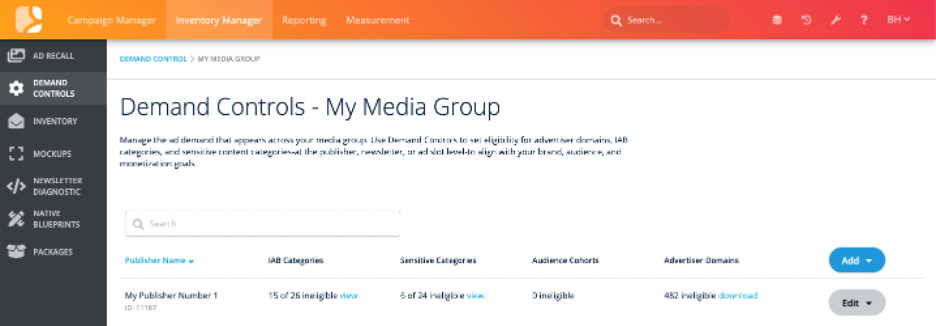
Demand Controls gives you the ability to manage which types of demand are eligible to appear across your monetization inventory. This includes controls for advertiser domains, IAB categories, sensitive content categories, and custom audience suppression. These settings can be managed at the publisher, newsletter, or ad slot level and allow you to align demand with your brand, audience expectations, and monetization strategy.
Key Capabilities
Advertiser Domains
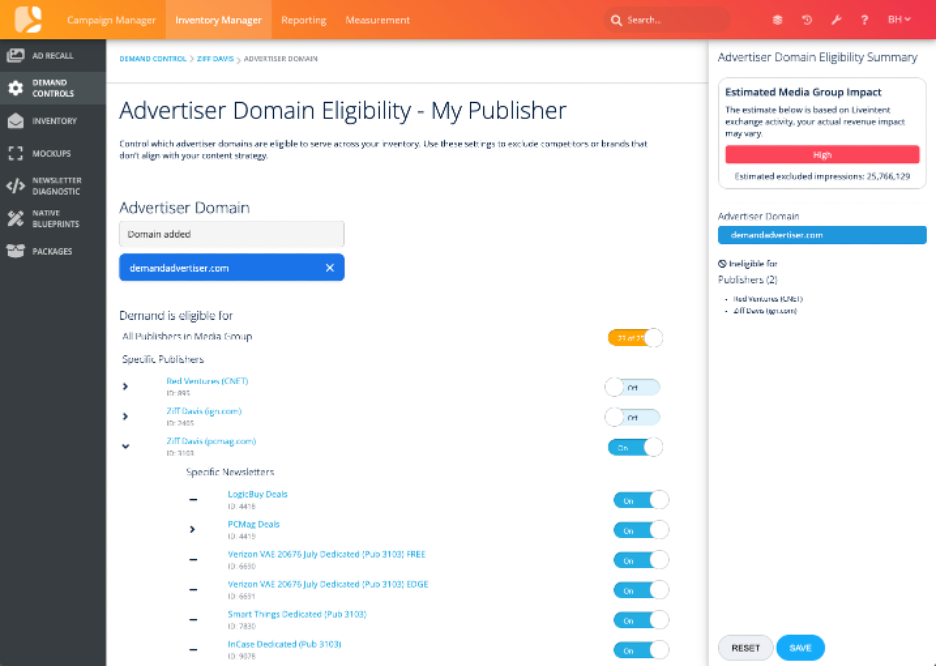
Block or allow specific advertiser domains from appearing in your inventory. You can make updates at a global publisher level or customize settings per newsletter or ad slot as needed.
-
Use the search bar to locate a domain and update its eligibility.
-
Download a list of all ineligible domains for a given publisher from the table view.
Creative-Level Eligibility
Advertisers often run several creatives with different content, tone, or categorization under one domain. Rather than making eligibility decisions for an entire domain, you can now view the actual active creatives an advertiser is serving and manage eligibility creative-by-creative.
-
When you add a domain, Demand Controls checks whether it maps to an active advertiser. If it does, a Creative icon appears next to the domain.
-
Click the Creative icon to open the Advertiser Creatives modal. Each creative shown includes:
-
A live preview of the creative
-
Creative ID
-
Delivery status (Active/Inactive)
-
Applied IAB and Sensitive Categories
-
A Select button
-
-
Select one or more creatives you want to manage eligibility for, then click Save. Selected creatives show as Selected in the modal and persist to the Creative Eligibility Summary panel.
-
From there, apply eligibility changes across Media Group, Publisher, Newsletter, or Ad Slot – the same workflow you already use for domains and categories.
-
If a domain already has creative-level overrides, a red badge appears on the Creative icon showing the number of overrides. This badge persists across sessions, so you always know at a glance which domains have creative-specific settings applied.
A Few Notes:
-
No active creatives: If the advertiser currently has no active creatives, the modal will let you know none are available – there’s nothing to select, and Save is disabled.
-
Domain doesn’t map to an advertiser: If the domain can’t be resolved to an active advertiser, the modal will indicate no matching advertiser was found. No creative list or selection controls will display.
-
Domain already marked ineligible: If a domain is set to Ineligible, the modal still opens so you can view its creatives, but the Select buttons are disabled with an line note that creative-level eligibility can’t be changed while the domain itself is ineligible.
How creative eligibility interacts with domain and category eligibility
Eligibility is evaluated in this order of precedence at delivery time:
-
Creative Eligibility (most specific – takes precedence)
-
Domain Eligibility
-
Category Eligibility
If a domain has creative-level overrides and you then mark the domain itself Ineligible, those creative overrides are suppressed, not deleted. They remain stored, and if you re-enable the domain, the creative-level overrides automatically resume.
While a domain is marked Ineligible, you cannot create new creative-level overrides – selection controls stay disabled until the domain is re-enabled.
Revenue Impact Metrics
When changing domain eligibility, a real-time indicator shows the potential revenue impact. These metrics are based on LiveIntent exchange-wide ad spend by the domain.
The color will change based on action:
-
Green: Indicates actions are low-risk for revenue, typically safe to proceed.
-
Red: Highlights actions that could reduce eligible demand and potentially lower revenue.
-
Orange: Represents neither low nor critical, but worth reviewing regardless of eligibility direction.
IAB Categories
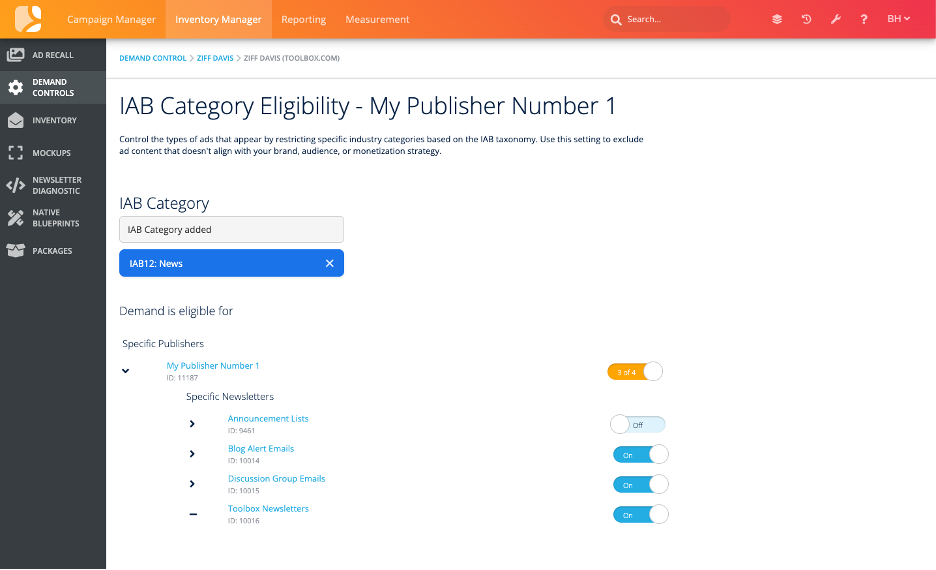
Block demand tied to specific IAB categories if you’d like to avoid certain verticals. Settings can be made at all levels of inventory.
-
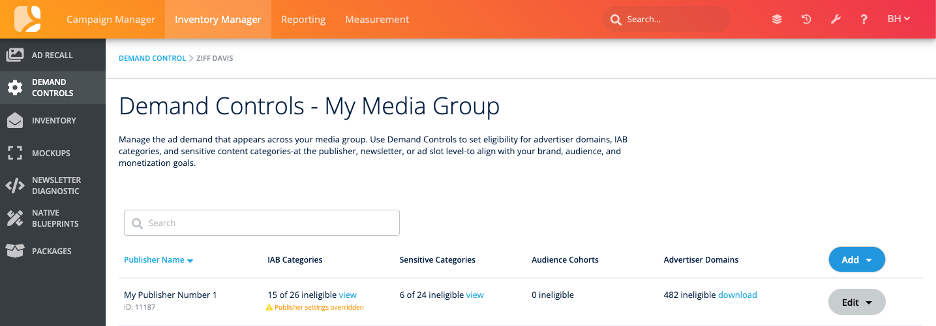
Overrides will be surfaced when a child (i.e. newsletter or ad slot) doesn’t inherit the parent setting.
-
The UI clearly marks what is ineligible and what has been overridden.
-
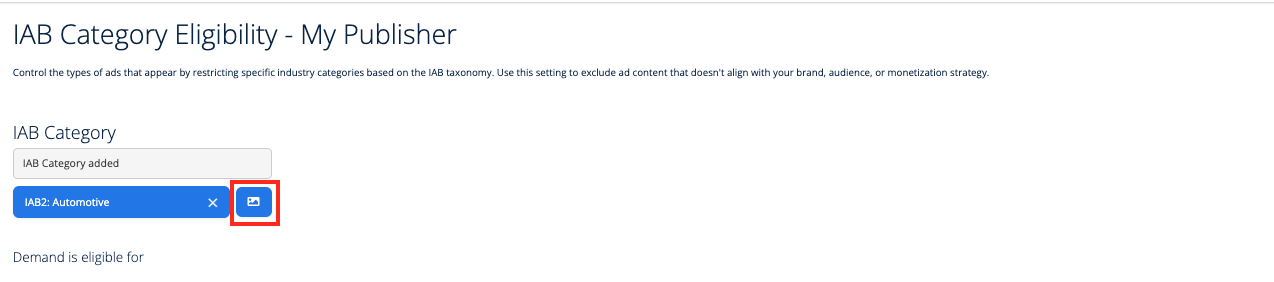
View examples of ad creatives associated with the IAB category you’ve selected to help you make eligibility decisions.
Sensitive Content Categories
Control whether ad creatives tied to potentially sensitive content (e.g., gambling, politics, cryptocurrency) can appear across your inventory.
-
Toggle eligibility per publisher, newsletter, or ad slot.
-
Overrides are flagged to help you monitor child-level discrepancies.
-
View examples of ad creatives associated with a selected Sensitive Content Category to help you make eligibility decisions.
Audience Suppression
Prevent monetized demand from being served to custom audience lists.
-
Choose a suppression audience from your list in the Audience Selection dropdown.
-
Toggle eligibility on or off at the publisher, newsletter, or ad slot level.
-
Suppression settings help ensure you stay aligned with regulatory requirements, campaign targeting goals, or internal brand safety policies.
How it Works
Each type of demand (domains, categories, audiences) is presented in a tab-based layout. When you select an entity (publisher, newsletter, or ad slot), you can:
-
Toggle demand eligibility on or off
-
See inherited settings from parent entities
-
·Make overrides when needed
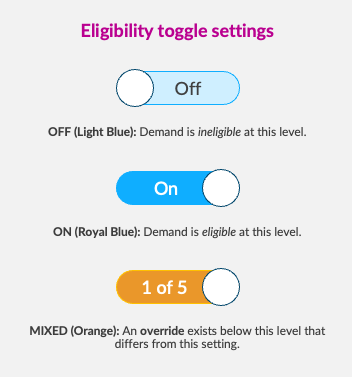
Toggle States
-
On (Eligible): Demand is allowed
-
Off (Ineligible): Demand is blocked
-
Mixed (Orange): A child entity differs from its parent setting
Multi-Entity Selection (Bulk Editing)
By default, Demand Controls shows you live eligibility toggles for every publisher under a single selected domain or category. When you need to apply the same change across several domains or categories at once, Multi-Entity Selection lets you do that in bulk.
How it works
-
Select a domain or category as usual – you’ll see live eligibility toggles for each publisher, as normal.
-
When you add a second domain or category, a modal appears letting you know that Demand Controls will stop displaying current eligibility settings for the selected publishers, newsletters, or ad slots – because eligibility can now differ per category, a single toggle can no longer accurately represent every selected item at once.
-
Choose Continue to proceed in bulk mode, or Cancel to back out.
-
Once confirmed, individual publisher toggles are replaced with a Configure button. The All Publishers in Media Group toggle remains available for group-wide changes. A message above the publisher list reminds you how many categories are currently selected.
-
Click Configure next to any publisher to open a modal listing every selected category/domain with its own eligibility toggle for that publisher (and its nested newsletters/ad slots).
-
The Summary panel works the same as it always has, but now reflects every category or domain you’ve added, each with its own set of expectations.
-
If you remove entities until only one remains selected, the screen reverts to the standard single-entity toggle view automatically.
This is a bulk overwrite tool. Any changes you apply while in multi-entity mode overwrite existing eligibility settings for the selected categories/domains and publishers – there’s no partial or differential update in this release.
Revenue/impact estimates are not shown in bulk mode. The Estimated Media Group Impact metric shown in the Summary panel is specific to a single domain or category; because it can’t be reliably blended across multiple selections, it’s hidden whenever more than one entity is selected.
Summary Panel
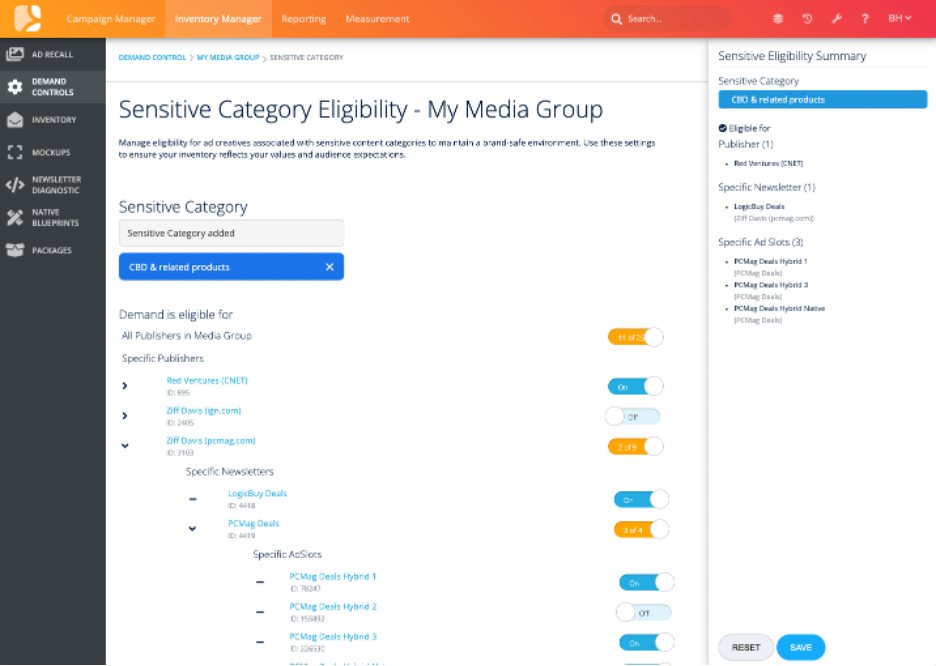
Once you make changes, a summary panel will appear on the right-hand side of the screen. It shows:
-
All updates made in your current session
-
Revenue impact metrics (for advertiser domain changes)
-
The option to Save or Reset your changes
-
If you select Reset, all pending changes will be reverted to their prior state.
-
When creatives are selected for eligibility management, the Summary panel will list the Creative IDs included in your update alongside the domain, with a link to view the full selected list.
-
The Estimated Media Group Impact metric is only shown when a single domain or category is selected. It will not appear when you’re editing eligibility for multiple domains/categories at once (see Multi-Entity Selection above).
How to Access
-
Navigate to Inventory Manager > Demand Controls.
-
If you have multiple Media Groups, you will be prompted to select one before proceeding.
-
Use the Add button above the Publisher table to update eligibility settings for any domain, category, or audience across your entire media group. Or use the Edit button within a specific publisher row to adjust eligibility settings for that publisher and its associated newsletters and ad slots.
Tips and Best Practices
-
Start broad, then refine. Begin by reviewing settings at the publisher level. You can always drill down to newsletters or ad slots later if more granular control is needed.
-
Review overrides regularly. Use the override indicators in the table to catch and resolve inconsistencies across child entities.
-
Use Impact Metrics to guide decisions. When blocking advertiser domains, watch for red “High Impact” indicators that may signal meaningful revenue loss.
-
Suppress smartly. Apply audience suppression lists to limit exposure of monetized demand to customers who are mid-funnel, post-conversion, or privacy-sensitive.
-
Save in batches. If you’re adjusting multiple settings, review and apply changes in the summary panel all at once to reduce back-and-forth edits.
Notes
-
Demand Controls only applies to publishers with monetization-enabled inventory.
-
Changes take effect in real-time but may require a few minutes to propagate across all systems.
-
A visual summary is provided to highlight overrides and current settings for each publisher.
Need Help?
For additional support, please contact your LiveIntent account team.