

In today’s fast-paced digital marketing landscape, businesses face challenges in effectively visualizing and leveraging real-time data on website visitor behavior and engagement. LiveMarketer addresses this by providing a comprehensive, real-time visualization tool that transforms raw website visitor data into actionable insights. This enhances customer engagement strategies and conversion opportunities.
Additionally, LiveMarketer augments your website data with Zeta’s proprietary data, unlocking new audiences and strategies that can be immediately executed through Zeta’s native and integrated channels.
What is LiveMarketer?
LiveMarketer is a visual tool that provides a live view of a client’s website, utilizing real-time scoring and visualizations of web behavior journeys. It helps businesses gain deeper insights into visitor interactions, allowing for better decision-making in customer engagement and conversion optimization. Here are the key features of LiveMarketer:
-
Real-Time Visualization: Depicts each visitor's engagement level and journey through dynamic, interactive bubbles.
-
Engagement Tracking: Measures visitor engagement, increasing bubble size as engagement intensifies.
-
Conversion Prediction: Positions bubbles to indicate the likelihood of conversion, aiding in targeted marketing efforts.
-
Visitor Categorization: Distinguishes between new and returning visitors and those exposed to advertising.
-
In-Depth Visitor Profiles: Provides detailed insights on visitor interests, visit history, and marketing potential.
-
Customizable Views: Offers various filters for site mapping, geographical data, and visitor segmentation.
Using LiveMarketer
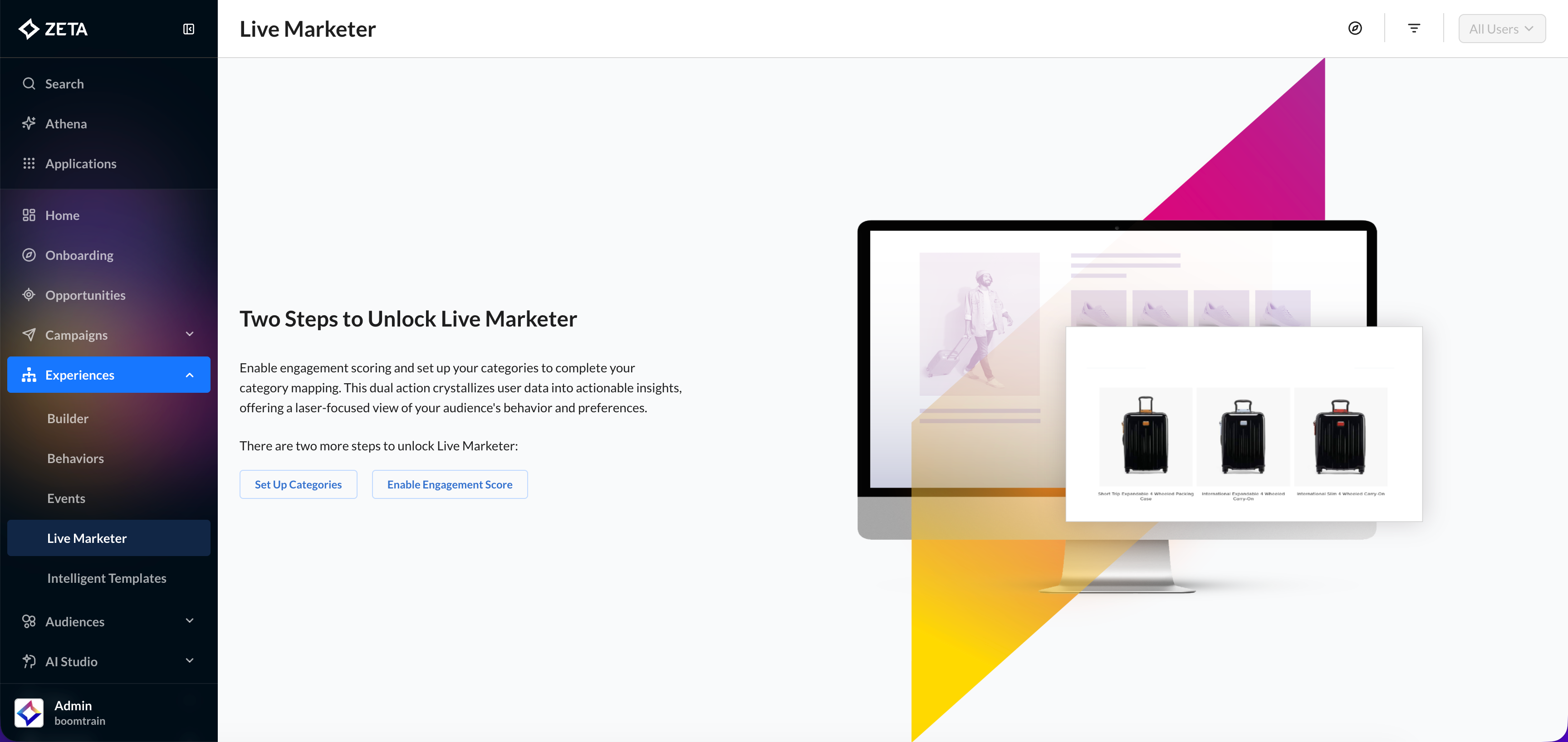
1. To navigate to the LiveMarketer tool, click on Experiences > Live Marketer from the taskbar on the left of the screen.
|
If LiveMarketer is enabled for your account but no categories have been set up, the live visitor chart remains empty. To set up the live view and engagement scoring:
|
|---|
2. Click on any of the bubbles to see the tracked live user’s information (IDs, Historical channel engagement touchpoints, Events, Conversions, Zeta-indexed audience attributes)

3. Click on the Generate Traffic button to start recording live visitor activity in real time.

4. LiveMarketer provides three viewing modes: Web, App, and Geo.

-
Switch to App mode to monitor app visitor interactions.
-
Use Geo mode to view the geographic distribution of visitors and analyze location-based trends.
4. Click on the slider button at the top-right corner of the report to change the time frame as per your preference: Last 30 days, Last 60 days, Last 90 days, or Live.

5. You can also click on the funnel icon in the top right corner to open the 'Filter Live Marketer' panel.

|
Filters |
Descriptions |
|---|---|
|
Category Mapping |
Filter visitors based on predefined category mappings, allowing you to analyze behavior within specific audience segments. |
|
Device Type |
Narrow down results by selecting a specific device type (e.g., desktop, mobile, tablet) to understand performance and engagement across different platforms. |
|
Score |
Sort visitors based on their assigned engagement or predictive score, helping you identify high-value or priority users. |
|
Segments |
Apply predefined audience segments to filter visitors by their shared characteristics, behaviors, or attributes. |
|
Traffic Source |
Analyze visitors based on their source of origin, such as organic search, paid ads, social media, or direct traffic, to understand which channels drive the most engagement. |
|
Visitor Lifetime |
Filter visitors based on their total interaction duration or longevity with your platform, helping assess retention and long-term user engagement. |
For more details on the Live Marketer feature exploration, click on the compass icon at the top to display all that you’d need to know from the report you see on your screen.
